How To Connect Heyday Headphones: Quick Setup Guide
Put the headphones into pairing mode, open Bluetooth on your device, and select “Heyday.”
I’ve helped dozens of people pair headphones, and I know how frustrating simple steps can feel when they fail. This guide shows you exactly how to connect Heyday headphones to phones, tablets, and laptops. You’ll get clear, tested steps for iPhone and Android, wired options, troubleshooting tips, firmware and battery advice, and real-life tricks I learned from hands-on use. Read on and you’ll pair quickly and confidently.

Understanding Heyday headphones and Bluetooth basics
Heyday headphones use standard Bluetooth profiles to stream audio and handle calls. Knowing a few Bluetooth basics makes pairing easier and faster. Key terms:
- Pairing: the initial handshake that links two devices.
- Bluetooth range: usually about 30 feet in open space.
- Pairing mode: makes the headphones visible to other devices.
Most Heyday models follow similar pairing rules. If you know how to connect Heyday headphones once, you can adapt to new devices quickly. The steps below assume your headphones are charged and not currently paired with another device.

How to connect Heyday headphones to an iPhone (step-by-step)
Follow these short steps to pair with an iPhone. These steps work for iPhones on recent iOS versions.
- Turn on the Heyday headphones by holding the power button for 2–3 seconds.
- Put the headphones into pairing mode. Usually hold the power button longer (5–7 seconds) until an LED flashes or you hear a voice prompt.
- Open Settings on your iPhone.
- Tap Bluetooth and ensure Bluetooth is on.
- Look under “Other Devices” for Heyday or the model name and tap it.
- Wait for “Connected” to appear. Test audio playback.
Troubleshooting quick tip: if the Heyday name doesn’t appear, toggle Bluetooth off and on, move closer, and cancel other active Bluetooth sessions. Practically, I once had to restart my phone when a smartwatch kept reconnecting. That cleared the conflict and let my Heyday headphones pair instantly.
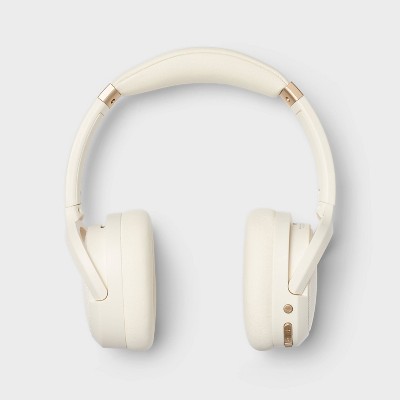
How to connect Heyday headphones to an Android device (step-by-step)
Android steps vary slightly by brand, but the process is similar. These directions cover most Android phones.
- Power on your Heyday headphones and enter pairing mode (hold power until LED flashes).
- Open Settings on your Android phone.
- Tap Connected devices or Bluetooth (some phones list Bluetooth under Network & Internet).
- Tap Pair new device or Scan.
- Select Heyday from the list when it appears.
- Confirm any pairing prompts and play audio to test.
If Android shows multiple Heyday entries, try the one labeled “Headphones” or the specific model number. A quick tip from experience: clear old Bluetooth pairings on your phone if pairing repeatedly fails.

Wired connection and using the aux or adapter
Some Heyday models include a 3.5mm jack for wired use. Here’s how to connect wired.
- Locate the headphone 3.5mm port and your device’s audio jack or adapter.
- Use a good-quality 3.5mm cable or USB-C/Lightning-to-3.5mm adapter if the device lacks a jack.
- Plug one end into Heyday and the other into your device. Wired mode usually bypasses Bluetooth automatically.
- Set device volume low first, then raise to a comfortable level.
Wired connection can solve latency or battery problems. I often switch to wired during long edits or flights where Bluetooth pairing is restricted.
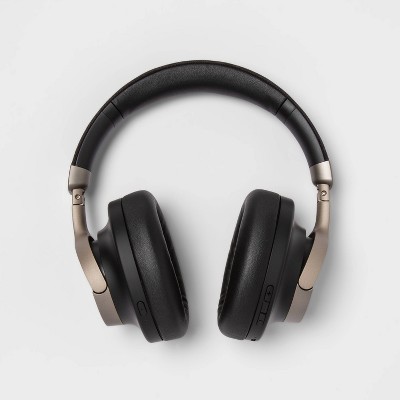
Troubleshooting common pairing issues and fixes
These step-by-step fixes handle most problems when trying to connect Heyday headphones.
- Headphones not showing in Bluetooth list
- Ensure headphones are in pairing mode and fully charged.
- Turn airplane mode on and off or restart your device.
- Device says “paired” but no sound
- Select Heyday as the audio output in playback controls or app.
- Check volume and Bluetooth media permissions.
- Keeps reconnecting to old device
- Turn Bluetooth off on the old device or remove the pairing entry.
- Reset the headphones (see reset steps below).
- Low or choppy audio
- Move closer to your device and remove obstructions.
- Ensure no heavy Wi‑Fi interference; try switching Wi‑Fi band if possible.
- Pairing requires a PIN or fails frequently
- Try common PINs: 0000 or 1234 if prompted. Most modern devices do not need a PIN.
How to reset Heyday headphones (general method):
- Power off the headphones.
- Press and hold power and volume + (or follow model-specific reset instructions) for 10–15 seconds.
- Release and restart. The LED should flash to show it’s reset.
Personal mistake to avoid: don’t try too many reset methods at once. Follow the model-specific method and give the device a minute to settle. This prevented me from accidentally toggling firmware update prompts mid-reset.

Tips, best practices, battery care, and firmware
Small habits keep pairing smooth and extend headphone life.
- Charge regularly: avoid letting the battery drain completely.
- Keep firmware updated: check the Heyday app or manufacturer instructions for updates.
- Forget old devices: clear unused pairings from headphones and phones to avoid conflicts.
- Store properly: keep headphones in the case to protect battery and pairing buttons.
- Test before travel: pair and confirm audio at home before heading out.
A firmware update once fixed call mic issues on my Heyday pair. Always back up any settings and read release notes before updating. Limitation note: not all Heyday models support firmware updates via an app; check model specifics.
Frequently Asked Questions of how to connect heyday headphones
How do I put my Heyday headphones into pairing mode?
Typically, press and hold the power button for 5–7 seconds until an LED flashes or you hear a voice prompt. If that doesn’t work, consult the quick-start guide for your specific Heyday model.
Why won’t my phone find my Heyday headphones?
Make sure the headphones are in pairing mode, charged, and not connected to another device. Restarting Bluetooth or the phone often resolves discovery issues.
How can I reset my Heyday headphones to factory settings?
Power off, then press and hold the power button and a designated secondary button (often volume +) for 10–15 seconds until the LED or voice indicates a reset. Model steps can vary, so check your manual if available.
Will Heyday headphones work in wired mode with my phone?
Yes, if your Heyday model has a 3.5mm jack or you use a compatible adapter for USB-C or Lightning. Wired mode bypasses Bluetooth and is useful for low-latency needs.
Why is the audio choppy when using Bluetooth with Heyday headphones?
Choppy audio often means low battery, interference, or long distance. Move closer, charge the headphones, and reduce nearby Wi‑Fi or Bluetooth congestion.
Conclusion
You now have a clear roadmap for how to connect Heyday headphones to phones, tablets, and laptops. Use the step-by-step pairing guides, try wired mode when needed, and follow the troubleshooting checklist to fix common issues fast. My practical tip: keep your headphones charged and clear old pairings regularly — this avoids most headaches. Try the steps now, share your experience below, or subscribe for more hands-on tech guides.