How to Turn off Headphone Safety: A Simple Step-by-Step Guide
How To Turn Off Headphone Safety
If you listen to music, watch videos, or take calls with headphones, you may have seen a warning about Headphone Safety. Your device sometimes lowers the volume or shows alerts if you listen at high levels. This feature is designed to protect your hearing, but it can be annoying, especially when you know your own limits. Many people, including myself, have wanted to turn off Headphone Safety. In this guide, I will show you how to do it on different devices, explain why it exists, and share tips to stay safe even when the feature is off.
Why Headphone Safety Exists
Headphone Safety is a system feature in many smartphones and computers. It tries to stop you from using high volume for too long. The goal is to protect your ears. According to the World Health Organization, about 1.1 billion young people risk hearing loss from unsafe listening. Loud sounds over 85 decibels can damage hearing if listened to for more than 8 hours. Most devices set warnings or limits at 85–100 decibels.
You might see:
- Volume limit warnings
- Automatic volume reductions
- Notifications about high listening levels
These features are good for children or anyone who often ignores volume alerts. But for adults who know the risks and monitor their habits, Headphone Safety can feel restrictive.
When Headphone Safety Gets In The Way
Many users complain that Headphone Safety lowers their volume when they listen to music outdoors, on planes, or in noisy places. Sometimes, you need higher volume to hear well. I remember once, during a long flight, I tried to watch a movie, but my iPhone kept lowering the volume.
It was frustrating because I couldn’t hear the dialogue well, even after several adjustments. This is a common experience for many people.
If you use Bluetooth headphones or earbuds, you may get more warnings. Apple, Samsung, and other brands have their own ways to measure volume, and they often err on the side of caution.
How Devices Monitor Volume
Your device checks the volume output and counts how long you use headphones. It also tracks the average loudness. If you cross a set threshold, Headphone Safety activates.
Some details:
- IPhones: Measure the average volume and warn if it’s too high for 7 days.
- Android phones: Use a similar method, but the warning style can vary.
- Windows computers: Usually do not have strict headphone safety, but some apps may include it.
- Mac computers: Similar to iPhones, but with fewer restrictions.
Devices often use software to estimate decibel levels. Sometimes, this is not accurate, especially with third-party headphones.
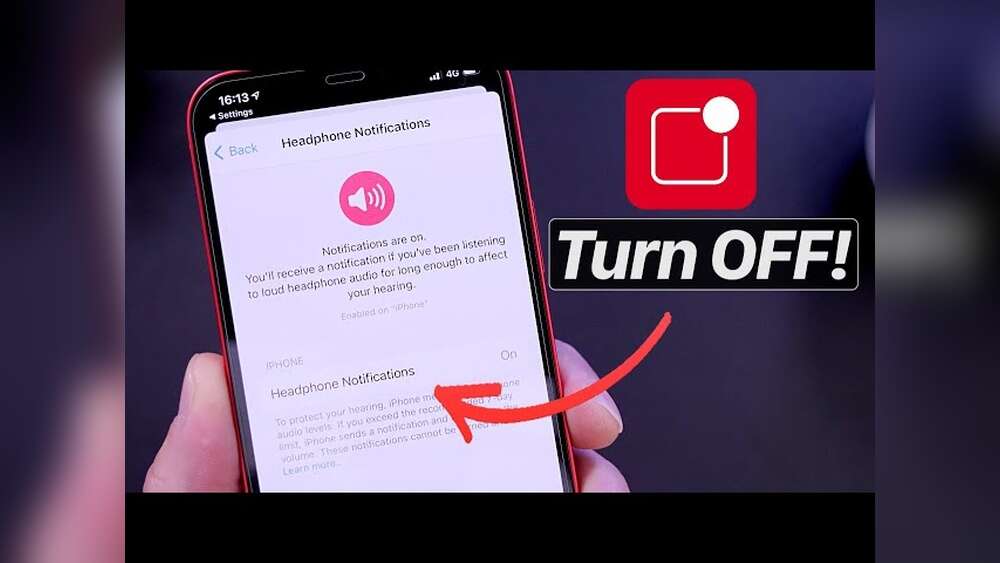
How To Turn Off Headphone Safety On Iphone
Apple devices have strict Headphone Safety features. Here’s how to turn them off:
- Open the Settings app.
- Tap Sounds & Haptics.
- Tap Headphone Safety.
- Toggle Reduce Loud Sounds off.
You can also set a custom decibel limit if you prefer. If you use iOS 14 or later, you might see a slider to set the maximum allowed volume.
A quick tip: If your iPhone still reduces volume, check if you have Screen Time restrictions. Screen Time can lock some safety features. Go to Settings > Screen Time > Content & Privacy Restrictions and make sure volume limits are not enabled.
For AirPods, the Headphone Safety feature is linked to the phone. If you use AirPods on a friend’s iPhone, their safety settings will apply.
How To Turn Off Headphone Safety On Android
Android phones offer more freedom. Here’s how to turn off safety limits:
- Open Settings.
- Tap Sound & vibration.
- Tap Volume.
- Look for Volume limit or Safe volume. Turn it off.
Some Android devices, like Samsung Galaxy, have a feature called Media Volume Limit:
- Go to Settings > Sounds and vibration > Volume > Media Volume Limit.
- Turn off the limit, or set a PIN so only you can change it.
On some phones, you can use third-party apps to bypass limits. But be careful—these apps may affect your device’s performance.
Turning Off Headphone Safety On Windows
Windows computers do not have built-in Headphone Safety, but some apps do. For example, if you use Skype, you might see volume warnings.
To avoid limits:
- Open your sound settings.
- Adjust the volume mixer for each app.
- Check for audio control software (like Realtek) and disable any safety limits.
If you use parental controls, check their settings. Sometimes, these controls include volume restrictions.
How To Turn Off Headphone Safety On Mac
Mac computers have fewer restrictions. Here’s how you can adjust or turn off limits:
- Open System Preferences.
- Click Sound.
- Adjust the Output volume slider.
If you use parental controls, go to System Preferences > Screen Time > Content & Privacy and check the settings.
For certain Mac models, you may need to check the Audio MIDI Setup tool. This lets you set maximum output levels for connected devices.
Common Problems When Disabling Headphone Safety
Disabling Headphone Safety is easy for most devices, but you might face these issues:
- Settings revert automatically: On iPhones, the safety feature can turn back on after updates.
- Volume still limited: Some headphones have built-in limits that cannot be changed from the phone.
- Warnings keep appearing: If you use multiple devices, each one may have its own settings.
A tip from personal experience: Once, I disabled Headphone Safety on my Samsung Galaxy, but my Bluetooth headphones still limited volume. I realized that the headphones had their own safety chip. It helps to check the manual for your headphones.
Data Comparison: Device Volume Limits
Here’s a quick comparison of volume limits on popular devices.
| Device | Default Volume Limit | Can Be Turned Off? | Custom Limit Option |
|---|---|---|---|
| iPhone (iOS 15) | 85 dB | Yes | Yes |
| Samsung Galaxy S23 | 90 dB | Yes | Yes |
| MacBook Air | None | N/A | N/A |
| Windows 11 PC | None | N/A | N/A |
| AirPods Pro | Device-based | Yes | No |
How Headphone Safety Affects Different Users
For many people, Headphone Safety is helpful. Children often ignore volume warnings, so parents use these features. Some adults with sensitive hearing also need protection.
But for others, the feature can be a nuisance. Musicians, audio engineers, and people who work in noisy environments often need higher volume levels. If you have hearing loss, you may need louder sound to hear clearly.
A real-world example: My friend works in construction. He often needs to listen to instructions on his phone with headphones. Because of the noise, he sets his volume higher, but Headphone Safety keeps lowering it. He found that turning off the feature made his job easier, but he also learned to take breaks to protect his hearing.
Safety Tips When Headphone Safety Is Off
Turning off Headphone Safety gives you more freedom. But you must be careful to protect your hearing. Here are some tips:
- Keep volume below 60% of the maximum most of the time.
- Take breaks every hour. Remove your headphones for five minutes.
- Use noise-canceling headphones so you don’t need to increase volume in noisy places.
- Set reminders to check your listening habits weekly.
- Check your hearing once a year with a professional.
Hidden Risks: Why Some People Ignore Headphone Safety
It’s easy to forget about the risks of loud headphones. Many people believe “I don’t feel pain, so it’s safe. ” But hearing loss often happens slowly. You might not notice it until it’s too late.
Some dangers:
- Permanent hearing damage after long-term loud listening
- Ringing in the ears (tinnitus)
- Difficulty hearing conversations in busy places
A study from the Centers for Disease Control and Prevention showed that about 17% of teens have hearing loss from noise exposure. Even adults can develop problems if they ignore safety.
Understanding Decibels And Safe Listening
Decibels (dB) measure loudness. Here’s a simple guide:
| Sound Example | Decibel Level | Safe Listening Time |
|---|---|---|
| Normal conversation | 60 dB | Unlimited |
| Busy street | 80 dB | 8 hours |
| Headphones at max | 100 dB | 15 minutes |
| Rock concert | 120 dB | 1 minute |
The higher the decibel level, the shorter the safe listening time. Try to keep your headphone volume around 60–80 dB most of the time.
Comparing Headphone Safety Across Brands
Different brands use different methods to set safety limits.
| Brand | Safety Feature | How It Works | Can User Control? |
|---|---|---|---|
| Apple | Headphone Safety | Warns after 7 days of high volume | Yes |
| Samsung | Safe Volume | Limits max output | Yes |
| Sony | Headphone App Safety | Customizable warning | Yes |
| Bose | Built-in limiter | Fixed limit | No |
If you want full control, choose headphones and devices that let you set your own limits.
Legal And Medical Advice
Some countries, like France, require devices to have volume limits by law. If you travel, your phone may follow local rules. You can check your device manual or online forums to learn about local restrictions.
Medical experts agree: Always listen at safe levels. If you turn off Headphone Safety, you are responsible for your hearing. If you experience pain, ringing, or muffled sounds, stop using headphones and see a doctor.
My Own Experience With Hearing Health
I have listened to music with headphones for years. When I was younger, I often used high volume and ignored warnings. After a while, I noticed mild ringing in my ears after long sessions. This scared me, so I started using lower volume and taking breaks.
Now, I never listen above 60% volume, and I use noise-canceling headphones when possible. My hearing is still good, but I learned my lesson. It’s easy to think “I’m safe,” but hearing damage can happen before you notice it.
Non-obvious Insights: What Most People Miss
- Volume isn’t the only factor: Long listening time is just as risky as high volume. Even safe volume can cause problems if you listen for many hours without a break.
- Headphone type matters: Over-ear headphones often allow lower volume because they block outside noise better. In-ear earbuds may need more volume in busy places. Choose headphones that fit your needs.
- Ambient noise can trick you: If your environment is noisy, you may turn up the volume without realizing how loud it gets. Try to find quiet places or use noise-canceling features.
Expert Guidance: How To Choose Safe Headphones
If you decide to turn off Headphone Safety, pick headphones carefully:
- Look for noise-canceling models. They let you hear clearly at lower volume.
- Avoid models with built-in volume limiters if you want full control.
- Choose headphones that fit well and block outside noise.
- Read reviews and technical specs before buying.
For more on headphone safety standards, you can check Wikipedia.
How To Monitor Your Own Listening
If you turn off Headphone Safety, monitor your habits:
- Use apps that track listening time and volume.
- Check your device’s health app (iPhones have Health > Hearing).
- Set weekly goals for safe listening.
If you notice discomfort, pause and lower your volume.
Frequently Asked Questions
How Do I Know If My Headphones Have Built-in Volume Limits?
Check the manual or product page for your headphones. Some models, especially for children, include limits that cannot be changed. Over-ear headphones usually offer more control than earbuds.
Why Does My Device Keep Lowering The Volume Even After I Turn Off Headphone Safety?
Your device may reset settings after updates. Also, some headphones have their own safety chips. Try checking both your device and headphone settings. If the problem continues, look for help from the support team.
Is It Safe To Listen At Maximum Volume If I Only Use Headphones For A Short Time?
Short bursts at high volume are less risky, but it’s easy to overdo. Experts recommend keeping volume below 60% most of the time. If you need high volume, limit it to less than 15 minutes per session.
Can I Use Third-party Apps To Bypass Headphone Safety?
Some apps claim to bypass limits, but they may not be safe. They can affect device performance and may not work on all models. Always read reviews and use trusted apps.
What Should I Do If I Notice Ringing In My Ears After Listening To Headphones?
Stop using headphones and lower your volume. Take a break for a few days. If ringing continues, see a doctor. Early treatment can help prevent long-term hearing loss.
Final Thoughts
Turning off Headphone Safety is possible on most devices, but you must be careful. The feature exists to protect your hearing. If you disable it, monitor your volume and listening time. Take breaks, use noise-canceling headphones, and check your hearing regularly.
From my own experience, paying attention to safety makes a big difference. Choose what works for you, but never ignore discomfort or warnings. Safe listening keeps your hearing healthy for years to come.
:max_bytes(150000):strip_icc()/A3-TurnOffHeadphoneSafetyoniPhone-annotated-f7466a56539a418bae6d1a8c47604905.jpg)
Credit: www.lifewire.com