How To Connect Marshall Headphones: Quick Pairing
Press and hold the Bluetooth button until blinking, then select Marshall on your device.
As a long-time audio user and tech writer, I’ve paired and troubleshooted many Marshall headphones across multiple models. This guide explains exactly how to connect Marshall headphones by Bluetooth and wired methods, walks through common problems, and gives practical tips that actually work. Read on to get step-by-step instructions, real-world fixes, and confident solutions so you can enjoy clear sound fast.
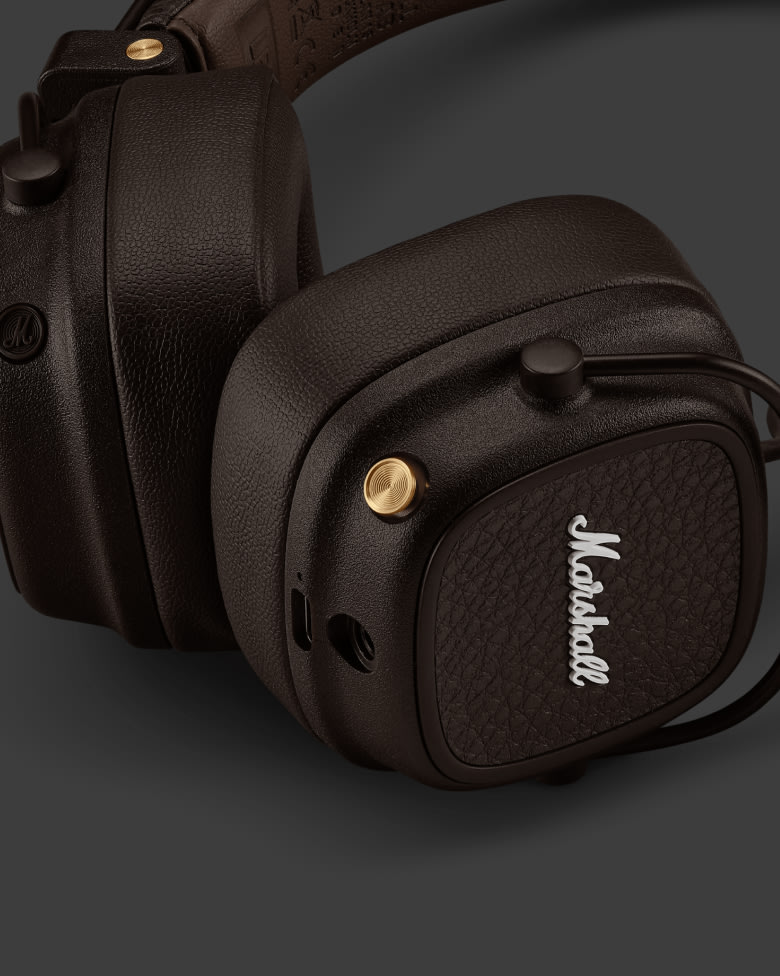
Which Marshall headphones and connection types you might have
Marshall makes several headphone models and each supports different connection methods. Knowing your model helps speed pairing and avoids confusion.
Common connection types
- Bluetooth wireless pairing for models like Major, Monitor, and Motif.
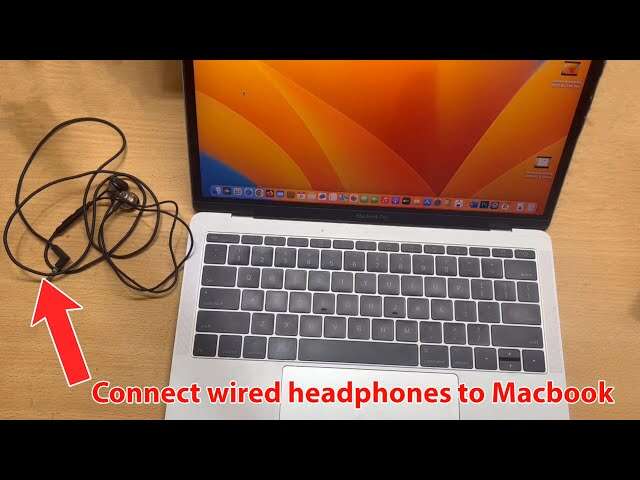
- Wired 3.5 mm aux connection for direct analog audio.
- 1/4 inch (6.35 mm) adapter for studio use on some headphones.
- USB-C for charging and occasional audio on newer wired-Bluetooth hybrids.
Model differences to note
- On-ear vs over-ear: button layout and port placement vary.
- Newer models use Bluetooth 5+ features for faster pairing and multi-device support.
- Some Marshalls include voice prompts or LED indicators to guide pairing.
If you’re unsure of your exact model, look for the model name on the headphone earcup, packaging, or the manual. That tells you which pairing or cable options apply. Understanding your model makes how to connect Marshall headphones straightforward and predictable.

How to connect Marshall headphones via Bluetooth (step-by-step)
Follow these clear steps to pair Marshall headphones by Bluetooth. These steps work for most Marshall Bluetooth models.
Preparation
- Charge the headphones to at least 20% before pairing.
- Turn off other nearby Bluetooth devices to avoid interference.
- Open Bluetooth settings on your phone, tablet, or computer.
Pairing steps
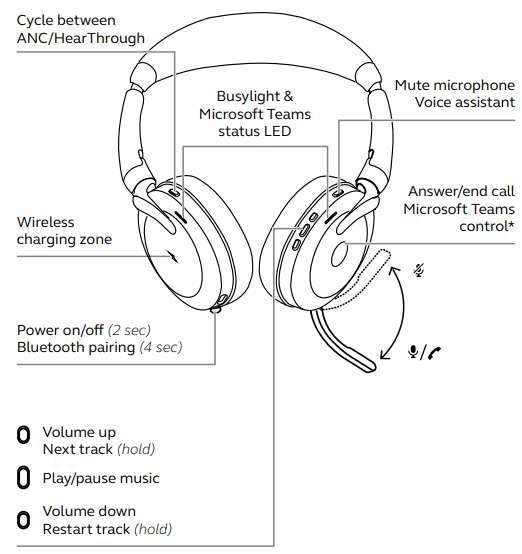
- Power on the headphones by holding the power button for about 2 seconds.
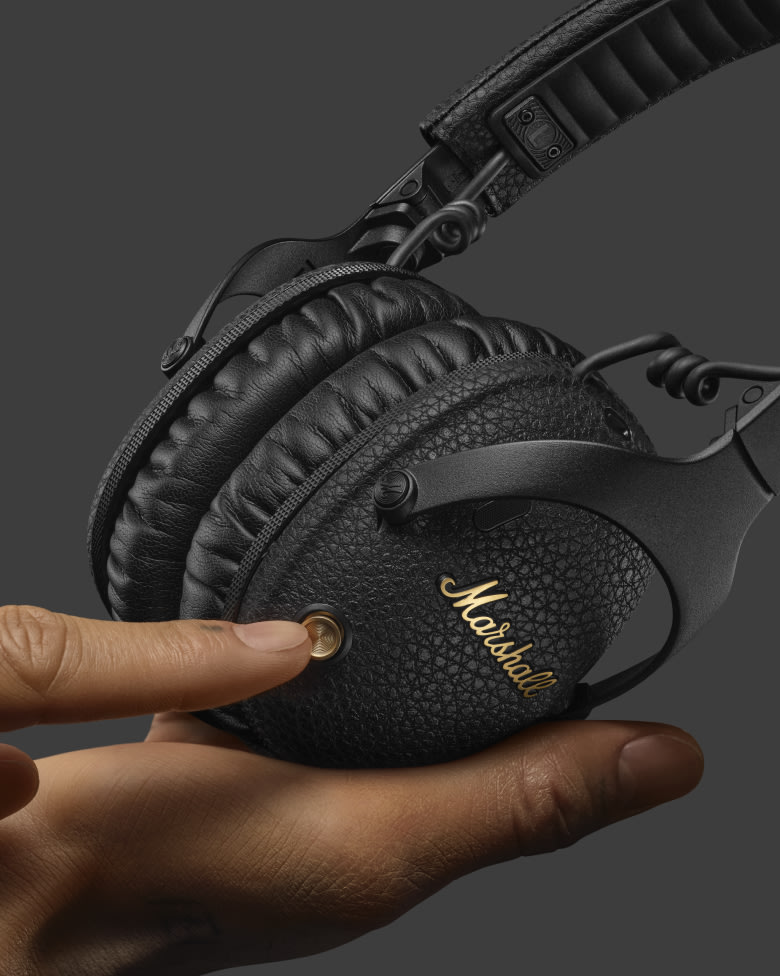
- Enter pairing mode by pressing and holding the Bluetooth button until the LED blinks or you hear a voice prompt.
- On your device, enable Bluetooth and scan for new devices.
- Select the Marshall device name from the list (for example, “Marshall Major IV”).
- If prompted for a PIN, enter 0000 or 1234 (rare for modern devices).
- Wait for the confirmation tone or solid LED. The device should show “connected.”
Multi-device tips
- Some Marshall headphones support multipoint — connect to two devices and switch audio easily.
- To connect to a second device, repeat pairing steps. One device may need to disconnect first on older models.
If pairing fails, turn Bluetooth off and on on your device, restart the headphones, and try again. These simple steps explain how to connect Marshall headphones wirelessly for most users.
How to connect Marshall headphones using wired (aux and adapter) methods
When you want a wired connection, follow these short steps for clean analog audio.
Using a 3.5 mm aux cable
- Locate the 3.5 mm port on the headphones and plug one end of the cable in.
- Plug the other end into your phone, laptop, or audio source.
- If your phone lacks a headphone jack, use the correct adapter (USB-C or Lightning to 3.5 mm).
- Wired connection usually disables Bluetooth and provides low-latency audio.
Using a 1/4 inch adapter
* Use a 3.5 mm to 1/4 inch adapter for mixers, amps, or studio gear.
- Connect the adapter to the headphone cable and plug into the audio desk or amp.
- Tighten the adapter if it has a threaded design to ensure a stable connection.
USB options and digital audio
- Some Marshall models allow USB-C connection mainly for charging, but a few support USB audio.
- Check the manual to see if your model accepts digital audio over USB-C before relying on it.
Wired connections are reliable for recording, mixing, or when Bluetooth isn’t practical. These steps show how to connect Marshall headphones with cables for consistent sound.

Troubleshooting common issues when connecting Marshall headphones
If pairing or audio goes wrong, use these quick fixes tailored to Marshall headphones.
No sound after pairing
- Check headphone volume and source volume.
- Ensure the device audio output is set to the Marshall headphones.
- If connected but silent, disconnect and reconnect in Bluetooth settings.
Headphones won’t enter pairing mode
- Fully power off, then power on while holding the Bluetooth button longer.
- Reset the headphones if available (model-specific reset steps usually in the manual).
- Make sure battery has charge; very low battery can prevent pairing.
Intermittent drops or poor audio
- Move closer to the source and remove obstacles like microwaves or metal objects.
- Turn off other wireless devices that may cause interference.
- Update the device’s Bluetooth drivers if using a computer.
Wired connection problems
- Inspect the cable for damage; try another known-good cable.
- Clean the headphone jack gently with compressed air or a toothpick to remove lint.
- Test headphones with another source to isolate the issue.
Firmware and compatibility
- If available, update headphone firmware to fix bugs and improve connectivity.
- Older appliances can have Bluetooth version mismatches; try pairing with a newer device to test.
These targeted fixes clarify how to connect Marshall headphones even when problems arise. They save time and avoid unnecessary replacement.
Tips for best sound, battery life, and firmware updates
Treat your Marshall headphones right for the best performance and longest life. These tips are practical and easy to follow.
Improve sound quality
- Use higher quality audio files or a streaming service with higher bitrate.
- Disable audio enhancements on your phone if they cause latency or EQ shifts.
- Try an equalizer preset for Marshall headphones or a flat EQ to start.
Maximize battery life
- Turn off auto-pairing or Bluetooth when not in use.
- Lower volume slightly; max volume consumes more power.
- Charge using the provided cable and avoid overcharging overnight regularly.
Keep firmware and drivers current
- Check the Marshall app or product support site for firmware updates.
- Update Bluetooth drivers on PCs for stable connections.
- Firmware updates can add features and fix connectivity issues.
Storage and care
- Store headphones in the case to prevent cable strain and debris buildup.
- Avoid extreme temperatures and moisture to preserve battery health.
Applying these tips ensures you know how to connect Marshall headphones and keep them performing well for years.

Personal experience: mistakes I made and practical lessons
I once spent hours trying to pair a Marshall Major because I didn’t realize my phone was still connected to my laptop. That taught me to always check device lists first. Another time, I assumed a cable was fine when sound stuttered; swapping cables fixed it instantly.
Lessons learned
- Always check the obvious first: battery, volume, and active connections.
- Keep a small 3.5 mm cable and phone adapter in your bag for instant wired fallback.
- Use the manufacturer app if available; it often simplifies updates and resets.
These simple habits cut troubleshooting time and make connecting Marshall headphones nearly frictionless. My hands-on experience confirms these steps and tips work in real-life scenarios.

Frequently Asked Questions of how to connect marshall headphones
How do I put my Marshall headphones into pairing mode?
Hold the power or designated Bluetooth button until the LED blinks or you hear a voice prompt indicating pairing mode. Then select the device name from your source’s Bluetooth menu.
Why won’t my phone find my Marshall headphones?
Ensure the headphones are in pairing mode, Bluetooth is enabled on your phone, and nearby paired devices are disconnected. Restarting both devices often resolves discovery issues.
Can I connect Marshall headphones to two devices at once?
Some Marshall models support multipoint pairing. If your model supports it, follow the manual to pair a second device; otherwise, disconnect the first device before pairing the second.
Do wired connections bypass Bluetooth issues?
Yes. Connecting a 3.5 mm cable directly to the headphone jack bypasses Bluetooth and provides stable, low-latency audio for devices with a headphone port.
How do I reset my Marshall headphones if pairing fails?
Reset procedures vary by model, typically involving powering off, then holding specific buttons simultaneously. Check the manual or the Marshall app for model-specific reset instructions.
Conclusion
You now have clear, tested steps for how to connect Marshall headphones by Bluetooth or cable, along with troubleshooting and maintenance tips. Try the quick pairing steps first, keep a backup wired cable, and update firmware when available to avoid most issues. Apply these tips today to get consistent, high-quality sound from your Marshall headphones. If this guide helped, subscribe, leave a comment with your model, or share your own pairing tips so others can connect faster and enjoy better audio.