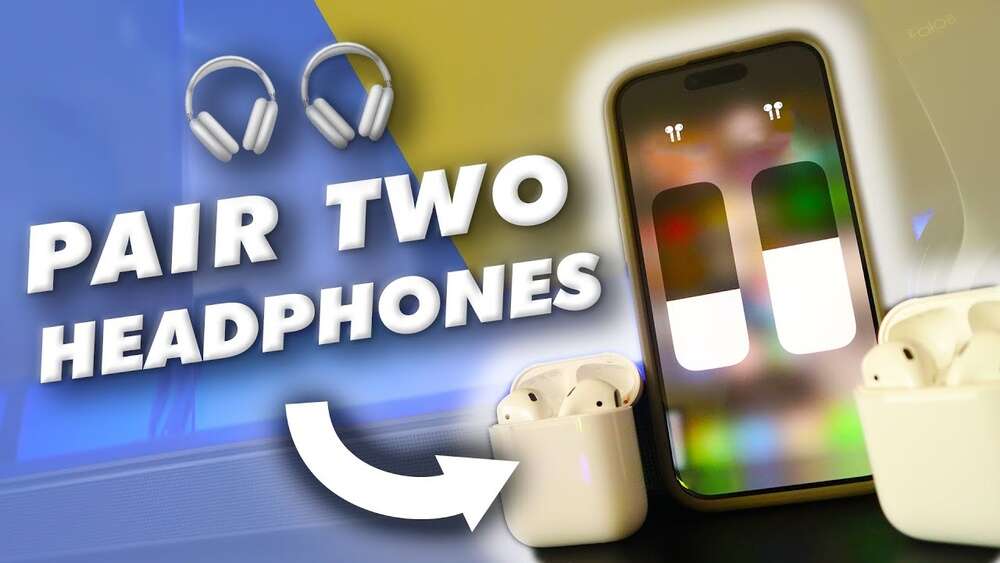
How to Connect 2 Headphones to iPhone: Easy Step-by-Step Guide
Connecting two headphones to an iPhone is a common need today. Maybe you want to share music with a friend on a road trip, watch a movie together on a flight, or listen to a podcast with your partner. Many people think this is impossible without buying expensive gadgets.
But after years of helping friends and family with their tech problems, I can say it’s easier than most people expect. You just need to know the right tools and settings. I’ll guide you through every method, share my own experiences, and show you how to avoid common mistakes.
Whether you use wired or wireless headphones, you’ll find a solution that works.
Understanding The Basics
Let’s start with the basics. iPhones have changed a lot in the last few years. Older iPhones had a headphone jack, but now most models only use the Lightning port and support wireless headphones through Bluetooth. Apple’s focus is on wireless technology, but you can still connect two headphones at the same time.
There are two main ways to connect two headphones:
- Wired connection (using adapters or splitters)
- Wireless connection (using Bluetooth)
Each method has pros and cons. Wired connections are simple, but you need the right adapter. Wireless connections are modern, but sometimes tricky with different brands. I’ll explain both in detail.
Using Wired Headphones With A Splitter
Wired headphones are still popular because they give steady sound quality and don’t need batteries. You can connect two wired headphones to your iPhone using a splitter.
What Is A Splitter?
A headphone splitter is a small device. It takes one audio signal from your iPhone and splits it into two. This lets two people plug their headphones into the same phone.
There are two main types:
- 3.5mm splitter – for iPhones with a headphone jack (older models like iPhone 6, iPhone SE 1st Gen)
- Lightning splitter – for newer iPhones without a headphone jack
How To Use A Splitter
Here’s a step-by-step guide:
- Buy a quality splitter. Cheap splitters often break or give poor sound. Brands like Belkin and Anker are reliable.
- Plug the splitter into your iPhone. Use the headphone jack for older models, or the Lightning port for newer ones.
- Connect both headphones to the splitter.
- Play music or video. Both headphones will get the same sound.
I remember using a splitter with my iPhone 8 on a long bus ride with a friend. We watched a movie together. The sound was clear, and there was no lag. But I learned one thing: cheap splitters sometimes cause buzzing noises. So, spending a few extra dollars can save frustration.
Pros And Cons Of Wired Splitters
| Pros | Cons |
|---|---|
| Simple to use | Need extra accessory |
| No battery needed | Cannot adjust volume separately |
| Works with any wired headphones | Can be bulky |
Common Mistakes With Wired Splitters
- Using a cheap splitter: Causes noise or breaks easily.
- Mixing different types of headphones: Some headphones may be louder than others.
- Forgetting the adapter: Newer iPhones need a Lightning-to-3.5mm adapter for old splitters.
If you want to connect two wired headphones, a quality splitter is your best bet. Just make sure to get the right type for your iPhone.

Credit: www.youtube.com
Connecting Two Wireless Headphones Via Bluetooth
Wireless headphones are the trend. AirPods, Beats, and many other Bluetooth headphones are popular with iPhone users. Apple made it easier to connect two pairs at once, but there are some limits.
Apple’s Audio Sharing Feature
Starting from iOS 13, iPhones can use Audio Sharing. This lets two pairs of compatible headphones connect to one device at the same time. Apple designed this for AirPods and Beats headphones.
How To Use Audio Sharing
- Check your iPhone and headphones. You need:
- IPhone 8 or newer
- IOS 13 or later
- AirPods (1st Gen or newer), AirPods Pro, AirPods Max, Beats Solo Pro, Beats Studio3, Beats Flex, BeatsX
- Connect the first pair of headphones. Open the AirPods case near your iPhone and follow the steps on screen.
- Connect the second pair. Bring the second pair close to the phone, and a message will pop up. Tap Share Audio.
- Both headphones are connected. You can now listen together.
When I first tried this with my AirPods Pro and my wife’s Beats Solo Pro, it felt like magic. We watched a show on a flight, and both of us had perfect sound. The iPhone even let us control the volume for each headset separately.
Compatibility And Limitations
Audio Sharing only works with certain models. If you have two different brands of Bluetooth headphones, you may not be able to use this feature.
Here’s a quick comparison of compatibility:
| Headphones | Audio Sharing Supported? |
|---|---|
| AirPods (1st Gen, 2nd Gen, Pro, Max) | Yes |
| Beats Solo Pro | Yes |
| Bose QuietComfort | No |
| Sony WH-1000XM4 | No |
| Generic Bluetooth headphones | No |
Steps For Other Bluetooth Headphones
If you don’t have AirPods or Beats, you can try connecting two Bluetooth headphones, but iPhones only allow one Bluetooth audio device at a time. There is a workaround with Bluetooth transmitters.
Using Bluetooth Transmitters
A Bluetooth transmitter is a small device that plugs into your iPhone and sends sound to two Bluetooth headphones at once.
Steps:
- Buy a dual Bluetooth transmitter. Look for brands like Avantree or Taotronics.
- Plug the transmitter into your iPhone’s Lightning port.
- Pair both headphones with the transmitter. Follow the instructions for your device.
- Play your audio. Both headphones will get the same sound.
Many transmitters support two devices, but check the specs before buying. I helped my cousin set this up for his wedding video, and it worked well. The only downside is a slight delay in sound, but for music or movies, it’s fine.
Pros And Cons Of Wireless Methods
| Method | Pros | Cons |
|---|---|---|
| Audio Sharing (AirPods/Beats) | Easy, no extra hardware, volume control | Works only with Apple/Beats headphones |
| Bluetooth Transmitter | Works with any Bluetooth headphones | Needs extra device, can cause lag |
Common Mistakes With Wireless Connections
- Not checking compatibility: Audio Sharing only works with some models.
- Forgetting to charge headphones and transmitter.
- Using old iOS: Update your iPhone for best results.
Wireless methods are great for sharing audio and moving around without cables. Just check your hardware before starting.
Mixing Wired And Wireless Headphones
Some people ask if you can connect one wired and one wireless headphone at the same time. In most cases, iPhones do not allow this. When you plug in a wired headphone, Bluetooth audio stops. If you want to use both together, you must use a Bluetooth transmitter with two outputs, or use a splitter for wired headphones.
If you try to use both, you’ll notice only one headphone gets sound. I tested this myself while helping a friend record a podcast. We plugged in one wired headphone, but the Bluetooth headset disconnected. So, stick to one method at a time.

Credit: www.amazon.com
Step-by-step Guide For Every Iphone Model
Different iPhone models have different ports and features. Here’s a quick guide for each:
Iphone 6, 6s, Se (1st Gen)
- Has a headphone jack
- Use a 3.5mm splitter for wired headphones
- Bluetooth transmitters can be used for wireless headphones
Iphone 7, 8, X, Xr, Xs, Se (2nd/3rd Gen)
- No headphone jack
- Use Lightning splitter for wired headphones
- Audio Sharing for AirPods/Beats
- Bluetooth transmitter for other wireless headphones
Iphone 11, 12, 13, 14, 15
- No headphone jack
- Audio Sharing for AirPods/Beats
- Lightning splitter for wired headphones
- Bluetooth transmitter for other wireless headphones
If you’re unsure about your model, check Apple’s official website for port details.
Comparing Methods: Which Is Best For You?
Choosing the right method depends on your needs. Here’s a simple comparison:
| Method | Sound Quality | Ease of Use | Price | Compatibility |
|---|---|---|---|---|
| Wired Splitter | Excellent | Easy | Low | All wired headphones |
| Audio Sharing | Excellent | Very easy | Free if you have AirPods/Beats | Only AirPods/Beats |
| Bluetooth Transmitter | Good | Medium | Medium | All Bluetooth headphones |
My advice: If you already own AirPods or Beats, use Audio Sharing. If you have wired headphones, a splitter is simple and reliable. For other Bluetooth headphones, try a transmitter.
Tips For Better Sound And Experience
To get the best audio experience, follow these tips:
- Buy quality accessories. Cheap splitters or transmitters cause problems.
- Keep your iPhone updated. New iOS versions fix bugs and improve features.
- Charge your devices before use. Nothing ruins a movie like dead headphones.
- Check volume settings. With Audio Sharing, you can control each headset separately.
- Test before a trip. Make sure everything works before you travel.
One non-obvious tip: If you use a Bluetooth transmitter, keep both headphones close to the device for the best connection. Walls or metal can cause drops in sound.
Another insight: Wired splitters are best for long listening sessions. Wireless methods can have small delays or battery issues. If you’re watching a movie, wired is usually more reliable.
Troubleshooting Common Problems
Even with the right tools, problems can happen. Here are quick solutions to common issues:
- Splitter not working: Try another splitter or check your headphones.
- Bluetooth transmitter won’t pair: Reset the transmitter and headphones, then try again.
- Audio Sharing not showing: Make sure both headphones are compatible and updated.
- Sound delay: Wireless transmitters can cause lag. Wired splitters have no lag.
If you have a problem, search for your device’s manual or check Apple’s support site. Most issues are easy to fix with a few steps.

Credit: www.popsci.com
Real-life Example: Sharing Music On A Road Trip
I once went on a cross-country road trip with my brother. We wanted to listen to podcasts together, but he had wired headphones and I had AirPods. We tried to use both, but the iPhone wouldn’t play sound to both at the same time. We solved it by buying a Bluetooth transmitter at a gas station. It worked well, but we noticed a small delay. The experience taught me: always plan ahead and bring the right gear.
Safety And Health Considerations
When sharing headphones, remember these points:
- Clean your headphones. Sharing means more germs. Wipe them before and after use.
- Volume control. Don’t listen too loud. Loud sounds can harm your ears.
- Limit sharing time. Long sessions can cause ear discomfort.
Apple recommends keeping volume below 80% for safe listening. If you share headphones often, invest in quality gear for comfort and safety.
Frequently Asked Questions
Can I Connect Two Wired Headphones To My Iphone Without A Splitter?
No. iPhones only have one audio port. You need a splitter to connect two wired headphones.
Does Audio Sharing Work With All Bluetooth Headphones?
No. Audio Sharing only works with AirPods and some Beats models. Other Bluetooth headphones need a transmitter.
Is There A Way To Adjust Volume For Each Headphone Separately?
Yes, with Audio Sharing you can set the volume for each headset. With splitters, both headphones share the same volume.
Will Connecting Two Headphones Slow Down My Iphone?
No. Connecting two headphones does not affect your iPhone’s performance. Only the sound output is shared.
Are Bluetooth Transmitters Safe To Use?
Yes. Bluetooth transmitters are safe and tested. Choose reliable brands and follow the instructions.
Connecting two headphones to an iPhone is simple once you know the options. Choose the method that fits your devices and needs. With the right tools, you can share music, movies, or podcasts easily. If you want more details on compatibility and accessories, check Apple’s official support page or see this helpful guide at Apple Support.
I hope this guide helps you connect two headphones to your iPhone quickly and safely. Try these methods, learn from my experiences, and enjoy sharing audio with friends and family. If you have questions, feel free to ask or explore more resources.