How to Pair Skullcandy Bluetooth Headphones Easily and Quickly
Pairing Skullcandy Bluetooth Headphones: Step-by-step Expert Guide
==================================================================
Connecting your Skullcandy Bluetooth headphones should be simple. But sometimes, it’s not. Maybe you’re holding your new headphones, ready to listen, but nothing happens. Or you’ve paired other Bluetooth devices before, but this one feels different. I’ve been there myself—standing in a busy airport, headphones in hand, trying to connect before my flight. I know how confusing it can feel.
In this article, I’ll walk you through every step you need to pair your Skullcandy headphones. I’ll share tips from my own experience and answer questions you might have. Whether you’re new to Bluetooth or just want a smoother process, you’ll find clear, easy steps here.
By the end, you’ll be ready to enjoy your music, calls, and podcasts—no frustration, no confusion.
What You Need Before Pairing
Before you start, make sure you have the right items:
- Skullcandy headphones (fully charged)
- Device: Phone, tablet, laptop, or computer with Bluetooth
- Bluetooth turned on: Check your device settings
Keep your headphones and device close together—ideally within three feet. Bluetooth works best at short distances, especially during pairing.
Understanding Bluetooth Pairing
Bluetooth lets devices talk wirelessly. When you pair, your headphones and device exchange information so they can connect automatically later.
Here’s a simple overview:
- Discovery: Your headphones become visible to your device.
- Connection: Your device connects to the headphones.
- Authorization: Sometimes, you approve the connection (with a button or code).
Most Skullcandy headphones use a standard process, but some models have small differences. Let’s look at the basics first.
How To Put Skullcandy Headphones In Pairing Mode
This step is key. If your headphones aren’t in pairing mode, your device won’t find them.
Here’s how to do it:
- Power off the headphones. If they’re on, press the power button until they turn off.
- Press and hold the power button. Keep holding. Most models need you to press for 5–6 seconds.
- Watch for a blinking LED light. The light usually flashes red and blue, or just blue. That means pairing mode is active.
If your headphones beep or say “pairing,” you’re ready.
Tip from experience: Once, I pressed the button too quickly and thought my headphones were broken. Make sure to hold the button long enough—most people don’t.
Pairing With Your Smartphone
Let’s pair with a phone. I’ll use an Android example, but the process is similar for iPhones.
For Android Phones
- Open Settings.
- Tap Connected devices or Bluetooth.
- Turn Bluetooth on.
- Tap Pair new device.
- Wait for Skullcandy to appear. It might show the model name (like “Crusher” or “Hesh”).
- Tap the name to connect.
You may hear a tone or see a message: “Connected.” If you need to enter a code, use 0000 (most Skullcandy models).
For Iphones
- Open Settings.
- Tap Bluetooth.
- Turn Bluetooth on.
- Wait for your headphones to appear under “Other Devices.”
- Tap the name to pair.
Personal note: Once, I was in a rush and forgot to turn Bluetooth on. It sounds silly, but always check this first.
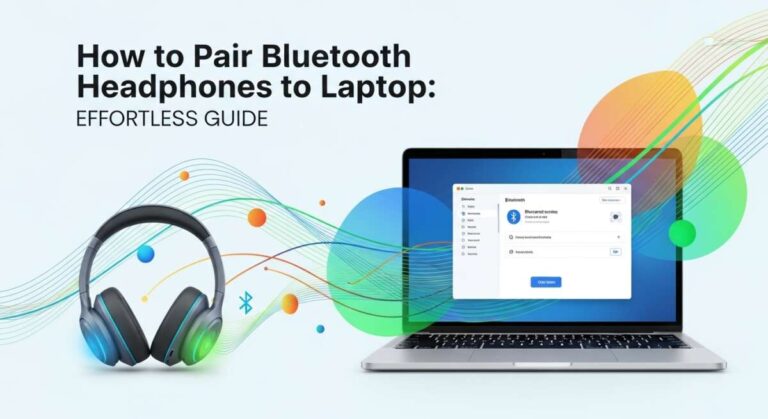
Pairing With A Laptop Or Computer
Pairing with a computer is a bit different. Here’s how to do it on Windows and Mac.
Windows 10/11
- Click the Start menu.
- Open Settings.
- Click Devices.
- Choose Bluetooth & other devices.
- Turn Bluetooth on.
- Click Add Bluetooth or other device.
- Select Bluetooth.
- Find your Skullcandy headphones and click to connect.
Mac
- Open System Preferences.
- Click Bluetooth.
- Turn Bluetooth on.
- Find your headphones and click Connect.
If you don’t see your headphones, make sure they’re in pairing mode.
Pairing With Tablets
For tablets, the process is almost the same as phones.
- Go to Settings
- Find Bluetooth
- Turn it on
- Tap your Skullcandy headphones to connect
Pro tip: If you use an iPad, sometimes the Bluetooth menu takes a few seconds to refresh. Wait for the device to show up.
What To Do If Pairing Fails
Sometimes pairing doesn’t work. Here are common problems and solutions:
- Headphones not visible: Make sure they’re in pairing mode. Hold the power button longer.
- Device can’t find headphones: Move them closer. Turn Bluetooth off and back on.
- Paired but no sound: Check audio settings. Make sure your headphones are the output device.
- Error messages: Restart both devices. Try again.
If you still have trouble, try forgetting the device on your phone and pairing again.
Pairing Multiple Devices
Many Skullcandy headphones let you pair with more than one device. For example, you can connect to your phone and laptop.
But only one device can play sound at a time.
How to switch devices:
- Disconnect from the first device (turn Bluetooth off or unpair)
- Pair with the second device as normal
Some newer models support multipoint pairing (stay connected to two devices). Check your model’s manual.
Pairing With Bluetooth Transmitters
If your device doesn’t have Bluetooth (like an old TV), you can use a Bluetooth transmitter.
Here’s how:
- Plug the transmitter into your device (usually with a headphone jack or USB).
- Put your Skullcandy headphones in pairing mode.
- Press the pairing button on the transmitter.
- Wait for the devices to connect.
This method works for TVs, game consoles, and computers without Bluetooth.
Comparing Skullcandy Models: Pairing Features
Different models have different pairing features. Here’s a quick comparison:
| Model | Pairing Mode Activation | Multipoint Support | Voice Prompts |
|---|---|---|---|
| Crusher Evo | Hold power 5 sec | No | Yes |
| Hesh ANC | Hold power 6 sec | Yes | Yes |
| Ink’d Wireless | Hold power 5 sec | No | No |
| Venue | Hold power 4 sec | No | Yes |
Always check your headphone manual for the exact steps.
Common Mistakes And How To Avoid Them
People often make these mistakes:
- Not holding the power button long enough: Pairing mode needs a long press.
- Trying to pair when already connected: Disconnect before pairing again.
- Bluetooth off: Always check your device’s Bluetooth is on.
- Distance too far: Keep devices close (within 3 feet).
- Low battery: Charge your headphones before pairing.
Personal tip: I once spent 20 minutes trying to pair, only to realize my headphones were out of battery. Always check your battery first.
Bluetooth Range And Signal Quality
Bluetooth works best up to 30 feet (about 10 meters). Walls and metal objects can block the signal.
Data: Most Skullcandy headphones use Bluetooth 5.0, which offers:
- Up to 33 feet range
- Faster connection
- Lower power use
If you move too far away, the sound may drop or stutter.
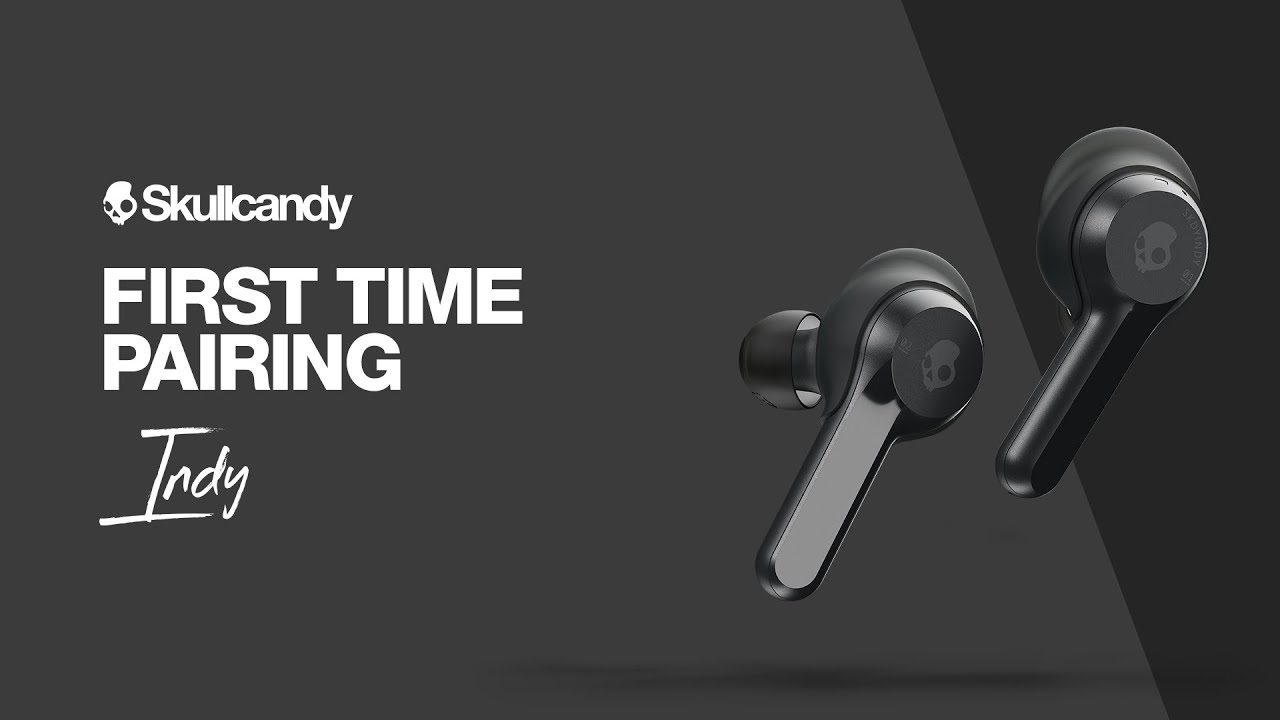
Credit: angradoheroismo.pt
How To Unpair Or Reset Skullcandy Headphones
If you want to connect to a new device or fix problems, you may need to reset your headphones.
Reset steps:
- Power off headphones.
- Hold the power button for 10 seconds.
- Wait for the LED to blink or for a voice prompt.
This clears old connections. You can now pair with new devices.
Pro tip: Resetting helps if your headphones won’t connect or keep connecting to the wrong device.
Troubleshooting: Real Solutions For Real Problems
I’ve helped friends and family with pairing issues. Here are real solutions I’ve used:
- Headphones won’t show up: Make sure no other device is connected. Sometimes, headphones connect to an old device automatically.
- Audio cuts out: Move closer to your device. Remove any barriers (walls, big objects).
- Paired but silent: On your phone, check if the headphones are set as the audio device.
If nothing works, try pairing with another device. If that works, the problem is with your original device—not the headphones.
Tips For A Smooth Pairing Experience
Want to make pairing easier next time? Here’s what I recommend:
- Keep your headphones charged
- Know your model: Learn how pairing mode works for your specific headphones.
- Update your device software: Sometimes, old software causes Bluetooth issues.
- Keep Bluetooth devices close
- Clear old pairings: If your headphones remember too many devices, reset them.
Skullcandy App: Extra Features And Help
Some Skullcandy models use a mobile app for extra features:
- Change sound settings
- Check battery
- Update firmware
Download the app from Google Play or the App Store. It can help with pairing, but it’s not required.
Bluetooth Security: Protecting Your Connection
Bluetooth is secure, but you should take basic steps:
- Pair in private places
- Don’t pair with unknown devices
- Remove devices you don’t use
Data: According to Bluetooth.com, modern Bluetooth uses encryption to protect your data.
Comparing Skullcandy To Other Brands
Skullcandy headphones pair like most brands, but some features are unique. Here’s a quick comparison:
| Brand | Pairing Process | Multipoint Support | Voice Prompts |
|---|---|---|---|
| Skullcandy | Hold power, watch LED | Some models | Most models |
| Bose | Dedicated pairing button | Most models | All models |
| JBL | Hold power or pairing button | Few models | Some models |
| Sony | Hold power or NFC tap | Most models | Most models |
Skullcandy is easy to pair, but always check the manual for your model.
Expert Insights: What Beginners Miss
Here are insights many beginners overlook:
- Pairing mode is not the same as turning on: You must hold the button longer for pairing mode.
- Headphones can remember old devices: If you have trouble, reset or clear old pairings.
- Bluetooth can interfere with WiFi: If you have connection drops, try moving away from WiFi routers.
From my experience, understanding these points saves time and frustration.
Real-world Example: Helping A Friend Pair Skullcandy Headphones
A friend asked me to help pair his Skullcandy headphones with his laptop. He had tried several times, but nothing worked.
Here’s what I did:
- Checked if the headphones were in pairing mode (they weren’t—he was just turning them on).
- Put the headphones in pairing mode by holding the button for 6 seconds.
- Made sure Bluetooth was on and searched for devices on his laptop.
- Connected, and it worked.
He was surprised how easy it was once we followed the right steps. Many people think Bluetooth is broken, but usually, it’s just a missed step.
Frequently Asked Questions
What Should I Do If My Skullcandy Headphones Won’t Pair?
Try These Steps:
- Make sure your headphones are in pairing mode.
- Move closer to your device.
- Restart both devices.
- Reset your headphones.
If you still have problems, try pairing with another device to see if the issue is with your headphones or your device.
How Do I Know My Headphones Are In Pairing Mode?
Look For:
- A blinking LED light (usually red and blue)
- Voice prompts like “Pairing”
- Beeps or sounds
If you don’t see these, hold the power button longer.
Can Skullcandy Headphones Connect To More Than One Device?
Some Models Support Multipoint Pairing.
You can connect to two devices, like a phone and laptop, but only one can play sound at a time. Check your manual for details.
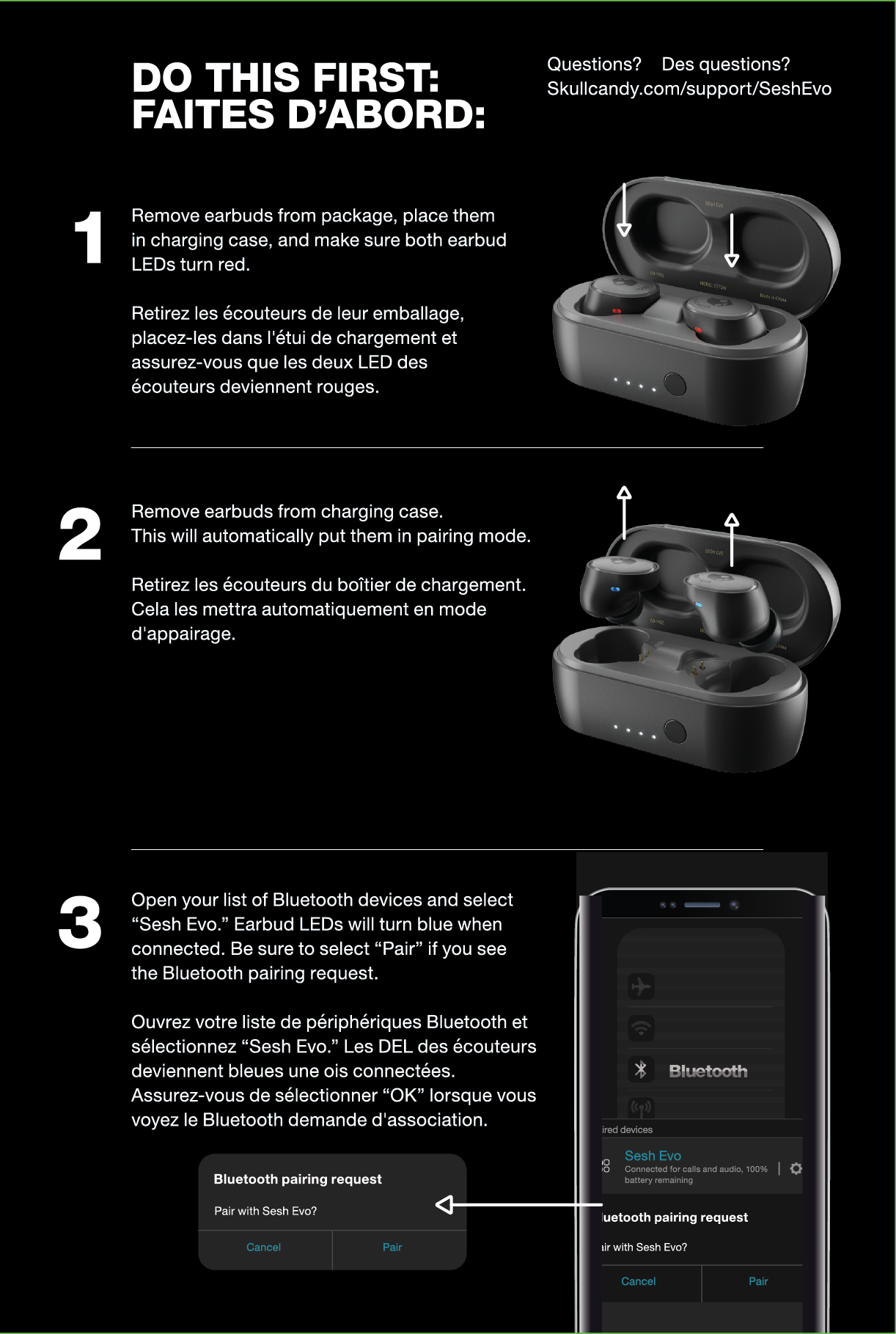
Credit: www.svetkaminov.si
What Is The Bluetooth Range For Skullcandy Headphones?
Most Models Offer About 30 Feet (10 Meters).
If you move further, the connection may drop. Metal objects and walls can reduce range.
How Do I Reset My Skullcandy Headphones?
Steps:
- Power off the headphones.
- Hold the power button for 10 seconds.
- Wait for the LED to blink or a voice prompt.
This clears old connections and lets you pair again.

Credit: starlens.com.br
Final Thoughts
Pairing your Skullcandy Bluetooth headphones is easy once you know the steps. Take your time, check your settings, and make sure your headphones are in pairing mode. If you have trouble, don’t panic—most problems are simple to fix. Remember, Bluetooth is a tool designed to make your life easier.
With practice, pairing will become second nature.
I hope these steps and tips help you enjoy your headphones without frustration. If you ever get stuck, just come back to this guide. Happy listening!