How to Connect Wireless Headphones to TV: Easy Step-by-Step Guide
Connecting wireless headphones to your TV can change how you enjoy movies, games, and even late-night shows. No more worrying about waking up family or neighbors. You get private, clear sound—and no messy wires across the floor. Still, many people feel confused when they try to set this up.
I’ve helped friends, family, and clients do this many times. Some TVs make it easy; others need a few extra steps. In this guide, I’ll share everything you need to know, plus little tips that even tech-savvy people often miss.
You’ll read about real setups, learn from experience, and avoid the common mistakes.
Why Use Wireless Headphones With Your Tv?
Wireless headphones offer more than just convenience. Here’s why people love this setup:
- No tangled cords: Move around freely without tripping over wires.
- Private listening: Watch at any volume without disturbing others.
- Better sound: Many headphones offer richer audio than built-in TV speakers.
- Focus: Block out background noise for a cinema-like feel.
- Accessibility: Great for people with hearing difficulties.
For example, one night I wanted to watch a documentary while my partner slept nearby. Wired headphones were too short, and the TV speakers were too loud. A pair of wireless headphones solved it instantly.
What You Need Before You Start
Before you connect, gather these basics:
- Wireless headphones: These can be Bluetooth or RF (radio frequency).
- A TV with wireless support: Not all TVs have built-in Bluetooth.
- Bluetooth transmitter: Needed if your TV does not have Bluetooth.
- Headphone charging cable: Make sure your headphones are charged.
- TV remote: Needed to access settings.
Checking these ahead saves time and frustration. I once spent 30 minutes searching for a missing charging cable—learn from my mistake!

Credit: www.youtube.com
Understanding Tv And Headphone Compatibility
Not every TV works the same way with wireless headphones. Here’s what you should check:
Built-in Bluetooth
Most new smart TVs from brands like Samsung, Sony, and LG include Bluetooth. You can find this feature in your TV’s manual or settings menu.
No Bluetooth? Use A Transmitter
Older TVs and some budget models don’t have Bluetooth. For these, you’ll need a Bluetooth audio transmitter. This small device plugs into your TV’s headphone jack or audio output. It sends audio wirelessly to your headphones.
Rf Headphones
Some wireless headphones use RF (radio frequency). These come with a base station you plug into your TV. RF headphones are great for TVs without Bluetooth and often offer longer range.
Table: Tv Connection Types And Solutions
Here’s a quick comparison of different TV setups and what you need:
| TV Type | Wireless Headphone Support | Best Solution |
|---|---|---|
| Smart TV (with Bluetooth) | Yes | Pair Bluetooth headphones directly |
| Smart TV (no Bluetooth) | No | Use Bluetooth transmitter |
| Older TV (no Bluetooth) | No | Use Bluetooth or RF transmitter |
| TV with RCA/headphone jack | No | Connect transmitter to RCA/headphone out |
How To Connect Bluetooth Headphones To A Smart Tv
If your TV supports Bluetooth, the process is usually simple. Here’s how to do it:
- Charge your headphones. Start with a full battery to avoid connection drops.
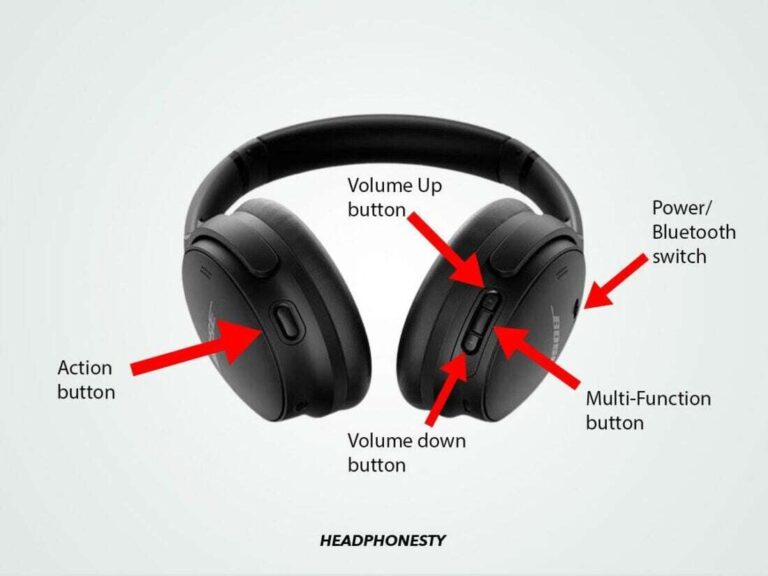
- Put headphones in pairing mode. Most headphones have a button you hold until a light flashes.
- Open TV settings. Use the remote to find “Settings” or “Sound.”
- Find Bluetooth settings. It may be under “Sound,” “Audio Output,” or “Connections.”
- Scan for devices. The TV will search for available Bluetooth headphones.
- Select your headphones. Look for your headphone name and select it.
- Confirm pairing. You may hear a beep in the headphones or see a message on the TV.
Pro tip: Some TVs only support certain Bluetooth audio devices. If the TV doesn’t find your headphones, check the manual or try another pair.
Example: Connecting Sony Wh-1000xm4 To Samsung Tv
I recently connected my Sony WH-1000XM4 headphones to a Samsung QLED TV. I opened the TV’s settings, found “Bluetooth Speaker List,” and put my headphones in pairing mode. The TV found them in seconds. After connecting, the sound was crisp and there was no lag.
Credit: www.sony.com
How To Connect Wireless Headphones To A Tv Without Bluetooth
Don’t worry if your TV doesn’t have Bluetooth. You have options.
Using A Bluetooth Transmitter
A Bluetooth transmitter is a small device that plugs into your TV and sends audio to your headphones. Here’s what you do:
- Plug the transmitter into the TV. Use the headphone jack or RCA audio outputs.
- Power on the transmitter. Some use USB power, others have batteries.
- Put the transmitter in pairing mode.
- Put headphones in pairing mode.
- Wait for them to connect. Usually, the transmitter’s light changes when paired.
This setup works with almost any TV. The transmitter is a one-time purchase and is easy to move between TVs.
Using Rf Wireless Headphones
RF headphones come with a base station. Here’s how to use them:
- Plug the base station into the TV’s headphone or audio-out port.
- Power on the base station and headphones.
- The headphones connect automatically. No Bluetooth needed.
RF headphones are a great choice if you want long range or your TV is older.
Table: Bluetooth Vs Rf Wireless Headphones
Let’s compare the two main types of wireless headphones for TV use:
| Feature | Bluetooth Headphones | RF Headphones |
|---|---|---|
| Range | ~30 feet (10m) | Up to 300 feet (90m) |
| Sound delay (latency) | Possible (unless using aptX Low Latency) | Very low |
| Compatibility | Most modern devices | TVs with audio out |
| Price | $30–$500+ | $40–$150 |
Special Cases: Multiple Headphones, Soundbars, And Advanced Setups
Connecting Multiple Headphones
Some TVs and transmitters allow more than one pair of headphones at the same time. This is perfect for watching with a friend.
- Check your TV or transmitter’s manual for “dual audio” or “multi-point” support.
- Some brands (like Samsung) let you connect two Bluetooth devices.
- Bluetooth transmitters with “dual link” can send audio to two headphones.
If you want this feature, look for it before you buy.
Using A Soundbar And Wireless Headphones Together
Many TVs let you use headphones or a soundbar—not both at the same time. However, some new TVs offer “multi-audio” output.
- Check your TV’s settings for options like “Speaker + Bluetooth” or “Multi-output Audio.”
- If your TV doesn’t support this, try a Bluetooth transmitter with a “pass-through” feature. This lets both the soundbar and headphones work together.
Watching With Hearing Aids
Many modern hearing aids can connect to TVs via Bluetooth. This is great for people with hearing loss. Check if your hearing aid brand supports TV connections.
Troubleshooting Common Problems
Even after setup, problems can happen. Here’s how to fix them:
No Sound Or Connection
- Make sure the headphones are charged and in range.
- Double-check that you selected the headphones as the TV’s audio output.
- If using a transmitter, confirm it’s powered on and plugged in correctly.
- Try restarting both TV and headphones.
Audio Delay (lag)
- Bluetooth can have a slight delay. Look for “aptX Low Latency” support in both your headphones and transmitter.
- RF headphones have almost no delay—good for gaming.
- Some TVs offer a “lip sync” adjustment in settings.
Headphones Not Showing Up In Tv Settings
- Make sure your headphones are in pairing mode (usually a flashing light).
- Turn off other Bluetooth devices nearby.
- Some TVs only support certain types of headphones.
Interference Or Dropouts
- Keep the transmitter and headphones away from Wi-Fi routers or microwaves.
- RF headphones can pick up radio noise—change the channel if possible.
- Move closer to the TV.
Expert tip: I once had a client whose Bluetooth headphones kept disconnecting. We found out their wireless router was too close to the TV. Moving the router solved the problem. Small details like this can make a big difference.
How To Choose The Best Wireless Headphones For Tv
Not all headphones are made for TV use. Here’s what matters most:
Sound Quality
Look for headphones with clear, balanced sound. Many TV headphones boost voices, which helps with dialogue in movies and shows.
Comfort
TV watching often lasts hours. Choose headphones with soft ear pads and an adjustable headband. Lightweight models reduce fatigue.
Range
If you want to walk around the room, range matters. Bluetooth offers about 30 feet. RF headphones can reach up to 300 feet.
Battery Life
For long movies or marathons, look for at least 20 hours of battery life. Some headphones can play while charging.
Low Latency
If voices don’t match lips, it’s annoying. Look for aptX Low Latency (for Bluetooth) or RF systems. This keeps sound and video in sync.
Table: Key Features To Compare
Here’s a quick guide to help you choose:
| Feature | Why It Matters | Good Range/Value |
|---|---|---|
| Sound quality | Clear voices, good bass | 40mm drivers, enhanced voice mode |
| Comfort | Wear for hours without pain | Padded headband, soft ear cups |
| Battery life | Long sessions, less charging | 20+ hours |
| Range | Freedom to move | 30ft (Bluetooth), 100ft+ (RF) |
| Latency | Audio sync with video | aptX Low Latency, RF |
Common Mistakes When Buying
- Choosing fashion over comfort. Big headphones look cool, but light, soft ones are better for TV.
- Forgetting about latency. Standard Bluetooth can lag—always check for “low latency.”
- Not checking compatibility. Some headphones work better with phones than TVs.
Credit: www.sony.com
Practical Tips For The Best Wireless Tv Audio Experience
- Charge your headphones regularly. Running out of battery in the middle of a movie is no fun.
- Label your transmitter. If you move it between TVs, a label helps you remember which device it matches.
- Test before family movie night. Avoid last-minute tech problems.
- Update TV firmware. Sometimes, software updates improve Bluetooth connections.
- Consider headphone sharing. Get a transmitter that supports two pairs if you watch with others.
- Adjust TV audio settings. Some TVs have special sound modes for headphones.
Real-world Example: My Living Room Setup
In my own living room, I use both a Bluetooth transmitter and an RF headphone set. My TV doesn’t have built-in Bluetooth, so I plug the transmitter into the audio-out port. When I want to watch sports, I grab my lightweight Bluetooth headphones.
For long movie nights, I use RF headphones because the range covers my kitchen—handy when grabbing snacks. This flexible setup lets me enjoy shows without disturbing anyone.
Other Technologies: Infrared, Wi-fi, And Smart Home Integration
While Bluetooth and RF are most common, you might see other options:
- Infrared headphones: Cheap, but require line of sight. Not recommended.
- Wi-Fi headphones: Rare, but can support high-quality audio. Usually part of smart home systems.
- Smart speakers: Some TVs let you send audio to smart speakers (like Sonos or Google Nest) for wireless sound.
If you have a smart home setup, check your TV’s manual for more options.
Are Wireless Headphones Safe For Your Ears?
It’s tempting to crank up the volume, but be careful. Experts recommend:
- Keep volume below 60% of maximum.
- Take breaks every hour.
- Choose headphones with volume limiters if you have kids.
Long listening at high volume can damage your hearing. Enjoy your shows, but protect your ears.
Environmental Factors And Wireless Performance
Walls, other electronics, and even people moving around can affect signal. For the best experience:
- Place your transmitter close to the TV and away from Wi-Fi routers.
- Avoid metal furniture between headphones and TV.
- Test different spots if you have dropouts.
These small adjustments can make a big difference in sound quality and connection.
Useful Resources
If you want more technical details or help with a specific TV model, check your TV’s official support page or visit RTINGS.com for in-depth guides and reviews.
Frequently Asked Questions
Can I Connect Any Bluetooth Headphones To My Tv?
Not always. Some TVs only support certain Bluetooth profiles. Check your TV’s manual. If your headphones don’t connect, use a Bluetooth transmitter for full compatibility.
Why Does The Sound Lag Behind The Picture?
This is called latency. Standard Bluetooth can cause a delay. Look for headphones and transmitters labeled “aptX Low Latency” or use RF headphones for almost zero lag.
Can I Use Wireless Headphones And Tv Speakers At The Same Time?
Some TVs let you use both, but many switch off the speakers when headphones connect. Check your TV’s “Audio Output” settings for options like “Simultaneous Audio” or use a dual-output transmitter.
How Far Can I Move From The Tv With Wireless Headphones?
Bluetooth works up to about 30 feet (10 meters), sometimes less through walls. RF headphones can reach 100–300 feet (30–90 meters), even through walls.
Will Wireless Headphones Work With Streaming Devices Like Roku Or Fire Tv?
Yes, but the audio signal comes from the TV, not the streaming device. Connect your headphones to the TV’s audio output. Some streaming boxes also support Bluetooth directly—check their settings.
Connecting wireless headphones to your TV isn’t as hard as it seems. With the right steps and equipment, you’ll enjoy private, high-quality sound in no time. Whether you’re watching late at night, improving your home theater, or just want better audio, wireless headphones are a smart upgrade.
Try it for yourself, and you’ll wonder how you ever watched TV any other way.