How to Connect Sony Headphones to Mac WH-1000XM5 Easily
Connecting your Sony WH-1000XM5 headphones to a Mac might look simple, but there are a few steps and tips that make the process smooth. If you’re like me, you want your headphones working perfectly—whether you’re listening to music, joining a video call, or just blocking out noise. I’ve set up these headphones on my own Mac, and I’ll walk you through every step, including a few things I wish I knew earlier. This guide is clear, easy to follow, and packed with expert advice. By the end, you’ll know how to connect, troubleshoot, and get the best sound from your Sony WH-1000XM5 with your Mac.
Why Use Sony Wh-1000xm5 With Your Mac?
Sony WH-1000XM5 headphones are famous for their noise cancelling, excellent sound, and comfort. Pairing them with a Mac helps you focus, enjoy music, and join meetings with better audio. These headphones are a great match for Apple computers, especially if you want both convenience and top performance.
Some people worry about Bluetooth issues or think it’s tricky to connect. The truth is, with the right steps, you can set up your headphones in minutes. I personally use the WH-1000XM5 daily for work and music, and the wireless connection is solid when you know what to do.
Key Features Of Sony Wh-1000xm5 That Benefit Mac Users
Connecting your headphones to a Mac opens up several useful features:
- Industry-leading noise cancellation: Block distractions in busy places.
- Multipoint connection: Switch between your Mac and phone easily.
- Long battery life: Up to 30 hours on a single charge.
- Touch controls: Adjust volume or skip tracks without touching your Mac.
- Superior microphone quality: Clear sound on video calls.
These features make the WH-1000XM5 perfect for work, study, or leisure. I’ve found the noise cancellation especially helpful in loud cafes and while working from home.
What You Need Before You Start
Before you connect, check a few things to make sure everything goes well:
- Fully charged headphones: Low battery can cause connection problems.
- Mac with Bluetooth: All modern Macs have Bluetooth, but if you use an older model, check if Bluetooth is enabled.
- Latest software updates: Update your Mac and headphones for best compatibility.
- Sony Headphones Connect app (optional): While not required for Mac, it helps manage settings if you pair with a phone too.
You don’t need any special cables or adapters. Everything works wirelessly with Bluetooth.
How To Put Sony Wh-1000xm5 In Pairing Mode
This is a step many people get wrong, so it’s important to do it exactly right.
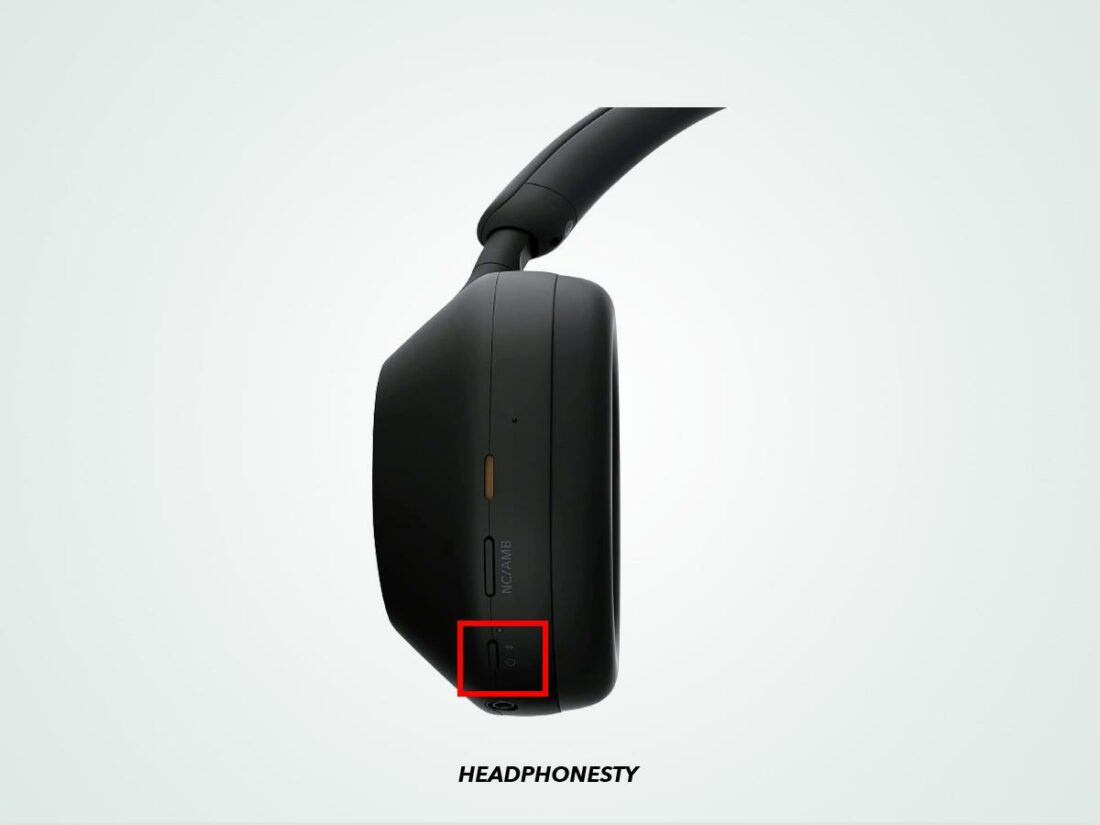
- Turn on your headphones by pressing and holding the power button for about 2 seconds. You’ll hear “Power on.”
- Continue holding the power button for 5 more seconds (total about 7 seconds from the start) until you hear “Bluetooth pairing.” The indicator light will blink blue rapidly.
If you only press the button for 2 seconds, your headphones turn on but don’t enter pairing mode. This is a common mistake. I made it myself the first time and wondered why my Mac couldn’t “see” the headphones.
Connecting Sony Wh-1000xm5 To Your Mac (step-by-step)
Here’s how you pair your headphones with your Mac the first time:
- Click the Apple menu () in the top left of your screen.
- Select System Settings (or System Preferences on older macOS).
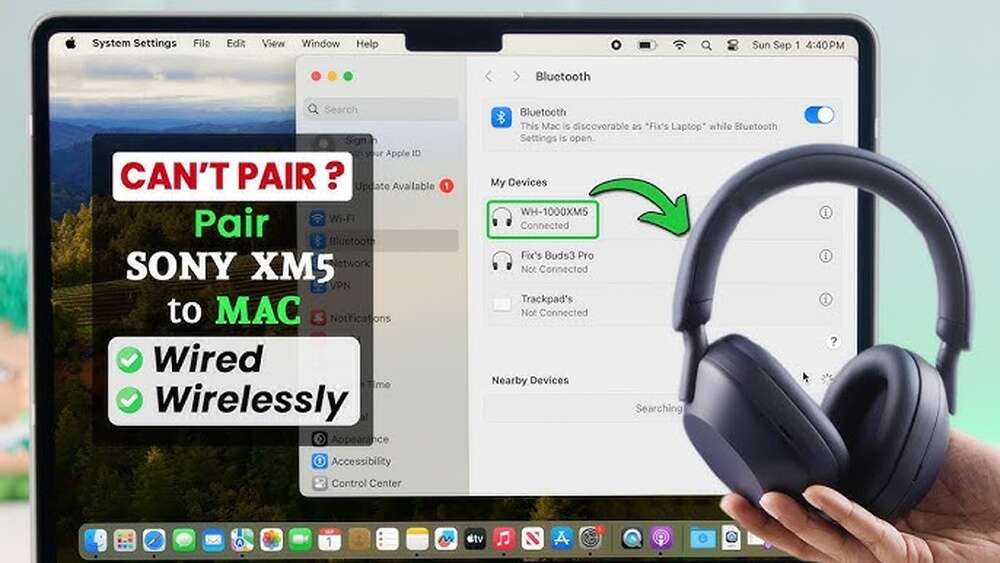
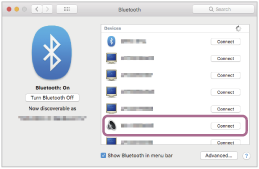
- Find and click Bluetooth in the sidebar.
- Make sure Bluetooth is turned On.
- Wait a moment for the WH-1000XM5 to appear in the list of available devices.
- Click on WH-1000XM5. You may see “Connecting…” for a few seconds.
- If prompted, click Connect or Pair.
- You’ll hear “Bluetooth connected” in your headphones.
Now, your Mac’s audio will play through your Sony headphones. If you want to change the sound output, click the volume icon in the menu bar and select your headphones.
Quick Reference: Pairing Steps
Here’s a summary for easy checking:
- Power on headphones, hold for 7 seconds for pairing mode
- Open Mac Bluetooth settings
- Select WH-1000XM5
- Click Connect
What To Do If Your Mac Doesn’t Detect The Headphones
Sometimes, your Mac won’t find the headphones right away. Don’t worry—this happens to many users, including me. Here’s what to try:
- Check pairing mode: Make sure the headphones are blinking blue quickly. If not, repeat the steps to enter pairing mode.
- Turn Bluetooth off and on on your Mac. This refreshes the device list.
- Restart your headphones: Turn them off and on again.
- Move closer to your Mac: Reduce the distance to less than 3 feet (1 meter).
- Remove old connections: If the headphones are paired with another device (like your phone), disconnect them there first.
If all else fails, restart your Mac and try again. Once, I had to restart both my Mac and headphones before they would connect. It’s rare, but sometimes a full restart fixes hidden issues.
Credit: www.twkf.gov.tr
Managing Bluetooth Devices On Mac
Your Mac keeps a record of Bluetooth devices you connect. Over time, too many saved devices can cause confusion or slow pairing.
Here’s how to manage them:
- In Bluetooth settings, look for devices you no longer use.
- Hover over the device and click the “x” or Remove.
- Confirm removal.
This is helpful if you’ve connected many headphones or speakers in the past. Keeping your Bluetooth list short makes future connections smoother.
Switching Between Multiple Devices
A great feature of the WH-1000XM5 is multipoint connection. This means you can connect to your Mac and your phone at the same time. For example, you can listen to music on your Mac and still take calls from your phone.
To use multipoint:
- Pair the headphones with both your Mac and your phone.
- When a call comes in on your phone, the headphones will switch automatically.
- When the call ends, audio returns to your Mac.
If you have trouble, make sure both devices are paired and within range. Sometimes, you need to manually select the output device on your Mac after a call.
Adjusting Sound Settings For The Best Experience
Once your headphones are connected, fine-tune your Mac’s settings for the best sound.
- Click the Apple menu and go to System Settings.
- Select Sound.
- Choose WH-1000XM5 as the output device.
- Adjust the balance and volume sliders to your liking.
For calls and video conferences, you might want to set the WH-1000XM5 as both the input (microphone) and output (speaker) device. This gives you clear sound in both directions.
Sound Quality Comparison
Here’s how the WH-1000XM5 compares to other common headphones for Mac users:
| Headphones | Noise Cancellation | Battery Life (hours) | Multipoint Support |
|---|---|---|---|
| Sony WH-1000XM5 | Excellent | 30 | Yes |
| Bose 700 | Very Good | 20 | Yes |
| AirPods Max | Very Good | 20 | Limited (Apple only) |
| Beats Studio3 | Good | 22 | No |
As you can see, the WH-1000XM5 leads in both noise cancellation and battery life.
Using The Sony Headphones Connect App: Should You Bother?
The Sony Headphones Connect app is available for iOS and Android, not Mac. You cannot install it directly on your Mac. However, using the app on your phone is still useful if you want to:
- Update firmware
- Adjust noise cancellation
- Set up custom sound profiles
Once you make changes on your phone, they stay active when you connect to your Mac. For example, if you set a custom equalizer on your phone, it carries over to your Mac. This is something many new users do not realize.
Common Problems And How To Fix Them
Even with the right steps, you might run into issues. Here are the most frequent problems and solutions:
Headphones Not Showing Up
- Make sure they are in pairing mode (blinking blue light).
- Try turning Bluetooth off and on.
- Restart both devices.
Poor Sound Quality
- Check for Bluetooth interference from other devices.
- Make sure your Mac is not too far from the headphones.
- Update your Mac’s and headphones’ software.
Microphone Not Working
- Go to System Settings > Sound > Input and select the headphones.
- Check if the mic is muted on the headphones.
Audio Drops Or Disconnects
- Move closer to your Mac.
- Remove other Bluetooth devices from your Mac’s list.
- Avoid having thick walls or metal objects between your Mac and headphones.
I once had a persistent dropout problem in a busy office. It turned out there were too many other Bluetooth devices nearby. Moving to a less crowded spot solved it.
Advanced Tips For Power Users
If you use your WH-1000XM5 for more than just music, these tips will help you get even more from your headphones and Mac.
Using Wh-1000xm5 With Video Calls
For the best call quality:
- Set your Mac’s input and output to the headphones before joining a call.
- Use apps like Zoom or Teams, and select WH-1000XM5 in audio settings.
- Keep your Mac updated for the latest Bluetooth fixes.
Customizing Touch Controls
Touch controls on the WH-1000XM5 let you pause music, adjust volume, or skip tracks. You can customize these in the Sony app on your phone. These settings stay active when you use the headphones with your Mac.
Using Wired Connection (optional)
While Bluetooth is most convenient, you can also connect your headphones with a cable. This is helpful if you run out of battery or want zero audio lag.
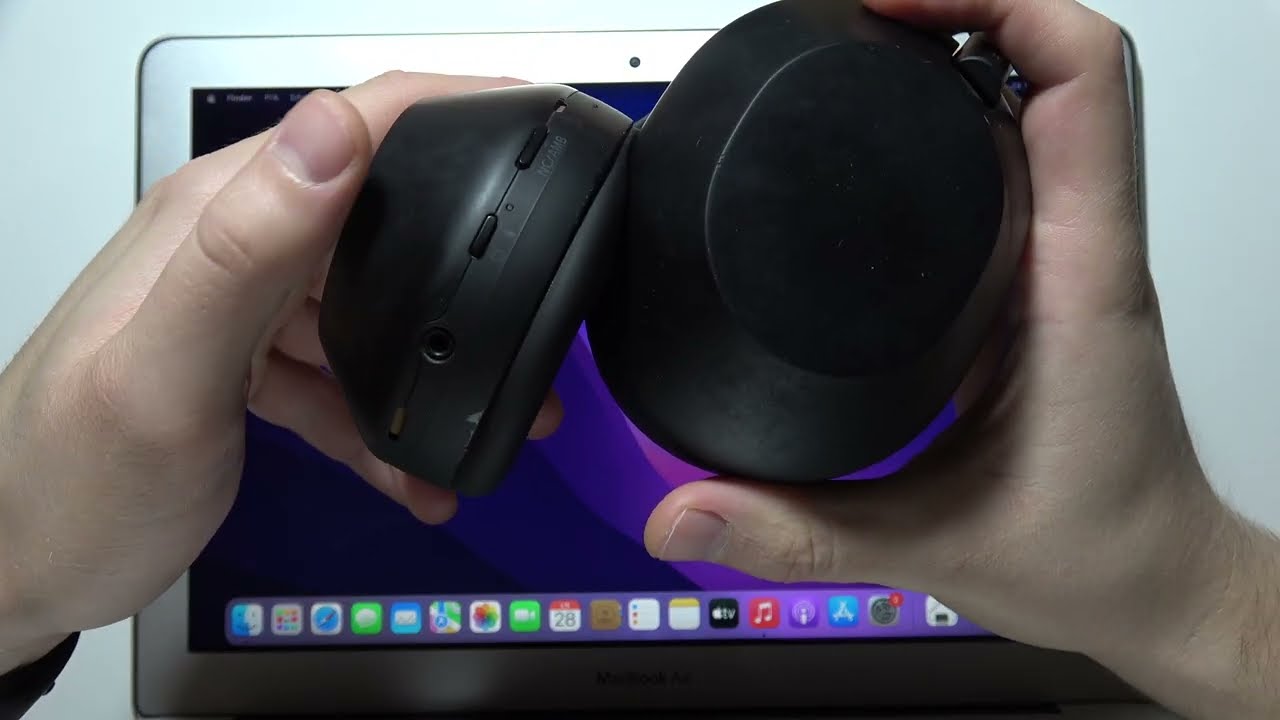
- Use the supplied audio cable (3.5mm to 3.5mm).
- Plug one end into the headphones, the other into your Mac’s headphone jack or adapter.
- Select External Headphones as the sound output.
Wired mode disables touch controls and microphone, but sound quality is very high and there is no Bluetooth delay.
Real-world Experience: What I Learned Using Wh-1000xm5 With Mac
When I first got my Sony WH-1000XM5, I was excited but a bit nervous about pairing with my MacBook Air. I followed the manual, but I missed the step about holding the power button for 7 seconds. My Mac couldn’t find the headphones, and I thought they were broken.
Once I realized I needed to hold the button longer, everything worked perfectly. This little detail saved me a lot of frustration.
Later, I noticed occasional connection drops in a shared workspace. I learned that moving away from other Bluetooth devices (like wireless mice and keyboards) helped a lot. Now, I always check my environment if I have connection issues.
These small lessons made my experience much better. If you remember the pairing mode timing and keep your Bluetooth list tidy, you’ll enjoy a reliable connection almost every time.
Comparing Bluetooth Versions: Does It Matter?
Bluetooth version affects both range and stability. The WH-1000XM5 uses Bluetooth 5.2, while many Macs use Bluetooth 5.0 or 5.1.
Here’s a quick look at how versions compare:
| Bluetooth Version | Max Range (meters) | Data Rate (Mbps) | Low Energy Support |
|---|---|---|---|
| 4.2 | 50 | 1 | Yes |
| 5.0 | 240 | 2 | Yes |
| 5.2 | 240+ | 2+ | Yes (improved) |
Most people won’t notice a big difference, but newer versions are more reliable, especially in busy areas.
Credit: helpguide.sony.net
Keeping Your Headphones’ Firmware Updated
Sony releases updates for the WH-1000XM5 to fix bugs and add features. To update:
- Use the Sony Headphones Connect app on your phone.
- Connect your headphones.
- Follow the instructions in the app to download and install updates.
Updates can solve problems like poor sound or connection drops. Check for updates every few months.
Battery Life: What To Expect
The WH-1000XM5 lasts up to 30 hours on a single charge with noise cancelling on. If you turn off noise cancelling, battery life can be even longer.
If you’re in a rush, a 3-minute charge gives you up to 3 hours of playback. I often use this quick-charge feature before heading out.
Battery Life Comparison
| Headphones | Battery Life (Noise Cancelling On) | Quick Charge |
|---|---|---|
| Sony WH-1000XM5 | 30 hours | 3 hrs in 3 min |
| Bose 700 | 20 hours | 3.5 hrs in 15 min |
| AirPods Max | 20 hours | 1.5 hrs in 5 min |
This long battery life means you rarely have to worry about charging during busy workdays.
Security And Privacy: Is Bluetooth Safe?
Bluetooth is generally safe, but there are a few things to keep in mind:
- Always pair in private spaces, not public ones, to avoid unwanted connections.
- Keep your headphones’ firmware updated to block known vulnerabilities.
- Remove old devices from your Mac’s Bluetooth list.
Sony uses encryption to protect your data during Bluetooth transmission. For more information on Bluetooth security, visit the official Bluetooth Security page.
Frequently Asked Questions
How Do I Reset My Sony Wh-1000xm5 If It Won’t Connect?
To reset, turn off the headphones. Hold the power and custom buttons at the same time for 7 seconds. The headphones reset and enter pairing mode. You can now try to connect again.
Can I Connect My Wh-1000xm5 To More Than One Mac?
You can pair the headphones with several devices, but they only connect to two at once (multipoint). If you want to switch between more than two Macs, disconnect from one before connecting to another.
Do I Need The Sony App To Use The Headphones With My Mac?
No, you don’t need the app for basic use. However, the app lets you update firmware, change sound settings, and adjust noise cancellation—these changes carry over to your Mac connection.
Why Does My Mac Switch Back To Built-in Speakers After A Call?
Sometimes, apps like Zoom or Teams return audio to the built-in speakers after a call. Open Sound settings and re-select the WH-1000XM5 as the output device. This only takes a few seconds.
Credit: www.blockbusterink.id
What Should I Do If There Is A Lag Between Video And Audio?
Bluetooth headphones sometimes have a small delay. Using a wired connection (audio cable) removes lag completely. For most video watching, the delay is very small and not noticeable, but for gaming or editing, use the cable.
Connecting your Sony WH-1000XM5 headphones to your Mac is easy once you know the steps. Remember to use the correct pairing mode, keep your Bluetooth list tidy, and update your headphones regularly. With these tips and expert advice, you’ll enjoy great sound and reliable performance every day. If you ever have trouble, refer back to this guide or check Sony’s official support for more help. Enjoy your music, calls, and focus time with confidence!