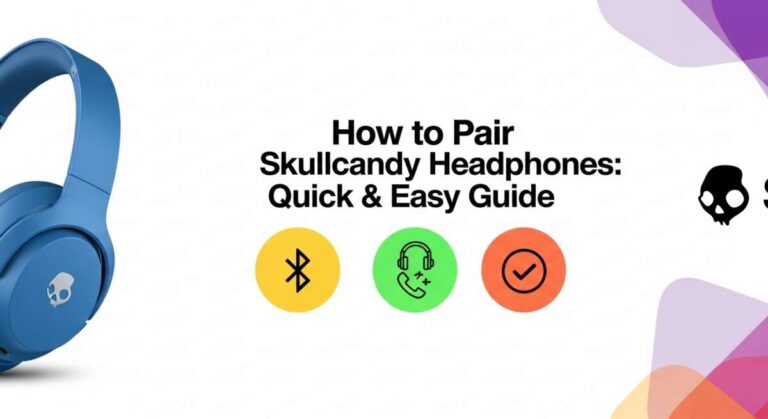
How to Connect Skullcandy Headphones to Laptop Easily
Connecting Skullcandy Headphones To Your Laptop: A Simple, Complete Guide
Skullcandy headphones are known for their bold design, strong bass, and easy-to-use features. Whether you use them for music, meetings, or gaming, pairing them with your laptop opens up a world of sound. Still, many people struggle with connecting these headphones, especially if they are new to Bluetooth or different headphone models.
I remember my own first attempt—it took longer than I expected, and I ended up searching for answers online. In this guide, I’ll walk you through each step in plain, clear English. You’ll learn how to connect your Skullcandy headphones to your laptop, fix common problems, and get the best sound experience, even if you’re not a tech expert.
Understanding Skullcandy Headphones
Skullcandy offers many types of headphones. You’ll find wireless Bluetooth models, wired headphones, and true wireless earbuds. Each connects to a laptop a little differently. Before you start, check your headphone model and your laptop’s features. Most laptops today have Bluetooth, but some older ones may not.
Types Of Skullcandy Headphones
- Wireless Bluetooth Headphones: These are the most popular. Examples include Skullcandy Crusher, Hesh, and Riff.
- Wired Headphones: Models like Skullcandy Ink’d and Skullcandy Uproar use a 3.5mm audio cable.
- True Wireless Earbuds: Such as Skullcandy Indy or Sesh, with separate left and right buds.
Knowing your model helps you choose the right connection method.
Laptop Features
- Bluetooth Capability: Check if your laptop has Bluetooth. Most Windows laptops (after 2010) and all MacBooks have it. If not, you may need a USB Bluetooth adapter.
- Audio Jack: All laptops have an audio jack for wired headphones.
A quick tip: If your laptop is older or doesn’t show Bluetooth, search for “Bluetooth settings” in your system or check your device manager.
Preparing Your Devices
Before connecting, make sure both your headphones and laptop are ready.
Charging Your Headphones
Always start with a fully charged device. Low battery can cause connection problems. Most Skullcandy headphones have a charging LED—red means charging, green means full.
Updating Software
Keep your laptop’s Bluetooth drivers and operating system updated. This prevents bugs and improves compatibility. On Windows, go to Settings > Update & Security. On Mac, use System Preferences > Software Update.
Cleaning Ports And Earbuds
If you use wired headphones, make sure the audio jack is clean. Dust can block the connection. A quick wipe can solve many audio problems.
:max_bytes(150000):strip_icc()/002_pair-skullcandy-headphones-5184913-eef7e67b58524292aa33b753ac858eec.jpg)
Credit: www.lifewire.com
Connecting Skullcandy Headphones Via Bluetooth
Wireless headphones are the most common. Here’s a step-by-step guide for connecting them.
Step 1: Turn On Your Headphones
Press and hold the power button until the LED light flashes. For most Skullcandy models, a blue or red flashing light means the headphones are ready to pair.
Step 2: Put Your Headphones In Pairing Mode
If your headphones don’t automatically enter pairing mode, press and hold the power button longer (about 5 seconds). You’ll hear a voice prompt or see a blinking LED.
Step 3: Enable Bluetooth On Your Laptop
- Windows: Click the Bluetooth icon in the taskbar or go to Settings > Devices > Bluetooth & other devices. Switch Bluetooth to “On.”
- Mac: Click the Apple logo > System Preferences > Bluetooth. Turn Bluetooth on.
Step 4: Search For Devices
Click “Add Bluetooth device” (Windows) or “Set up new device” (Mac). Your Skullcandy headphones should appear in the list. They might show as “Crusher Wireless,” “Hesh 2,” or similar.
Step 5: Pair And Connect
Select your headphones from the list and click “Connect. ” You’ll hear a confirmation sound, and the LED will stop blinking.
Example: Connecting Skullcandy Crusher Wireless To Windows 10
I often use my Skullcandy Crusher Wireless for work calls. Here’s how I connect:
- Hold power button until blue LED flashes.
- On laptop, click Bluetooth icon, then “Add device.”
- Select “Crusher Wireless” from the list.
- Wait for the “Connected” message.
This process takes less than a minute once you get used to it.
Troubleshooting Bluetooth Problems
Sometimes pairing fails. Here are some solutions:
- Headphones Not Showing Up: Restart both devices. Make sure headphones are in pairing mode.
- Can’t Connect: Remove old Bluetooth devices from your laptop’s list. Sometimes too many devices cause confusion.
- Poor Sound Quality: Move closer to the laptop. Bluetooth range is usually 30 feet (9 meters). Walls and other devices can interfere.
If you’re still stuck, try resetting the headphones. Hold power and volume up buttons together for 10 seconds. This clears old connections.
Bluetooth Data Table
Here’s a quick comparison of Bluetooth features in popular Skullcandy models:
| Model | Bluetooth Version | Battery Life | Range |
|---|---|---|---|
| Crusher Wireless | 4.1 | 40 hours | 30 ft |
| Hesh 2 | 4.0 | 15 hours | 30 ft |
| Riff Wireless | 5.0 | 12 hours | 33 ft |
| Indy Evo | 5.0 | 30 hours (with case) | 33 ft |
Newer Bluetooth versions offer better range and battery life. If you have an older model, expect slightly less performance.
Connecting Skullcandy Headphones With A Cable
Wired headphones are the easiest to use. Here’s what to do:
Step 1: Locate The Audio Jack
Most laptops have a 3.5mm jack on the side or front. It’s a small circular port.
Step 2: Plug In Your Headphones
Insert the cable firmly. You should hear a click. If the sound is only in one ear, twist the plug gently.
Step 3: Check Sound Settings
Sometimes the laptop doesn’t switch audio output automatically. On Windows, right-click the sound icon and select “Playback devices. ” Choose “Headphones. ” On Mac, go to System Preferences > Sound > Output.
Step 4: Test Sound
Play a song or video. Adjust volume as needed. If there’s no sound, check if the audio jack is clean and cable is undamaged.
Wired Vs Bluetooth Table
Here’s how wired and wireless Skullcandy headphones compare:
| Feature | Wired | Bluetooth |
|---|---|---|
| Setup | Plug and play | Pairing needed |
| Battery | None required | Needs charging |
| Sound Quality | Stable, no interference | May drop if far |
| Portability | Less portable | More portable |
| Compatibility | All laptops | Laptops with Bluetooth |
Wired headphones are reliable and simple. Bluetooth adds freedom but needs pairing and battery management.

Credit: www.youtube.com
Connecting True Wireless Skullcandy Earbuds
True wireless earbuds like the Skullcandy Indy or Sesh are popular for their compact size. Connecting them is similar to other Bluetooth devices, with a few special steps.
Step 1: Charge And Prepare
Make sure both earbuds are charged. Place them in the charging case and remove to turn on.
Step 2: Put Earbuds In Pairing Mode
Most models enter pairing mode automatically when taken out of the case. If not, tap and hold the touch area until the LED flashes.
Step 3: Enable Bluetooth On Laptop
Follow the same steps as before: turn Bluetooth on and search for devices.
Step 4: Select Earbuds
Your laptop will list the earbuds as “Indy Evo,” “Sesh,” or similar. Click to connect. You’ll hear a beep or see a steady LED.
Step 5: Test Both Sides
Play music to check that both earbuds are working. If only one side works, put both back in the case, take out, and reconnect.
Personal Experience Example
Last week, I helped my cousin connect her Skullcandy Sesh earbuds to her old laptop. At first, only one earbud worked. We found that resetting the earbuds (placing them in the case, holding touch area for 10 seconds) fixed the problem.
Sometimes, small steps make a big difference.
Setting Up Sound And Microphone
After connecting, adjust your sound settings for the best experience.
Windows Sound Settings
- Right-click sound icon > Open Sound Settings
- Under “Output,” select your headphones
- Under “Input,” select the headphone microphone if available
Mac Sound Settings
- Go to System Preferences > Sound
- Choose headphones for output and input
Adjusting Volume And Balance
If sound is too low or only one side works, check the “Balance” slider in sound settings. Set it to the middle for equal sound.
Microphone Use
Skullcandy headphones with built-in mics can be used for calls. Test the mic with a sound recorder app. If the mic isn’t working, re-select it in sound settings.
Common Connection Problems And Solutions
Many users face problems when connecting headphones. Here are the most common issues and how to fix them.
Headphones Won’t Pair
- Make sure headphones are in pairing mode
- Restart Bluetooth on your laptop
- Remove other paired devices
Sound Is Distorted
- Move closer to the laptop
- Avoid walls or other electronics
- Update Bluetooth drivers
Only One Side Works
- For earbuds, reset both by placing in the case and holding touch area
- For wired headphones, check cable and jack
Microphone Not Detected
- Select correct input in sound settings
- Update audio drivers
Bluetooth Connection Table
For quick troubleshooting, here’s a table of common problems and solutions:
| Problem | Possible Cause | Solution |
|---|---|---|
| Headphones not found | Pairing mode not active | Hold power button longer |
| No sound | Wrong output device | Select headphones in sound settings |
| Low volume | Balance set incorrectly | Adjust balance slider |
| Mic not working | Wrong input device | Choose headphone mic in settings |
| Sound drops | Out of range | Move closer to laptop |
Tips For The Best Sound Experience
Skullcandy headphones can deliver great sound if set up right. Here are tips to get the most from your headphones:
- Keep headphones clean: Dust and sweat can affect sound quality.
- Update drivers: This improves Bluetooth stability and audio performance.
- Charge fully: Low battery can cause crackling or disconnects.
- Adjust EQ settings: Many laptops have built-in equalizer apps. Try boosting bass or treble to match your taste.
- Use the right fit: Earbuds come with different tips. Try each size for comfort and best sound.
- Avoid interference: Keep other Bluetooth devices away when pairing.
Sometimes, people forget to clean their headphone jack or update drivers. These small actions can solve most sound issues.

Credit: www.wikihow.com
Advanced Tips: Using Multiple Devices
Skullcandy Bluetooth headphones can often remember multiple devices. You can connect to your phone and laptop, but only one device can play sound at a time.
Switching Between Devices
- Disconnect from one device before connecting to another
- Some newer models auto-switch, but older ones need manual pairing
If you want to use headphones for both work calls and music, set up quick pairing shortcuts. On Windows, pin Bluetooth settings to your taskbar.
Safety And Care
Taking care of your headphones helps them last longer and perform better.
Storage
Store headphones in a case when not in use. This protects them from dust and drops.
Cleaning
Wipe earbuds and cables with a soft cloth. Avoid water and harsh chemicals.
Battery Life
Charge headphones before battery drops below 20%. This extends battery life.
Avoid Overcharging
Unplug headphones once fully charged. Overcharging can reduce battery lifespan.
When To Seek Help
If you’ve tried all steps and your headphones won’t connect, it may be time for expert help. Visit the official Skullcandy support page, contact your laptop manufacturer, or ask a tech-savvy friend. Sometimes, hardware faults or outdated systems need professional repair.
For more detailed guides, check trusted tech sources like PCMag.
Frequently Asked Questions
What If My Skullcandy Headphones Don’t Show Up On My Laptop?
First, make sure the headphones are in pairing mode. Restart Bluetooth on your laptop. If they still don’t show up, try resetting your headphones or updating your laptop’s Bluetooth drivers.
Can I Use My Skullcandy Headphones For Video Calls?
Yes, most Skullcandy wireless headphones have built-in microphones. Choose the headphones as your input device in sound settings. Test with a call or sound recorder to check clarity.
How Do I Fix Sound In Only One Earbud?
This is common with true wireless earbuds. Place both earbuds in the charging case. Hold the touch area for 10 seconds to reset. Reconnect to your laptop. If the issue remains, try different ear tips or clean the contacts.
Will Wired Skullcandy Headphones Work With Any Laptop?
Yes, as long as your laptop has a 3. 5mm audio jack. If not, you can use a USB audio adapter. Wired headphones are plug-and-play and very reliable.
How Can I Improve Battery Life For My Skullcandy Headphones?
Charge before the battery drops below 20%. Avoid overcharging. Turn off the headphones when not in use. Keeping Bluetooth drivers updated also helps battery performance.
Connecting Skullcandy headphones to your laptop is simple once you know the steps. Whether you use wired or wireless models, a few careful actions make the process smooth. Remember to check compatibility, charge devices, and adjust sound settings for the best experience.
With these tips, you’ll enjoy clear music, calls, and games—all from your Skullcandy headphones and laptop.