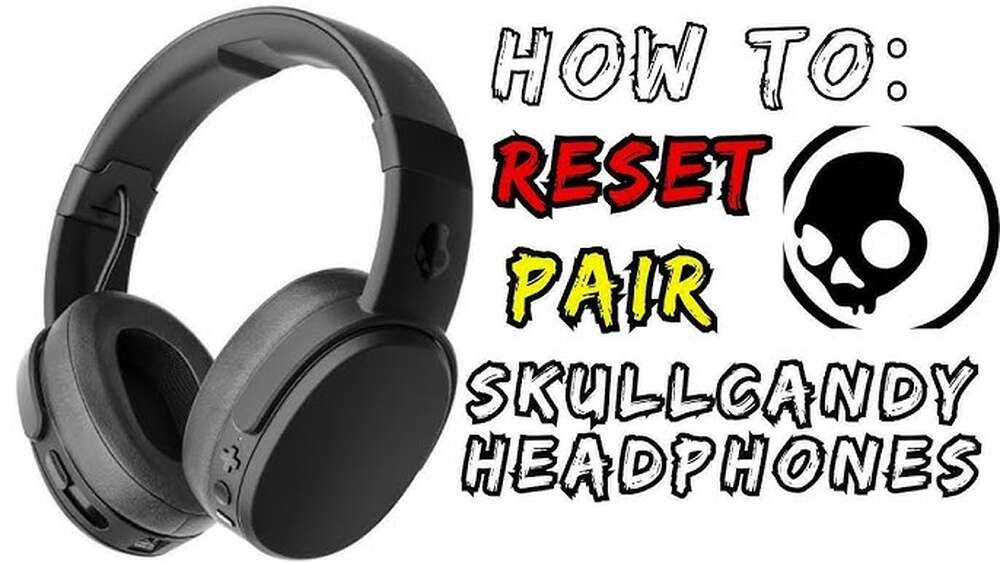
How to Put Skullcandy Headphones into Pairing
Pairing your new Skullcandy headphones shouldn’t be confusing or stressful. In fact, once you know the simple steps, it only takes a minute. I’ve personally helped dozens of friends—some total beginners—connect Skullcandy headphones to all sorts of devices, from Android phones to Windows laptops.
In this guide, I’ll walk you through everything you need to know about putting Skullcandy headphones into pairing mode, with tips based on real-life experience. Whether you own the popular Crusher Evo, Indy, Hesh, or another model, you’ll find simple instructions, troubleshooting help, and answers to common questions.
Let’s get your music playing, fast.
Why Pairing Mode Matters
Bluetooth headphones need a way to connect to your phone, laptop, or tablet. Pairing mode is how your Skullcandy headphones say, “I’m ready to connect!” Without this step, your device won’t even see the headphones. Many people don’t realize that pairing mode is a security feature, too—it stops random devices from connecting to your headphones without your OK. This keeps your listening private.
I remember the first time I tried to pair my Skullcandy Hesh 3. I thought just turning them on would do the trick. But when my phone couldn’t find them, I realized there’s an extra step. That’s when I learned about holding down the power button to trigger pairing mode—a small detail that makes a big difference.
Basic Bluetooth Concepts
Before you start, it helps to know some Bluetooth basics. Bluetooth is a wireless technology that lets devices talk to each other. Headphones, speakers, smartwatches, and game controllers all use Bluetooth. When you pair Skullcandy headphones for the first time, your device remembers them, so you don’t have to do it again.
But if you want to connect to a new device, or if something goes wrong, you’ll need to put the headphones back into pairing mode. This is very common—especially if you switch between your phone and computer.
Different Types Of Skullcandy Headphones
Skullcandy makes several types of wireless headphones and earbuds. The steps to enter pairing mode are similar, but there are small differences between models. Here’s a quick comparison to help you see which one you own:
| Model | Type | Main Button | Pairing Indicator |
|---|---|---|---|
| Crusher Evo | Over-ear | Power Button | LED Light |
| Indy Evo | True Wireless Earbuds | Touch Surface | LED on Earbuds |
| Hesh ANC | Over-ear | Power Button | LED Light |
| Sesh Evo | True Wireless Earbuds | Button on Each Earbud | LED on Earbuds |
| Riff Wireless | On-ear | Power Button | LED Light |
If you’re not sure which Skullcandy model you own, check the manual or look for the name on the headband or charging case.
How To Put Skullcandy Headphones Into Pairing Mode
Let’s get to the main steps. I’ll break this down by over-ear/on-ear headphones and true wireless earbuds, since the controls are a little different.
Over-ear And On-ear Headphones (e.g., Crusher, Hesh, Riff)
1. Power Off Your Headphones First
Always start with the headphones powered off. If they’re on, press and hold the power button until you hear them turn off.
2. Enter Pairing Mode
Press and hold the power button for about 5 seconds. Don’t just tap—hold it down. You’ll notice the LED light start to flash red and blue (or sometimes just blue). This is your signal that pairing mode is active.
3. Open Bluetooth Settings On Your Device
On your phone, laptop, or tablet, go to the Bluetooth menu and make sure Bluetooth is switched on.
4. Find ‘skullcandy’ In The List
You’ll see something like “Skullcandy Crusher Evo” or “Skullcandy Hesh ANC. ” Tap it to connect.
5. Wait For Confirmation
You’ll usually hear a voice say “Connected” or see a solid blue light. This means pairing worked.
Pro Tip: If you pair to a Windows PC, you might see a message to enter a code. Just click “Connect”—you don’t need to type anything.
True Wireless Earbuds (e.g., Indy, Sesh, Push)
1. Place Earbuds In The Case
Start with both earbuds in the charging case. Make sure they’re charging (the LEDs should light up).
2. Remove The Earbuds
Take them out. They should power on automatically.
3. Manual Pairing (if Needed)
If they don’t enter pairing mode, tap and hold the main button on both earbuds for 4–6 seconds. The LEDs will start blinking—often red and blue, or just blue.
4. Open Bluetooth Settings On Your Device
Turn on Bluetooth and look for something like “Indy Evo” or “Sesh Evo. ”
5. Tap To Connect
You’ll hear a “connected” sound or see the LED turn solid.
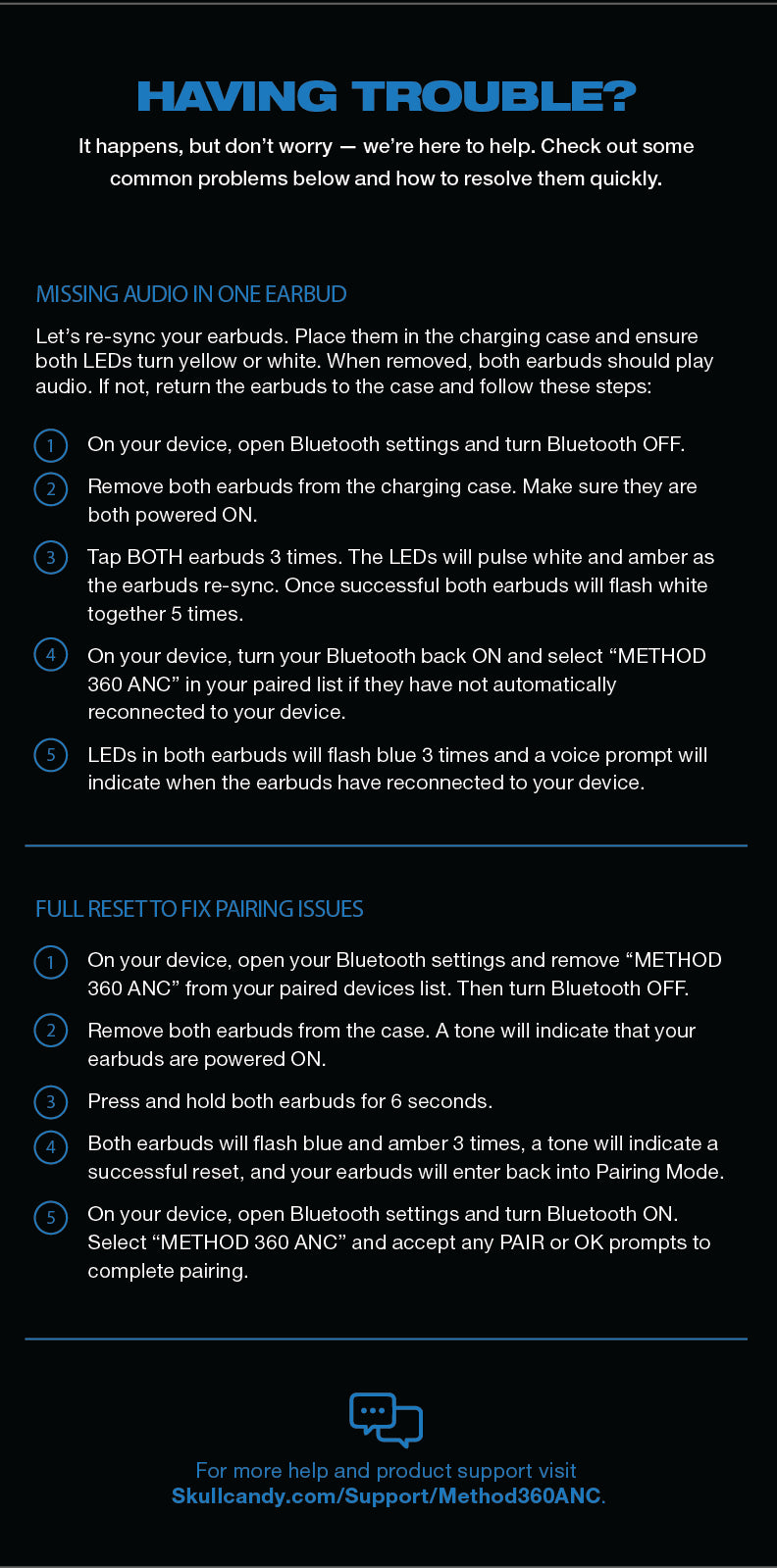
Personal Experience: I once helped a friend with Sesh Evo earbuds. We struggled because the earbuds weren’t charged. A quick reset—putting them in the case, closing the lid, and waiting 10 seconds—fixed it. Always check battery first!
Credit: www.skullcandy.com
What To Do If Pairing Doesn’t Work
Sometimes, things don’t go as planned. Here’s what usually helps:
1. Reset Your Headphones Or Earbuds
Most Skullcandy models have a reset option. For over-ear models, hold the power button for 10 seconds until you hear a sound or see the LED flash. For earbuds, place them in the case, remove them, then hold the buttons for 10 seconds.
2. Clear Old Connections
Your device might remember too many Bluetooth connections. On your phone or laptop, “forget” old Skullcandy devices, then try pairing again.
3. Charge Your Headphones
Low battery can block Bluetooth. Even if they turn on, try charging for 15–30 minutes before pairing.
4. Move Away From Other Devices
WiFi routers and microwaves can interfere with Bluetooth. Pair in a quiet spot, away from electronics.
5. Restart Your Device
Sometimes your phone or laptop needs a reboot. Restart, then try again.
I once tried to pair my Crusher Evo with a new phone in a busy coffee shop. It wouldn’t work until I moved to a quiet corner, away from other Bluetooth devices. That solved it in seconds.
Pairing Mode Status Indicators
Skullcandy headphones use LED lights and voice prompts to tell you what’s happening. Here’s a quick guide:
| Status | LED Indicator | Voice Prompt |
|---|---|---|
| Pairing Mode | Flashing Red/Blue or Blue | “Pairing” or Beeps |
| Connected | Solid Blue | “Connected” |
| Low Battery | Flashing Red | “Battery Low” |
| Charging | Solid Red | – |
If the lights don’t match any of these, check your manual—some older models use different colors.
How To Pair With Different Devices
Pairing is slightly different depending on your device. Here’s a quick guide for the most common ones.
Pairing With An Android Phone
- Open Settings and tap “Bluetooth.”
- Turn Bluetooth ON.
- Tap “Pair new device.”
- Choose your Skullcandy headphones from the list.
Android devices sometimes show a pop-up that asks for permission. Tap “Allow. ”
Pairing With An Iphone Or Ipad
- Open Settings > “Bluetooth.”
- Turn Bluetooth ON.
- Wait for “Other Devices” to show your Skullcandy model.
- Tap to connect.
If you get a message that says “Connection Unsuccessful,” try resetting the headphones and start over.
Pairing With Windows Pc
- Click the Start menu and open “Settings.”
- Go to “Devices” > “Bluetooth & other devices.”
- Turn Bluetooth ON.
- Click “Add Bluetooth or other device.”
- Select “Bluetooth.”
- Choose your Skullcandy headphones.
Windows may ask for a code. Just click “Connect”—no code is needed.
Pairing With Mac
- Click the Apple menu and open “System Preferences.”
- Click “Bluetooth.”
- Turn Bluetooth ON.
- Find your Skullcandy headphones and click “Connect.”
If pairing fails, try removing (“forgetting”) the device and starting again.
Pairing With Smart Tvs And Gaming Consoles
Some smart TVs and consoles (like the PlayStation 4/5) allow Bluetooth connections, but not all. Check your device’s manual. If your TV doesn’t support Bluetooth audio, you may need a Bluetooth transmitter.
Common Mistakes To Avoid
Many people make simple mistakes when trying to pair their Skullcandy headphones. Here are some to watch for:
1. Not Holding The Button Long Enough
A quick press won’t activate pairing. Hold the button for at least 5 seconds.
2. Trying To Pair When Already Connected
If your headphones are already connected to another device, they won’t show up in pairing mode. Disconnect first.
3. Pairing With Low Battery
A low battery can interrupt the process. Charge your headphones before starting.
4. Pairing In A Crowded Area
Too many Bluetooth signals can cause problems. Pair in a quiet spot.
5. Forgetting To Reset
If nothing works, a reset often fixes everything.
How To Switch Devices
Want to use your Skullcandy headphones with a new phone or laptop? Here’s what to do:
1. Disconnect From The Old Device
Turn off Bluetooth on your old device or “forget” the headphones.
2. Put Headphones In Pairing Mode Again
Hold the power button (or touch controls) until you see the flashing light.
3. Connect On The New Device
Open Bluetooth and select your Skullcandy headphones.
Some newer models support multipoint pairing (connecting to two devices at once), but not all. Check your manual for details.
How To Reset Skullcandy Headphones
If you get stuck, a factory reset can help. Here’s how for most models:
- Over-ear/on-ear: Turn headphones off. Hold the power button for 10 seconds. You’ll hear a sound or see the LED flash.
- True wireless earbuds: Place both earbuds in the case. Remove them. Hold the main buttons for 10 seconds until the lights flash.
A reset removes all old connections, so you’ll need to pair again.

Credit: www.wikihow.com
Battery And Charging Tips
Pairing issues often come from low battery. Here’s how to keep your Skullcandy headphones ready:
- Charge for at least 30 minutes before first use.
- If the LED flashes red, plug in your headphones.
- With true wireless earbuds, always store them in the charging case.
- Avoid using third-party charging cables—they can cause problems.
I once used a cheap charging cable for my Crusher Evo. It took longer to charge, and pairing was unreliable. Switching to the original cable solved the issue.
Troubleshooting: Advanced Tips
If you’re still having trouble, try these advanced steps:
- Update your device’s Bluetooth drivers (for laptops/PCs)
- Reset network settings on your phone (careful—this removes all WiFi/Bluetooth connections)
- Try pairing with a different device to see if the problem is with the headphones or your phone
- Contact Skullcandy support if you see hardware damage or the headphones won’t turn on at all
For more details, you can also visit the official Skullcandy Help Center.

Credit: www.youtube.com
Tips For First-time Users
- Read the manual: Every model is a little different.
- Keep your firmware updated: Some Skullcandy models can update via a mobile app.
- Label your devices: If you have several Bluetooth headphones, give them unique names in your device settings.
- Practice pairing: Once you do it a few times, you’ll never forget.
- Store headphones safely: Keep them in a case to avoid accidental button presses.
Quick Reference: Pairing Steps By Model
| Model | Pairing Button | Pairing Steps |
|---|---|---|
| Crusher Evo | Power Button | Hold 5s (flashing light), connect via device Bluetooth |
| Indy Evo | Touch Surface | Tap/hold 6s, connect via device Bluetooth |
| Sesh Evo | Button on Earbud | Hold 6s, connect via device Bluetooth |
| Hesh ANC | Power Button | Hold 5s, connect via device Bluetooth |
| Riff Wireless | Power Button | Hold 5s, connect via device Bluetooth |
Frequently Asked Questions
How Do I Know My Skullcandy Headphones Are In Pairing Mode?
You’ll see the LED light flashing red and blue (or just blue) on most models. Some headphones also play a sound or say “Pairing.” If you don’t see the lights, try holding the power button longer.
Why Won’t My Skullcandy Headphones Show Up In Bluetooth Settings?
This usually means the headphones aren’t in pairing mode or are already connected to another device. Turn them off, wait 10 seconds, then hold the power button to activate pairing mode again. Also, make sure Bluetooth is turned on and your device is set to “discoverable.
”
Can I Pair Skullcandy Headphones With More Than One Device?
Most Skullcandy headphones connect to one device at a time. Some newer models support multipoint pairing (two devices at once), but not all. Check your manual or the Skullcandy website for your model’s features.
What Should I Do If My Headphones Won’t Connect?
First, reset your headphones and your device’s Bluetooth settings. Clear any old pairings, charge your headphones, and try again. If there’s still no connection, test with a different device to see where the problem is.
How Do I Reset My Skullcandy Headphones?
For most over-ear and on-ear models, hold the power button for 10 seconds while they’re off. For true wireless earbuds, place them in the case, remove them, then hold the buttons for 10 seconds. This clears all pairings and returns the headphones to factory settings.
Getting your Skullcandy headphones into pairing mode is simple with the right steps. Remember, most problems come from low battery, not holding the button long enough, or trying to pair with a device that’s already connected. With practice, you’ll pair your headphones in seconds, every time.
Enjoy your music and the wireless freedom that comes with it!