
How to Use 2 Headphones on PC: Step-by-Step Guide
How To Use 2 Headphones On Pc
Ever wanted to watch a movie with a friend late at night, but didn’t want to wake anyone up? Or maybe you and a family member both want to play a game together, but you each prefer your own headphones. Using two headphones on one PC sounds simple, but it often gets tricky. I’ve run into this myself, and I know the frustration of tangled wires, silent headphones, and confusing settings. The good news is: with the right steps, it’s absolutely possible. Let me walk you through everything you need to know to get two headphones working smoothly on your computer—with clear, simple language and plenty of tips from my own experience.
Why Use 2 Headphones On One Pc?
There are many reasons you might want this setup. Here are a few common ones:
- Quiet movie nights: No need to disturb people in the next room.
- Gaming together: Play co-op games with a friend without sharing earbuds.
- Audio editing: Compare how mixes sound on different headphones.
- Language learning: Study with someone, each with separate audio.
- Accessibility: Help someone with hearing loss use special headphones.
I’ve used two headphones for all these reasons. The most common? Watching movies with my partner after the kids are asleep. Sharing one pair is awkward, but two pairs make it easy.
Ways To Connect Two Headphones
There’s more than one way to connect two headphones to a PC. The best method depends on your computer, your headphones, and what you want to do. Let’s look at the main options.
Using A Headphone Splitter
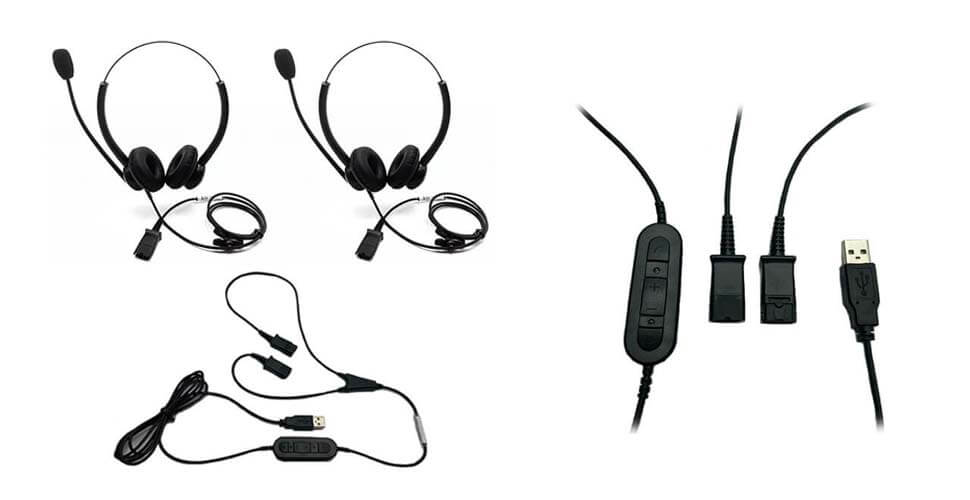
A headphone splitter is a small adapter with one plug and two output jacks. Plug it into your PC’s headphone port, then plug both headphones into the splitter. This is the simplest way, and it works well for many situations.
How A Splitter Works
A basic splitter takes the audio signal and sends it to both headphones at the same time. Some splitters send the same sound to both pairs (stereo splitters). Others allow for separate left and right channels, but those are rare.
Choosing The Right Splitter
Not all splitters are the same. Here are some key points:
- Stereo splitters: Most users need these. They send both left and right audio to both headphones.
- TRRS vs TRS: Some headphones have a mic (TRRS, 4 rings), while others are audio-only (TRS, 3 rings). Pick the splitter that matches your plug type.
- Quality: Cheap splitters may reduce sound quality or break easily.
I once bought a cheap splitter for $2, and it worked… until one side stopped working after a week. Spending a few more dollars for a solid metal one was worth it.
Pros And Cons Of Splitters
| Pros | Cons |
|---|---|
| Easy to use | Both headphones share same volume |
| Cheap (usually under $10) | Sound quality may drop with very cheap models |
| No software needed | No separate audio for each person |
Using Both Front And Rear Audio Jacks
Most desktop PCs have a headphone jack in the front panel and another on the back panel. You can plug one headphone into each. Laptops often have only one jack, but many desktops support this dual setup.
Setting Up Two Jacks
- Plug one headphone into the front, one into the back.
- Right-click the speaker icon in Windows.
- Choose “Sounds” or “Playback devices.”
- Look for both headphones (they may show as “Speakers” and “Headphones”).
- Set both as enabled.
- On some PCs, you may need to use the sound card’s control panel to set both jacks as “independent.”
Issues And Solutions
- Not all PCs support this: Some combine both jacks as one output. If you don’t see two playback devices, check your sound card software (like Realtek or ASUS).
- Volume control: Usually, both headphones share the same volume. Use the headphone’s inline control if available.
I’ve found this works best on desktop towers. On my old Dell, I had to update the Realtek audio drivers before both jacks worked separately.
Using Bluetooth And Wired Headphones Together
Want to use one wired and one Bluetooth headphone? Many PCs can do this, but there are some tricks.
Steps
- Plug a wired headphone into your PC.
- Pair your Bluetooth headphone:
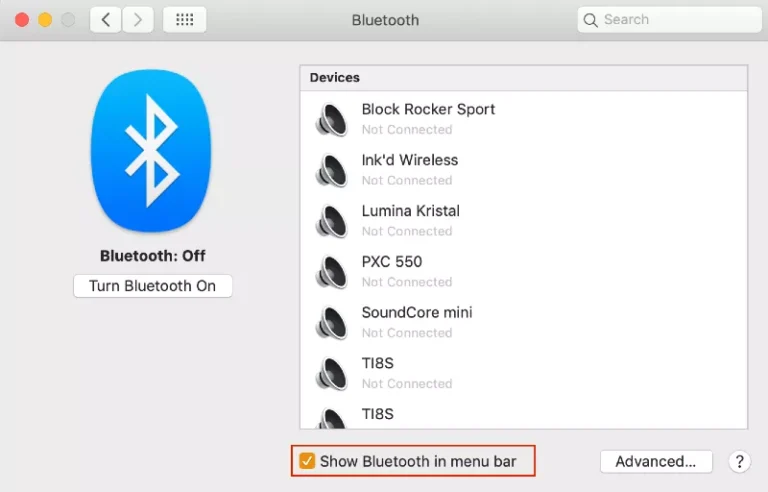
- Go to Settings > Devices > Bluetooth.
- Turn on and connect your Bluetooth headphones.
- Open the Sound settings.
- Look for both devices under “Output.”
- Use a special tool (like “Audio Router” or “CheVolume”) to send the same sound to both.
Common Problems
- Audio lag: Bluetooth has a slight delay compared to wired. Watching movies together can feel “out of sync.”
- Software required: Windows doesn’t natively send the same audio to two outputs. You’ll need a third-party app.
I once tried this for a co-op game with a friend—after a few seconds, the Bluetooth user’s audio was half a second late! For music, it’s fine. For movies or games, both headphones should be wired if you want perfect sync.
Using Two Bluetooth Headphones
This is a common request, but Windows doesn’t let you connect two Bluetooth headphones at once by default. Some newer devices or special adapters can, but it’s rare.
Workarounds
- Use a Bluetooth transmitter: Plug it into your PC’s headphone jack. Many transmitters support two headphones.
- Some sound cards: A few high-end cards support dual Bluetooth, but it’s uncommon.
When It Works
If you have a USB Bluetooth transmitter that supports “dual pairing,” you can listen together. Check the specs before buying.
Using Virtual Audio Software
If you want more control, try virtual audio software. These tools can send sound to multiple outputs at the same time.
Popular Tools
- Voicemeeter: Free, powerful mixer.
- CheVolume: User-friendly, but paid.
- Audio Router: Simple and free, works with some Windows versions.
How To Set Up (voicemeeter Example)
- Download and install Voicemeeter.
- Set your PC audio to output to Voicemeeter.
- In Voicemeeter, pick two output devices (your two headphones).
- Play your sound—both headphones get audio.
Advantages
- Separate volume controls.
- Mix and match devices.
- Route different apps to different headphones.
Drawbacks
- Setup takes a few minutes.
- Can be confusing for beginners.
- Not all software supports all Windows versions.
From experience, Voicemeeter is very flexible, but it has a learning curve. I recommend it for anyone who wants to customize their audio setup.
Credit: www.headphonesty.com
Step-by-step: Two Headphones, One Pc
Let’s put this all together in a simple, practical guide. I’ll focus on the most common setup: using a splitter, then briefly touch on the others.
Method 1: Headphone Splitter
- Buy a quality stereo headphone splitter (TRS or TRRS, as needed).
- Plug the splitter into your PC’s headphone jack.
- Connect both headphones to the splitter.
- Play audio. Both headphones should work instantly.
- Adjust the PC volume to a comfortable level.
- If one headphone is quieter, check for loose connections.
Tip: If you and your friend have different volume needs, each can use headphones with their own inline volume control.
Method 2: Front And Rear Jacks (desktops)
- Plug one headphone into the front audio port.
- Plug the other into the rear port.
- Open Windows Sound settings.
- Make sure both outputs are enabled.
- Test with music or a video.
Non-obvious insight: Sometimes, your motherboard’s audio software (like Realtek HD Audio Manager) has a setting called “separate all input jacks as independent devices.” Make sure this is checked!
Method 3: Wired + Bluetooth
- Plug your wired headphone in as normal.
- Pair your Bluetooth headphones in Windows.
- Use a program like Audio Router to send output to both.
- Test for sync issues (especially for movies/games).
Method 4: Two Bluetooth Headphones
- Buy a dual-pairing Bluetooth transmitter.
- Plug it into your PC’s headphone jack.
- Put both Bluetooth headphones in pairing mode.
- Connect to the transmitter.
- Play your audio.
Practical tip: Check if your Bluetooth transmitter supports “aptX Low Latency”—this helps reduce lag.
Method 5: Virtual Audio Software
- Download Voicemeeter or similar software.
- Set it as the default output device in Windows.
- Choose both your headphones as outputs in the software.
- Adjust volume and routing as needed.
This is the method I use when I need one headphone for music and another for Zoom calls. It’s flexible but takes a few tries to set up.
Common Problems And Fixes
Even with the right gear, things can go wrong. Here’s what to watch for and how to fix it.
No Sound On One Headphone
- Check all plugs are firmly connected.
- Try another headphone—maybe one is faulty.
- If using a splitter, swap the outputs. If the problem moves, the splitter may be bad.
Volume Too Low Or Unbalanced
- Cheap splitters can lower volume.
- Headphones with different impedance may sound uneven. Try using two similar models.
- Use a powered splitter if needed.
Static Or Hissing Sound
- Poor-quality splitters often cause noise.
- Try moving cables away from power cords.
- Use shielded cables for better sound.
Bluetooth Sync Issues
- Bluetooth always has a slight delay.
- Use two wired headphones for perfect timing.
- If you must use Bluetooth, look for “aptX Low Latency” devices.
Both Headphones Not Detected
- Update your sound card drivers.
- Check your PC’s audio settings for “independent” jack mode.
- Try a different USB port or jack.
How To Pick The Best Method For You
Not sure which method to use? Here’s how to decide.
| Situation | Best Method | Why |
|---|---|---|
| Watching movies together | Splitter or dual-jack | Easy, no lag, simple setup |
| Gaming together | Splitter or virtual audio | Low latency, can control volumes |
| Audio editing | Virtual audio software | Route different sounds to different headphones |
| Mixed Bluetooth/wired | Virtual audio or transmitter | Possible, but check for lag |
| Both headphones wireless | Dual Bluetooth transmitter | Windows does not support natively |
My Personal Experience: What Works Best
I’ve tried all these methods over the years. For family movie nights, a good splitter is the clear winner. It’s cheap, quick to set up, and reliable. When I’m testing how music sounds on different headphones for editing, I use Voicemeeter. It lets me switch between headphones with a click.
One thing I learned the hard way: avoid the cheapest splitters. They often break fast or distort sound. Spending $8–15 for a branded one (like Belkin or UGREEN) saves headaches.
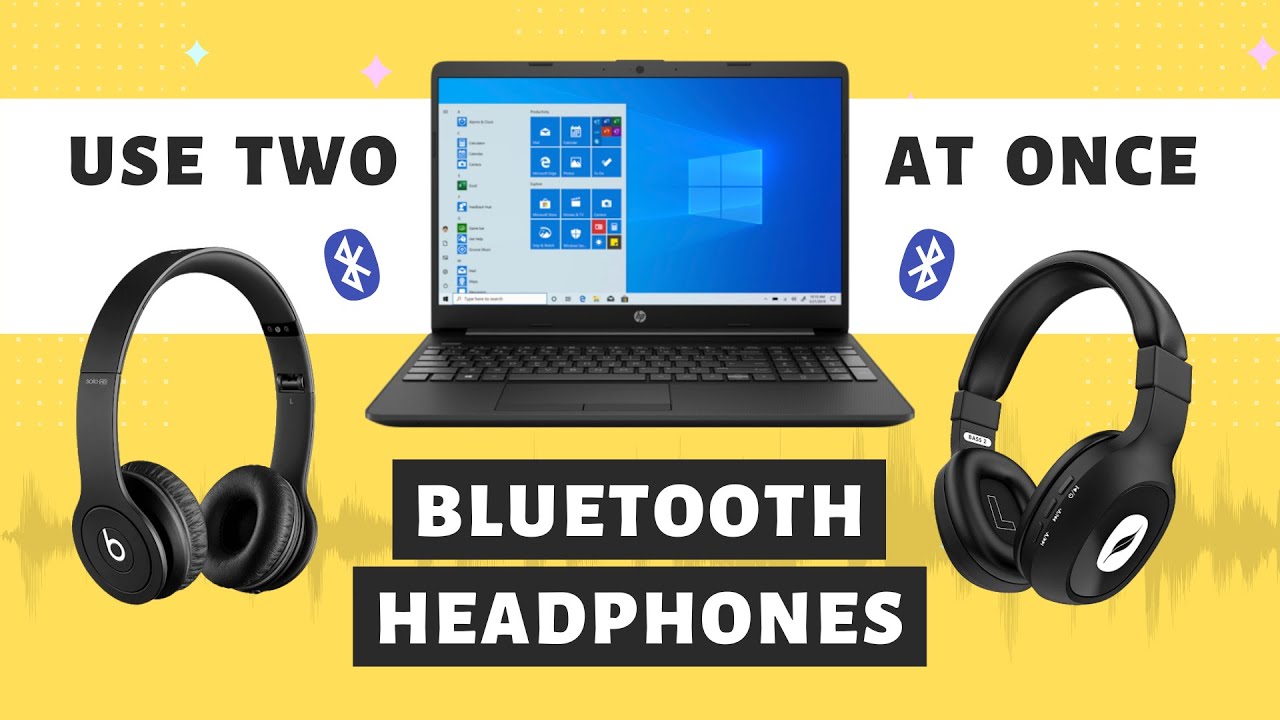
I also once tried using two Bluetooth headphones for a Netflix binge. Even with a fancy transmitter, there was a small delay—enough to notice lip-sync problems. Wired is still king for perfect timing.
Credit: www.youtube.com
Tips For The Best Experience
Here are some expert tips to make your dual-headphone setup as smooth as possible:
- Match your headphones: Using two similar models avoids volume and quality differences.
- Get a powered splitter: If both headphones are high-end (high impedance), a powered splitter keeps the sound strong.
- Label your cables: If you use splitters or software, label each cable so you know which is which.
- Update drivers: Old audio drivers can cause problems. Visit your motherboard or sound card maker’s site for updates.
- Keep it simple: For most users, a splitter or dual jack is plenty. Only use software if you need advanced features.
Non-obvious insight: Some sound cards (like those from Creative or ASUS) have their own software for managing multiple outputs. Explore your PC’s audio panel—you might have features you didn’t know about.
Safety And Hearing: What To Watch For
When you use two headphones, especially with a splitter, be careful with volume. Two headphones can draw more power from your PC’s audio port. If you notice distortion, lower the volume.
- Start at low volume: Turn up slowly to protect your ears.
- Take breaks: Long listening sessions can cause ear fatigue.
- Check for overheating: If your audio port or splitter gets hot, disconnect and let it cool.
When To Upgrade Your Gear
If you use two headphones often, you might want to invest in better equipment:
- Dedicated headphone amp: Powers two headphones with better quality.
- USB sound card: Many support dual outputs and better sound.
- High-quality splitter: Reduces noise and lasts longer.
For serious audio fans, a USB DAC (digital-to-analog converter) with two outputs is a great choice. It improves sound and handles two pairs easily.
Compatibility: Pc Vs Laptop
Desktops have more options (front and rear jacks). Laptops often have one jack, so a splitter or Bluetooth is usually the best bet.
- Mac users: Most of these methods work, but Mac’s audio settings are simpler. Try a splitter first.
Credit: www.headset-store.co.uk
Alternatives: Using Speakers And Headphones
Some people want one person to use headphones, the other to use speakers. You can do this by setting your speakers as the default device, then sending a specific app (like Zoom or Spotify) to headphones using Windows’ “App volume and device preferences.
”
How: Go to Settings > System > Sound > Advanced sound options.
External Resources For Deeper Learning
If you want to dive deeper into audio setups, I recommend reading the guide on the Wikipedia headphone splitter page. It covers technical details and advanced configurations for audio fans.
Frequently Asked Questions
Can I Connect Two Bluetooth Headphones To A Pc At Once?
Not directly in Windows. You need a Bluetooth transmitter that supports dual pairing. Most PCs only support one Bluetooth audio connection at a time.
Will Using A Splitter Reduce Sound Quality?
A good splitter usually doesn’t affect quality much. Cheap splitters, however, can cause lower volume or a slight hiss. For the best results, use a branded, shielded splitter.
Is It Possible To Control Volume Separately For Both Headphones?
Not with a basic splitter—both headphones share the same volume. With virtual audio software like Voicemeeter, or if each headphone has its own inline control, you can adjust volumes separately.
Does This Work On Mac As Well As Windows?
Yes, but Mac’s built-in audio settings are simpler. For most Macs, use a splitter. For advanced setups, try Audio MIDI Setup (found in Applications > Utilities) to create a “multi-output device.”
Are There Risks To My Pc If I Use Two Headphones?
Very rarely. Drawing too much power can strain your audio port, especially with two high-impedance headphones. Use a powered splitter or headphone amp for the safest setup.
Connecting two headphones to your PC opens up new ways to enjoy music, movies, and games with others. With a little planning and the right tools, you’ll get clear, comfortable sound for everyone—no more awkward sharing or missed lines.