Can I Just Use A Router For Internet: Setup Guide
If you live in the United States, you usually cannot use only a router for home internet. Most U.S. internet services need a modem, an optical network terminal (ONT), or another device that connects your home to the provider’s network.
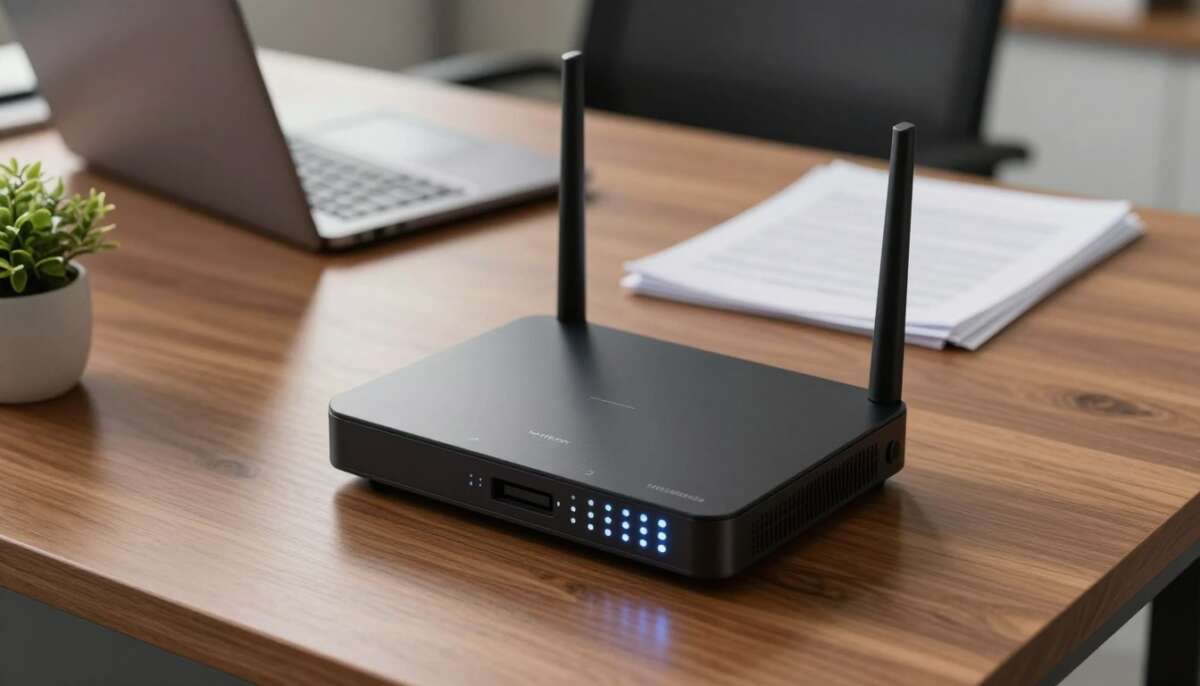
A router shares that connection with your devices. It creates your home network and sends traffic to phones, computers, TVs, and smart home devices. By itself, a router normally does not receive an internet signal from a cable, DSL, or fiber line.
You can use only a router when your internet provider gives you an active Ethernet connection, such as in an apartment, dorm, office, or some fiber homes.

What does a router do?
A router manages traffic between your home network and the internet connection supplied by your provider.
It can:
- Create a Wi-Fi network
- Connect wired devices through Ethernet ports
- Assign local IP addresses
- Direct traffic between your devices and the internet
- Provide basic firewall protection
- Support features such as parental controls and guest Wi-Fi
A router is like a traffic director inside your home. It knows where data should go, but it usually does not create the road to your internet provider.
What does a modem do?
A modem connects to the type of line used by your internet provider.
Common modem types include:
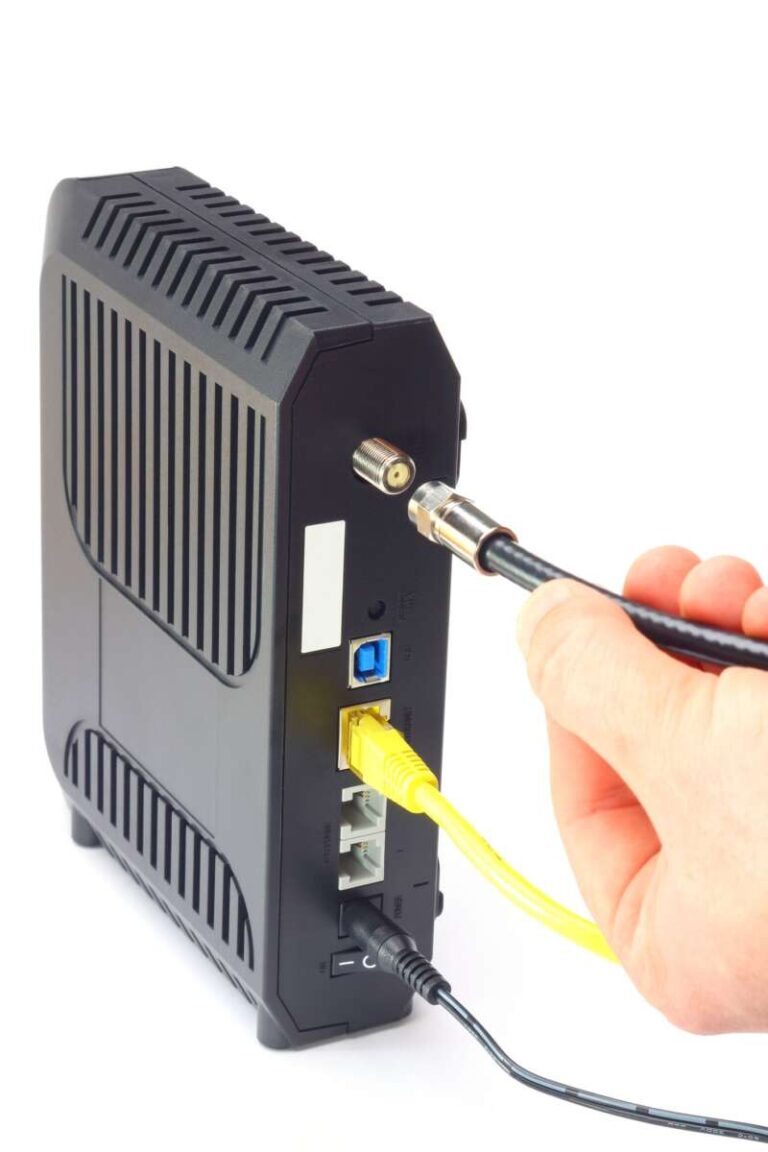
- Cable modem: Connects to a coaxial cable line from a cable ISP
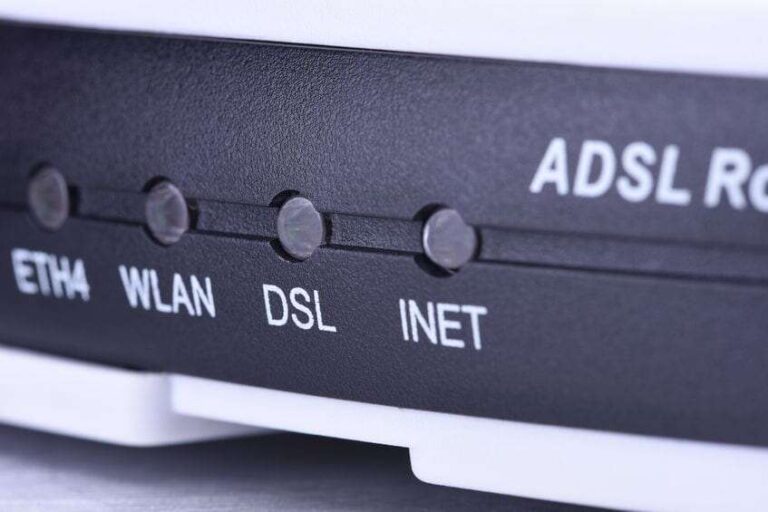
- DSL modem: Connects to a telephone-style DSL line
- Fiber ONT: Converts the fiber signal into Ethernet
- Fixed wireless receiver: Connects to a wireless signal from the provider
- Satellite terminal: Connects to a satellite service
The modem or ONT handles the provider’s signal. The router then shares that connection across your home.
The basic setup often looks like this:
Internet provider line → Modem or ONT → Router → Your devices
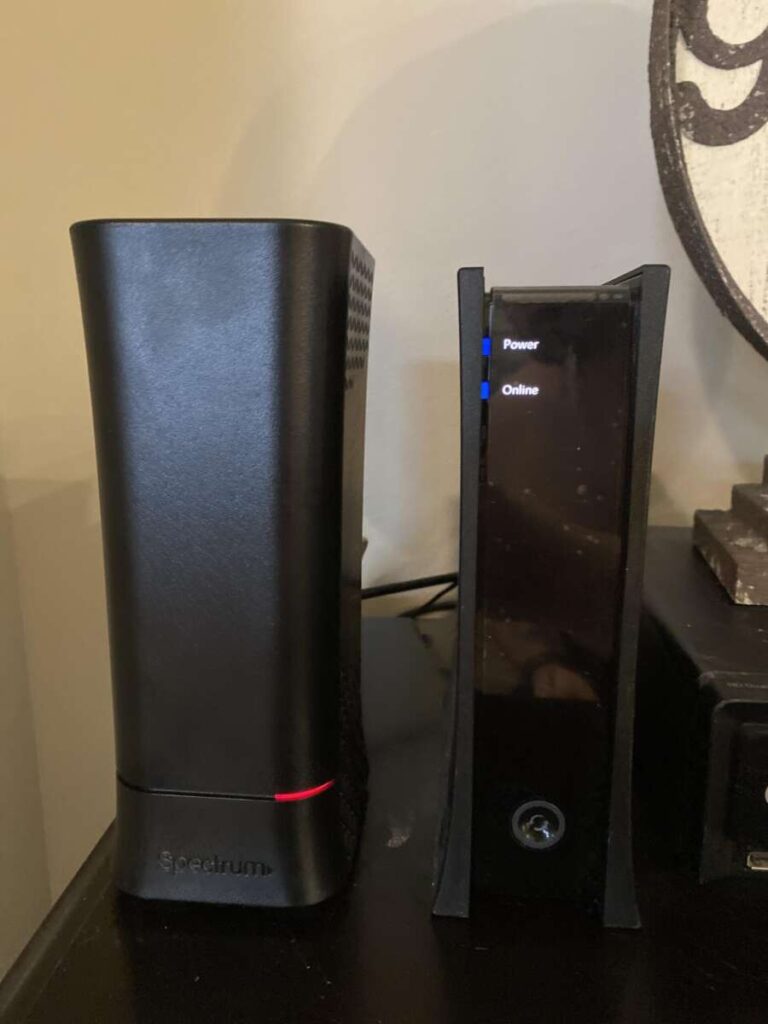
Some internet companies combine the modem and router in one box. This is called a gateway or modem-router combo.

When can you use only a router?
You can use just a router if your provider or building gives you an active Ethernet connection.
This setup is common in:
- Apartments with managed internet
- College dorms
- Office buildings
- Hotels and extended-stay housing
- Some fiber-to-the-home installations
- Homes with an existing ONT or Ethernet handoff
- Some community broadband networks
In this case, the Ethernet wall jack is already connected to the provider’s equipment. You do not need a separate modem.
Connect the wall jack to the router’s WAN or Internet port. Then connect your devices to the router.
Active Ethernet wall jack → Router WAN port → Your devices
The router may need to use one of these connection types:
- Automatic IP or DHCP: The router receives settings on its own
- PPPoE: You enter an ISP username and password
- Static IP: Your provider gives you fixed network settings
- VLAN settings: Some fiber providers require a specific VLAN number
Ask your provider which setting to use. Do not guess if the service uses PPPoE, a static IP, or a VLAN.
How to tell if an Ethernet jack provides internet
An Ethernet wall jack does not always mean internet access. It may lead only to another room, a local network, or nothing at all.
To check:
- Connect a laptop directly to the Ethernet jack.
- Turn off the laptop’s Wi-Fi.
- Open a web page.
- If the page loads, the jack may provide internet.
- If it does not work, contact the building manager or ISP.
A direct laptop test is useful, but some networks require registration, a login page, or a device limit. A failed test does not always prove that the jack is inactive.

When do you need a modem or ONT?
You need a modem, ONT, or provider-supplied receiver when your internet service arrives through a line that your router cannot translate on its own.
You will usually need extra equipment for:
| Internet service | Equipment commonly needed |
|---|---|
| Cable internet | Cable modem |
| DSL internet | DSL modem |
| Fiber internet | ONT, often supplied by the ISP |
| Fixed wireless | Outdoor receiver or indoor gateway |
| Satellite internet | Satellite terminal or gateway |
| 5G home internet | Cellular gateway |
A standard Wi-Fi router does not have a coaxial cable modem, DSL modem, or fiber ONT built into it unless the product specifically says it does.
For example, a router with a coaxial connector is not automatically a cable modem. Check the product specifications. The device must support your provider and the service technology used at your address.
Fiber internet can be confusing
Fiber service often uses an ONT. The ONT may sit outside, in a utility box, or inside your home.
If the ONT provides Ethernet, you may connect your router directly to it. In that case, you can use a router without buying a modem.
However, the ONT is still doing the modem-like job. You are not truly replacing the provider connection with the router. The ONT remains part of the network.
Some fiber companies provide an ONT and a router as separate devices. Others provide one gateway. Your setup depends on the ISP’s equipment and network rules.

What happens if you connect a router directly to a cable or phone line?
A normal router will not work when connected directly to a cable or phone line.
Coaxial cable
A coaxial cable from a cable ISP must connect to a compatible cable modem or gateway. A router’s Ethernet WAN port cannot read the cable modem signal.
Telephone-style DSL line
A DSL line must connect to a DSL modem or DSL gateway. Plugging it into a regular router will not create an internet connection.
Fiber cable
Never force a fiber cable into a normal Ethernet port. Fiber connectors and equipment are different from standard network cables. The ISP’s ONT or fiber gateway should handle the fiber connection.
Ethernet cable
An Ethernet cable may connect directly to a router if the other end leads to an active ISP connection. This is the main exception.
The key question is not simply, “Which cable do I have?” Ask instead:
Does this cable connect to an active provider device or service handoff?
If the answer is no, the router needs a modem, ONT, or other compatible device first.

How to set up a router without a separate modem
Use these steps only when your ISP provides an active Ethernet connection.
1. Confirm the service
Ask the ISP or property manager:
- Is the Ethernet jack active?
- Does it use DHCP, PPPoE, or a static IP?
- Does it require a VLAN ID?
- Must you register the router’s MAC address?
- Is there a data limit or device limit?
- Does the service block personal routers?
This check can save time. Many people buy a router when the real issue is that the wall jack is not activated.
2. Connect the Ethernet cable
Plug one end into the active wall jack or ONT Ethernet port. Plug the other end into the router’s WAN or Internet port.
Do not use a regular LAN port for the incoming connection unless the router’s manual specifically says to use it that way.
3. Power on the equipment
Turn on the ONT or building connection first, if it has a power supply. Then turn on the router.
Wait a few minutes. Some networks take time to assign an IP address.
4. Open the router setup page or app
Use the setup instructions supplied with the router. You may need to connect to the router’s temporary Wi-Fi network or use a wired computer.
Set:
- A new administrator password
- A Wi-Fi name
- A strong Wi-Fi password
- The correct time zone
- Automatic firmware updates, if available
Avoid using your router’s default administrator password.
5. Choose the ISP connection type
Select the correct setting:
- Use DHCP or Automatic IP if the ISP assigns settings automatically.
- Use PPPoE if the ISP supplied a username and password.
- Use Static IP only when the ISP supplied the IP details.
- Enter VLAN settings only when the ISP requires them.
6. Test the connection
Connect a phone or computer to the new Wi-Fi network. Open several sites and test both Wi-Fi and Ethernet if possible.
A successful setup normally shows:
- An internet or WAN IP address in the router app
- No “WAN disconnected” warning
- Working web pages on more than one device
- A stable connection after restarting the router

Router-only setup versus modem-router setup
The right setup depends on what enters your home.
| Your service setup | Devices you need | Typical connection |
|---|---|---|
| Active Ethernet handoff | Router | Wall jack or ONT → router |
| Cable internet | Cable modem and router | Coax → modem → router |
| DSL internet | DSL modem and router | Phone line → modem → router |
| Fiber with Ethernet ONT | Router | Fiber → ONT → router |
| ISP gateway | Gateway, or gateway plus router | Provider line → gateway |
| Cellular home internet | Cellular gateway, optional router | 5G/LTE gateway → router |
A modem-router combo can reduce cable clutter. Separate devices can make upgrades easier because you can replace the router without replacing the modem.
Neither choice is always better. The important factor is compatibility with the ISP and service type.

Can a mesh system replace a modem?
Usually, no.
Most mesh Wi-Fi systems are routers with extra access points. They improve wireless coverage, but they do not normally replace a cable modem, DSL modem, or fiber ONT.
A common setup is:
Cable line → Cable modem → Main mesh router → Mesh points
Some mesh systems include a modem. The product name and specifications should clearly list support for your service type. A mesh point by itself also cannot replace the main router or modem.
Do not assume that “whole-home Wi-Fi” means “works without an internet gateway.” It usually describes Wi-Fi coverage, not the provider connection.

What should you do if the router has no internet?
Start with the connection between the router and the provider equipment.
Symptom: The router says “no internet”
Possible causes include:
- The Ethernet cable is in the wrong port
- The wall jack is inactive
- The modem or ONT is offline
- The ISP requires PPPoE or VLAN settings
- The ISP has not registered the router
- The service is down
- The router received no WAN IP address
Try these steps in order:
- Check that the incoming cable is in the router’s WAN port.
- Confirm that the cable clicks firmly into both ports.
- Restart the modem or ONT, then restart the router.
- Test the wall jack with a laptop, if the ISP allows it.
- Check the router app for a WAN IP address.
- Confirm the ISP connection type.
- Check the provider’s outage page or support line.
- Ask the ISP whether the service requires device registration.
Symptom: Wi-Fi works, but websites do not load
This often means that the router created a local Wi-Fi network but did not receive internet access. Wi-Fi and internet access are separate things.
Check whether the router has a WAN IP address. If it does not, focus on the modem, ONT, wall jack, or ISP settings.
If it has a WAN IP but websites still fail, restart the router and check DNS settings. Use the ISP’s recommended DNS settings first. Avoid changing advanced settings unless you understand the effect.
Symptom: One device works but others do not
The problem may be local to the device. Check its Wi-Fi connection, VPN, parental controls, and network settings.
If every device fails, check the router’s WAN connection instead.

Can a router use a phone hotspot for internet?
Some routers can share a phone’s hotspot connection, but most standard routers cannot do this directly.
Possible methods include:
- Connecting a compatible phone by USB
- Using a router with wireless WAN or repeater mode
- Connecting a dedicated cellular modem
- Using a 4G or 5G home internet gateway
A phone hotspot may have limits on data, speed, battery life, and connected devices. Some mobile plans also restrict hotspot use or reduce speed after a set amount of data.
A dedicated cellular gateway is usually easier for long-term home use because it has better placement options, Ethernet ports, and power management.
Do you need to rent the ISP’s router?
Not always. Many U.S. providers allow customers to use their own compatible modem and router, but policies vary by service and location.
Before buying equipment, check the provider’s official compatibility list. Verify:
- Service speed support
- DOCSIS version for cable service
- Phone-service support, if you use ISP landline service
- IPv6 support
- Required Wi-Fi or gateway features
- Activation rules
- Equipment return rules
- Mesh or extender compatibility
A device that supports your plan in one area may not be approved in another. Provider certification matters more than a product’s advertised maximum speed.
Some fiber services require the ISP’s ONT or gateway. In those cases, you may be able to use your own router behind the provider device, but you may not be able to remove the provider equipment.

Router mode, access point mode, and bridge mode
These modes solve different problems.
Router mode
Use router mode when your device connects directly to the modem, ONT, or active Ethernet handoff. The router assigns local addresses and manages your home network.
Access point mode
Use access point mode when another device already acts as the main router. The access point provides Wi-Fi but does not usually manage the main network.
Bridge mode
Bridge mode turns off routing functions on a gateway so that your own router can manage the network. This can help avoid double NAT.
Double NAT happens when two devices both route traffic. It may cause problems with gaming, VPNs, port forwarding, or remote access.
Ask the ISP before changing bridge settings. Some gateways need special settings for voice service, TV service, or remote support.

Common mistakes to avoid
Buying a Wi-Fi router instead of a modem
A Wi-Fi name does not prove that a device includes a modem. Read the specifications for your exact model.
Plugging the incoming cable into a LAN port
Use the WAN or Internet port for the provider connection. LAN ports are for devices inside your home.
Assuming every Ethernet jack has internet
The jack may be inactive or connected only to another room.
Using the same router name without checking settings
A new router with the same Wi-Fi name and password may reconnect devices, but old devices can retain incorrect settings. Restart them if they do not connect.
Changing advanced settings too early
Start with the ISP’s required connection type. Do not change DNS, VLAN, MTU, or MAC settings without a reason.
Forgetting the ISP account step
Some providers require activation through an app, a web page, a support call, or a registered modem MAC address.
Placing the router inside a cabinet
A router needs open space for its wireless signal and heat to escape. Keep it away from metal objects and thick walls when possible.

Frequently asked questions
Can a router connect straight to the internet?
Yes, but only when the router receives an active Ethernet connection from an ISP, building network, or ONT. A regular router cannot connect directly to a cable, DSL, or fiber line without compatible provider equipment.
Can I use a router without Wi-Fi?
Yes. You can disable Wi-Fi and use Ethernet cables only. The router can still direct traffic and provide firewall functions.
Can I use two routers in one home?
Yes. You can use a second router as an access point or create a separate network. Configure the second device carefully to avoid double NAT and IP address conflicts.
Does a router give free internet?
No. A router shares an internet connection; it does not provide service without an ISP, building network, hotspot, or other internet source.
Can I replace my modem with a router?
Only if the router includes a compatible modem or if your provider gives you Ethernet from an ONT or other network device. A standard router cannot replace a cable or DSL modem.
Key takeaways
- A router usually cannot provide internet by itself.
- You need a modem, ONT, gateway, or another active internet source.
- You can use only a router with an active Ethernet wall jack or ONT connection.
- Cable and DSL service normally need compatible modems.
- Fiber service may need an ONT, but the ONT may already be installed.
- A mesh Wi-Fi system usually replaces or adds Wi-Fi coverage, not the modem.
- Check your ISP’s equipment and setup rules before buying anything.
Conclusion
For most U.S. homes, the answer is no: a router alone is not enough. Cable, DSL, and many fiber services need a modem, ONT, or gateway to connect with the provider.
The main exception is an active Ethernet handoff. If your apartment, office, dorm, or fiber ONT gives you working Ethernet internet, connect that cable to the router’s WAN port and configure the ISP settings.
Before you buy equipment, identify the service line, ask the ISP what device it requires, and confirm whether the Ethernet jack is active. That simple check can prevent the most common setup mistake.

Tech Writer & Electronics Enthusiast
Mason Blake is a technology writer and electronics enthusiast at My Electro Hubs. He creates easy-to-follow product reviews, buying guides, troubleshooting tips, and practical tech solutions to help readers make smarter electronics choices