Can I Use A DSL Router For Cable Internet: Compatibility
Usually, no. A DSL router cannot connect directly to U.S. cable internet because DSL and cable use different network types, ports, and modem standards.
A DSL device is made for a phone-line connection. Cable internet uses a coaxial cable and needs a DOCSIS cable modem. However, you may be able to use the router part of a DSL gateway if the device has a usable Ethernet WAN port.
The short answer is:
- DSL phone-line port only: No.
- DSL modem/router with Ethernet WAN support: Maybe, as a separate router.
- Cable modem with built-in router: Yes, if approved by your internet provider.
This guide explains what works, what does not, and how to check your equipment before you buy anything.

Why a DSL Router Does Not Work Directly With Cable Internet
A DSL router contains a DSL modem. That modem converts data from a telephone line into network traffic. Cable internet uses a different modem that communicates over the provider’s coaxial cable network.
The two services use different access methods:
| Internet service | Wall connection | Required modem type | Common standard |
|---|---|---|---|
| DSL | Telephone-style phone jack | DSL modem | ADSL, ADSL2+, or VDSL |
| Cable | Coaxial cable jack | Cable modem | DOCSIS |
| Fiber | Optical fiber or provider network box | Optical network terminal or Ethernet handoff | GPON, XGS-PON, or Ethernet |
| Fixed wireless | Ethernet from outdoor receiver | Often no separate modem | Provider-specific |
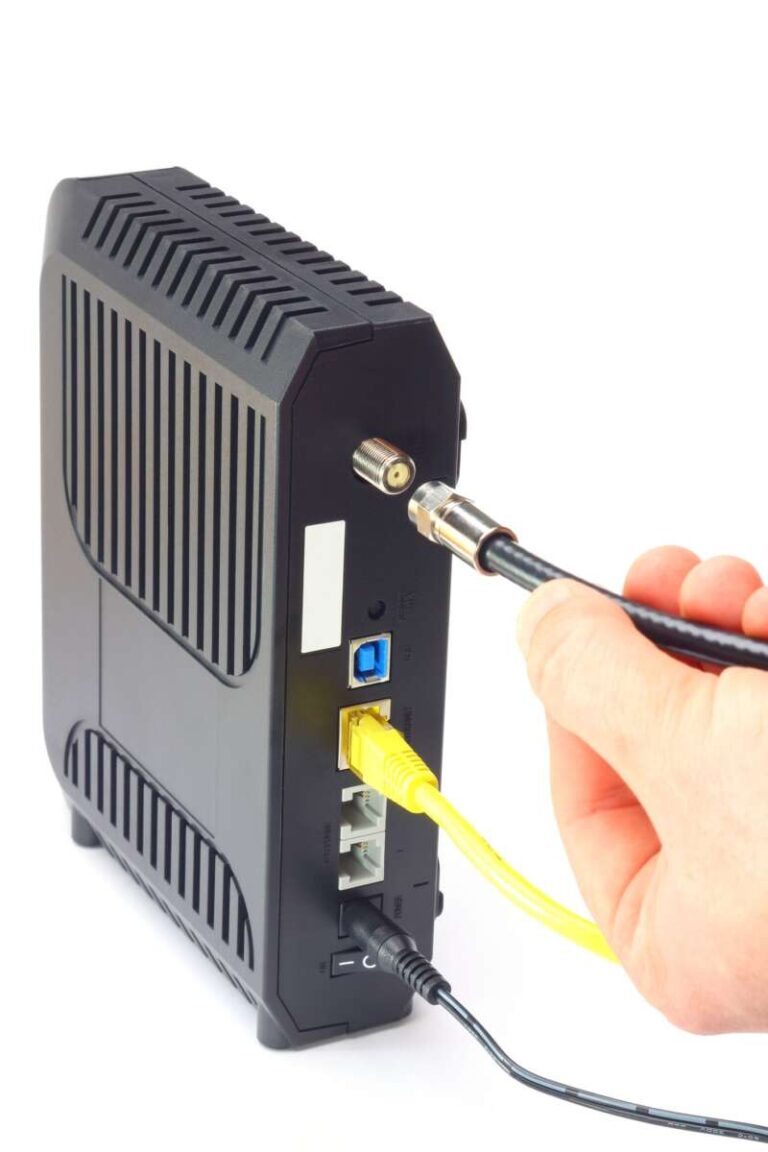
A DSL router normally has an RJ11 phone-line port. A cable modem uses an F-type coaxial connector. The ports are not interchangeable.
A simple adapter cannot solve this problem. The issue is not just the shape of the plug. The modem must speak the technology used by the internet provider.
For example, a DSL modem cannot perform the DOCSIS connection and registration required by a cable provider. The cable provider also may need to authorize the modem’s MAC address before service works.

What You Need for Cable Internet in the United States
For most U.S. cable internet plans, you need two main devices:
- A DOCSIS cable modem
- A router or Wi-Fi system
You can use two separate devices, or one combined cable modem/router gateway.
The cable modem connects to the coaxial outlet. The router connects to the modem through an Ethernet cable.
Coaxial wall outlet
        ↓
DOCSIS cable modem
        ↓ Ethernet cable
Router or Wi-Fi system
        ↓
Computers, phones, TVs, and other devices
The modem must support the cable provider’s network and plan. Providers often publish lists of approved modems. Compatibility can depend on:
- Your internet provider
- Your service tier
- The modem’s DOCSIS version
- Upstream and downstream channel support
- Firmware approval
- The provider’s equipment policy
- Voice service, if you use internet-based home phone service
A modem that works with one U.S. cable provider may not work with another. Always check the provider’s current compatibility list before buying.
DOCSIS is the cable modem standard maintained by CableLabs. DOCSIS 3.1 is common for many modern cable plans, but the correct choice still depends on the provider and plan.

Can You Use the DSL Router as a Regular Router?
Sometimes. A DSL gateway may work behind a cable modem if it has an Ethernet WAN port and supports Ethernet as its internet connection type.
The DSL modem section would not be used. Only the routing and Wi-Fi functions would remain active.
Look for one of these features in the device manual or setup menu:
- Ethernet WAN
- WAN over Ethernet
- Internet port
- WAN connection type
- DHCP over Ethernet
- Automatic IP
- Dynamic IP
- PPPoE over Ethernet
- Router mode
- Access point mode
Some DSL gateways have an Ethernet port, but that port may be for local devices only. An Ethernet LAN port is not automatically an Ethernet WAN port.
How to identify the ports
A typical DSL gateway may have:
- One RJ11 DSL port
- Several RJ45 LAN ports
- Wi-Fi
- One USB port
- A power connector
An RJ11 DSL port is usually smaller and may be labeled DSL, LINE, or Broadband.
An RJ45 Ethernet port is wider and may be labeled WAN, Internet, or LAN. The label alone is not enough. Check the manual to confirm how the port works.
Three possible results
| DSL device feature | Can it work with cable internet? | How |
|---|---|---|
| DSL port only | No | It cannot connect to the cable modem as a router |
| Ethernet WAN support | Yes, potentially | Connect it to a cable modem |
| Access point mode | Yes, usually | Let another router handle routing |
| Ethernet LAN ports only | Limited | It may work as an access point, but not as the main router |
The most reliable setup is often to use the DSL gateway in access point mode. In that mode, the cable modem and a separate router handle the internet connection, while the old DSL device provides Wi-Fi or extra Ethernet ports.

How to Connect a Compatible DSL Gateway to Cable Internet
Use these steps only if the DSL gateway supports Ethernet WAN or access point mode.
Option 1: Use the DSL gateway as the main router
This works when the DSL gateway accepts an Ethernet connection as its WAN input.
- Connect the coaxial cable from the wall outlet to the approved cable modem.
- Connect the cable modem’s Ethernet port to the DSL gateway’s Ethernet WAN or Internet port.
- Turn on the cable modem and wait for it to connect.
- Turn on the DSL gateway.
- Open the gateway’s setup page or mobile app.
- Select Ethernet WAN, Dynamic IP, or the connection type required by your provider.
- Set the Wi-Fi name and password.
- Test a website from a connected device.
Most cable services use DHCP, which gives the router an IP address automatically. Some providers use other settings. Follow the provider’s instructions if they specify a different method.
Option 2: Use the DSL gateway as an access point
This is often easier when the device supports access point mode.
- Connect the cable modem to a separate main router.
- Turn on access point mode on the DSL gateway.
- Connect an Ethernet cable from the main router to the DSL gateway’s LAN port.
- Set the DSL gateway’s Wi-Fi name and password.
- Place the device where you need better coverage.
- Test Wi-Fi and wired connections.
If the gateway does not have access point mode, you may still be able to configure it manually. Disable its DHCP server and connect the main router to a LAN port on the DSL gateway. This method can work, but the exact steps vary by model.
Do not connect the two devices through their DSL ports. The DSL port will not accept the Ethernet signal from a cable modem.
Signs the setup is working
A successful setup usually has these signs:
- The cable modem shows an online or internet light.
- The router receives a WAN IP address.
- Devices can open websites.
- The router’s status page shows an active internet connection.
- You can reach the router’s settings page.
- Video calls and other normal services work without repeated drops.
What to Do If the DSL Router Does Not Work
Start with the cable modem. If the modem cannot connect, the DSL router is not the first problem to solve.
1. Check the cable modem connection
Confirm that:
- The coaxial cable is firmly attached.
- The cable outlet is active.
- The modem is on the provider’s approved list.
- The modem has completed activation.
- The modem’s online light is steady or shows the provider’s normal connected state.
If the modem is offline, contact the cable provider or use its activation page.
2. Check the Ethernet port
Make sure the cable from the modem goes to the DSL gateway’s WAN or Internet port, not a regular LAN port.
If the device has no Ethernet WAN function, it cannot act as the main router for cable service.
3. Check the WAN setting
Open the gateway’s settings and look for the internet connection type. Try the setting documented for your provider, commonly:
- Automatic IP
- DHCP
- Dynamic IP
- Ethernet WAN
Do not choose DSL, ADSL, VDSL, or phone-line broadband.
4. Restart in the correct order
Cable modems can remember the last connected device. Restart the network in this order:
- Turn off the cable modem and router.
- Wait about one minute.
- Turn on the cable modem.
- Wait until it shows an online connection.
- Turn on the DSL gateway or router.
- Test the connection.
If the modem still will not provide service, the provider may need to register the modem or refresh its connection.
5. Check for double NAT
Double NAT happens when two devices both perform routing. It may not stop normal web browsing, but it can cause trouble with:
- Online gaming
- Port forwarding
- Remote access
- Some VPNs
- Certain smart-home devices
To avoid it, use one of these setups:
- Cable modem in bridge mode plus DSL gateway as router
- Cable modem/router in bridge mode plus DSL gateway as router
- Main router plus DSL gateway in access point mode
The correct choice depends on whether your cable modem is a modem only or a modem/router gateway.

DSL Router vs. Cable Modem Router
These devices may look similar, but they connect to different access networks.
| Device | Connects to | Main job |
|---|---|---|
| DSL modem/router | Phone line | Modulates DSL service and routes local traffic |
| Cable modem | Coaxial cable | Connects to the cable provider |
| Cable modem/router gateway | Coaxial cable | Connects to cable service and provides routing |
| Standalone router | Ethernet from a modem or network box | Routes traffic and provides Wi-Fi |
| Access point | Ethernet from a router | Provides Wi-Fi without managing the internet connection |
A DSL gateway is not automatically a general-purpose router. Some models combine a DSL modem and router but lack a usable WAN port for another type of modem.
Before reusing one, find the exact model number and download its manual. Product names can be misleading. A device described as a “wireless gateway” may support only DSL on its internet-facing side.

Common Mistakes to Avoid
Plugging the coaxial cable into an adapter
A phone-line adapter does not turn a DSL modem into a cable modem. The internal hardware and software are different.
Assuming every Ethernet port can be used as WAN
Many DSL gateways include Ethernet ports only for computers and other local devices. Confirm WAN support in the manual.
Buying a modem without checking approval
Cable providers can reject unsupported equipment. Check the provider’s current modem list and service-tier limits.
Using the wrong kind of cable
Use a coaxial cable from the wall to the cable modem and an Ethernet cable from the modem to the router. Do not use a phone cable for the Ethernet connection.
Expecting an old DSL gateway to improve cable speed
Your internet speed depends on the cable modem, provider plan, network conditions, and router performance. Reusing an old DSL gateway may save money, but it may also limit Wi-Fi range, security features, or wired speed.
Keeping outdated firmware
An old router may lack current security fixes or modern Wi-Fi support. Check the manufacturer’s support page for firmware updates. If the device is no longer supported, replacement may be safer than reuse.

When Should You Replace the DSL Router?
Replace the DSL router if it lacks Ethernet WAN or access point mode, has no current firmware support, or cannot handle your home’s speed and device load.
A separate router is often the better choice when:
- You have a fast cable plan.
- The DSL device supports only old Wi-Fi standards.
- You need guest Wi-Fi or parental controls.
- You use video calls, gaming, or smart-home devices.
- The device frequently drops connections.
- You cannot change its admin password or update its firmware.
You do not necessarily need a new router if the DSL gateway supports Ethernet WAN, receives security updates, and meets your coverage and speed needs.
The lowest-cost working setup is usually:
- An approved cable modem
- Your existing DSL gateway in router or access point mode
The simplest setup is often a provider-approved cable modem and a current standalone router.
Key Takeaways
- A DSL router cannot connect directly to cable internet through its DSL port.
- Cable internet needs a DOCSIS cable modem connected to the coaxial outlet.
- A DSL gateway may still work as a router if it supports Ethernet WAN.
- It may also work as an access point behind a separate router.
- Check the exact model manual before trying to reuse it.
- Confirm that the cable modem is approved by your U.S. internet provider.
- Use only one device as the main router to avoid double NAT.
FAQs
Can I connect a DSL router to a cable modem?
Yes, but only if the DSL router supports Ethernet WAN or access point mode. Connect the cable modem to the DSL router’s Ethernet WAN port. Do not use the DSL phone-line port.
Do I need a modem for cable internet?
Yes. Cable internet normally requires a DOCSIS cable modem or a cable modem/router gateway. A standard DSL router cannot replace it.
Can I use a DSL modem with Xfinity, Spectrum, or Cox?
Not as the cable modem. These services require compatible cable equipment. A DSL gateway might work behind the approved cable modem if it supports Ethernet WAN or access point mode.
Can a cable modem connect to a DSL phone jack?
No. A cable modem needs a coaxial cable connection. A phone jack provides DSL service and cannot provide the DOCSIS signal used by cable internet.
Will using a DSL router reduce my cable internet speed?
It may. Older hardware can limit Ethernet speed, Wi-Fi speed, coverage, or the number of devices it can handle. Test the connection with a wired device and check the router’s port and Wi-Fi specifications.
Can I use a DSL router as a Wi-Fi extender?
Possibly. It must support access point, bridge, or wireless repeater mode. A wired access point connection is usually more dependable than a wireless repeater connection.
Conclusion
You cannot use a DSL router as the modem for cable internet. Cable service requires a compatible DOCSIS cable modem connected to the coaxial outlet.
You may still reuse the DSL device as a router or access point if it supports Ethernet WAN or access point mode. Check the exact model manual, connect the devices in the correct order, and use only one main router. If the DSL gateway lacks these features or no longer receives updates, replacing it with a current router is the safer and simpler option.

Tech Writer & Electronics Enthusiast
Mason Blake is a technology writer and electronics enthusiast at My Electro Hubs. He creates easy-to-follow product reviews, buying guides, troubleshooting tips, and practical tech solutions to help readers make smarter electronics choices