Can I Use A DSL Router With A Cable Modem: Guide
Yes, you can use a DSL router with a cable modem—but only if the router has an Ethernet WAN port.
A cable modem sends internet service through an Ethernet cable. Many DSL routers, however, are made only for a telephone-line DSL connection. Those routers have an RJ11 DSL port but no Ethernet WAN port, so they cannot connect directly to a cable modem.
This guide applies to internet service in the United States, including cable providers such as Xfinity, Spectrum, Cox, and Mediacom.
Introduction
The word “DSL router” can cause confusion. A DSL device may be a modem-router combo with a built-in DSL modem, or it may also include a separate Ethernet WAN port for other types of internet service.
To use one with a U.S. cable modem, check the ports and settings first. The cable modem must connect to the router’s WAN or Internet port—not to the DSL phone-line port. Your cable provider must also support the cable modem itself.

The Short Answer: It Depends on the Router
A DSL router will work with a cable modem when it has an Ethernet WAN port and supports the required connection type.
Use this quick check:
| Router feature | Can it work with a cable modem? |
|---|---|
| RJ11 DSL port only | No |
| RJ45 Ethernet LAN ports only | Usually no |
| Dedicated RJ45 WAN or Internet port | Usually yes |
| Configurable Ethernet WAN port | Yes, if supported by the firmware |
| Built-in DSL modem plus Ethernet WAN | Yes |
| DSL modem-router with no WAN settings | No |
The cable modem usually provides the modem function. The router then manages your home network, Wi-Fi, firewall, and wired devices.
DSL port versus Ethernet WAN port
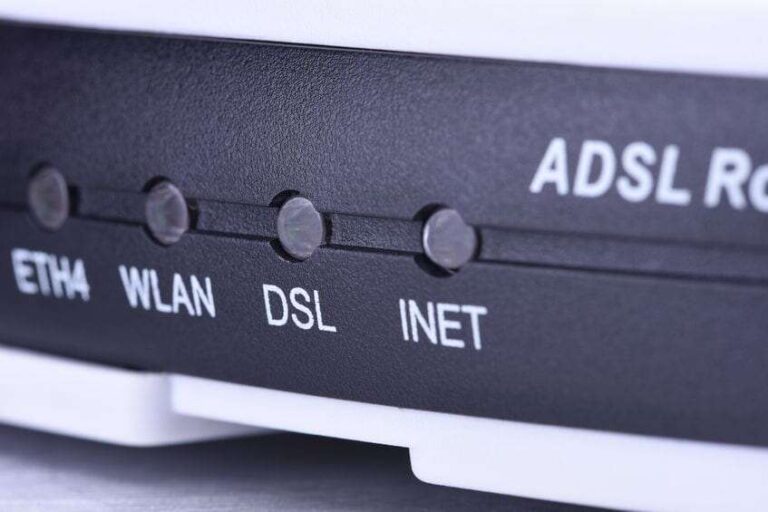
A DSL port uses a telephone-style cable. It is often labeled:
- DSL
- Line
- Phone
- ADSL
- VDSL
An Ethernet WAN port uses a wider RJ45 connector. It may be labeled:
- WAN
- Internet
- Ethernet
- Internet/WAN
The two ports are not interchangeable. An Ethernet cable will not turn a DSL port into a cable-modem connection.
A DSL router is not always DSL-only
Some devices marketed as DSL routers have two internet options:
- A built-in DSL modem
- An Ethernet WAN port for cable, fiber, or another external modem
For example, a router may let you choose between DSL WAN and Ethernet WAN during setup. The exact feature depends on the model and firmware version, so check the product manual before buying or configuring it.

What You Need Before You Start
You need four things for this setup:
- A cable modem that works with your U.S. cable internet provider.
- An Ethernet cable.
- A DSL router with an Ethernet WAN port.
- Your cable provider’s activation information, if the modem has not been activated.
Confirm cable modem approval
Most U.S. cable companies require a compatible DOCSIS cable modem. Some providers publish approved-device lists or require modem registration.
A router does not usually need to appear on the cable provider’s modem list. The cable modem does. The provider identifies the modem by its MAC address or another device record.
Check your provider’s support page for:
- Approved modem models
- Supported DOCSIS version
- Activation steps
- Service speed limits
- Voice service requirements
- Whether customer-owned equipment is allowed
A modem can power on and still fail to connect if the provider does not support or activate it.
Check the router manual
Look for terms such as:
- Ethernet WAN
- Internet over Ethernet
- External modem
- WAN mode
- Automatic IP
- DHCP
- Dynamic IP
- DHCP client
If the manual lists only DSL, PPPoE over DSL, ADSL, or VDSL settings, the device may not support a cable modem.
How to Connect a DSL Router to a Cable Modem
Follow these steps if your router has an Ethernet WAN port.
1. Turn off the equipment
Unplug the cable modem and the router. Wait about one minute.
This helps the modem release its old connection and reduces setup problems. Some cable providers remember the last connected device until the modem is restarted.
2. Connect the cable modem to the coaxial outlet
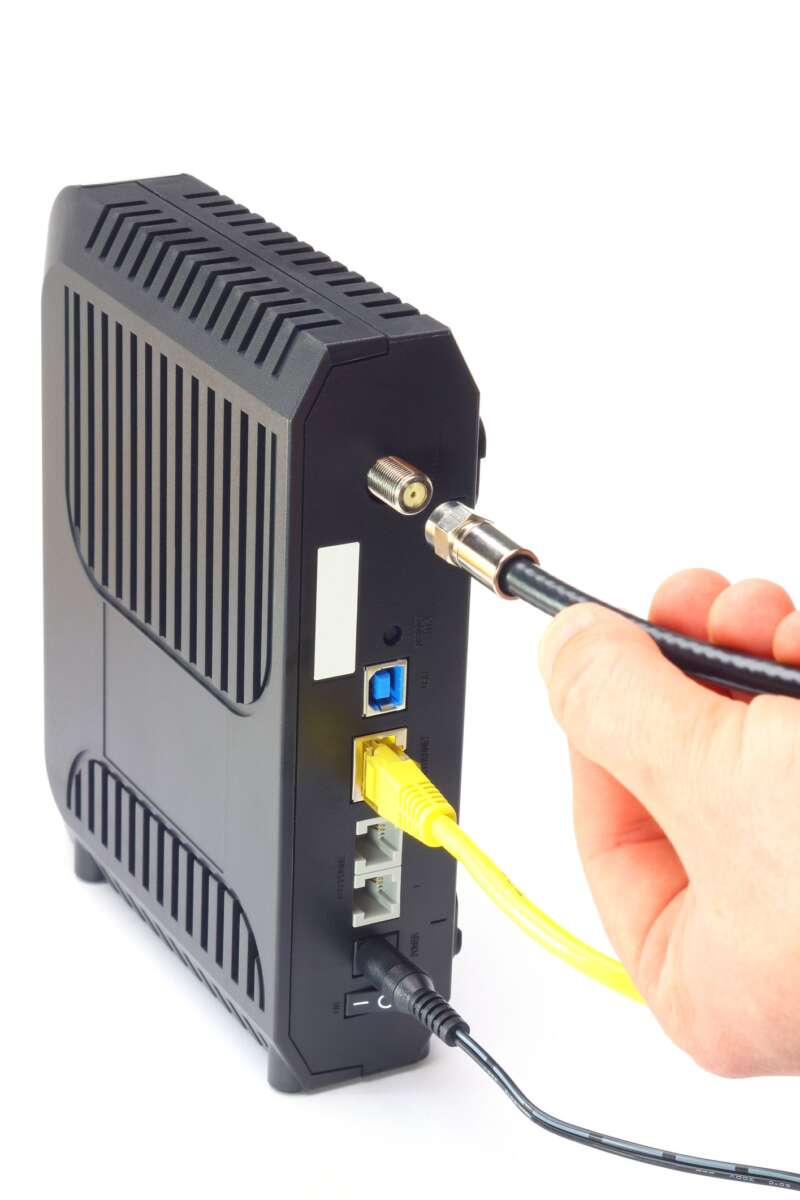
Use the coaxial cable from the cable wall outlet to the cable modem’s coax port. Tighten the connector by hand. Do not force it with tools.
If you use a splitter, remove it during testing if possible. A poor splitter or loose coax connection can prevent the modem from locking onto the provider’s signal.
3. Connect the modem to the router’s Ethernet WAN port
Use an Ethernet cable from the cable modem’s Ethernet port to the router’s port labeled:
- WAN
- Internet
- Ethernet WAN
Do not use the DSL port. Do not use a regular LAN port unless the router manual specifically says that one can be changed to WAN mode.
4. Start the cable modem first
Plug in the cable modem and wait for it to finish starting. The light names vary by model, but a normal cable modem often shows lights for:
- Power
- Downstream
- Upstream
- Online
- Ethernet
The Online light should become steady or show the connected state listed in the manual.
5. Start the router
Plug in the router after the modem is online. Wait several minutes for the router to request an IP address from the cable provider.
6. Select Ethernet WAN in the router settings
Open the router’s setup page or app. Choose an internet connection type such as:
- Automatic IP
- Dynamic IP
- DHCP
- Cable modem
- Ethernet WAN
Most home cable connections use DHCP. Do not select DSL, ADSL, VDSL, or DSL PPPoE unless your provider specifically tells you to do so.
7. Set the router to router mode
If the device offers operation modes, choose:
- Router mode
- Wireless router mode
- Gateway mode
Avoid access point mode unless another router is already handling routing, DHCP, and firewall functions.
8. Activate the modem if required
Some U.S. cable providers activate a modem through:
- A provider website
- A mobile app
- A support call
- A registration page that appears after opening a browser
You may need the modem’s MAC address. It is usually printed on the label or shown in the modem’s status page.
9. Test the connection
Connect a computer or phone to the router. Test:
- Web browsing
- Wi-Fi
- Wired Ethernet
- Several websites
- A speed test if needed
A successful setup normally shows a public or provider-assigned internet address on the router’s WAN status page.

Which Internet Settings Should You Use?
The correct setting depends on the cable provider, but Automatic IP or DHCP is the common choice for residential cable service in the United States.
| Setting | Typical use |
|---|---|
| Automatic IP / DHCP | Most home cable connections |
| PPPoE | Some DSL and fiber services; uncommon for U.S. cable |
| Static IP | Business service or a special provider plan |
| Bridge mode | Used when another router will handle routing |
| VLAN tagging | Provider-specific; not common for standard cable modem service |
Do not copy DSL settings into a cable connection. A DSL router may default to PPPoE because it was designed for DSL service. A cable modem normally passes the provider’s DHCP connection to the router.
Some business cable plans use static IP addresses or special account settings. If your provider gave you an IP address, subnet mask, gateway, or DNS values, enter those values exactly as instructed.
When the Setup Does Not Work
Start with the cable modem. If the modem is not online, changing router settings will not fix the problem.
The modem shows no online connection
Possible causes include:
- The coax cable is loose
- The wall outlet is inactive
- The modem is not approved
- The modem has not been activated
- The service signal is weak
- The provider has an outage
What to do:
- Tighten both coax connections.
- Remove unnecessary splitters.
- Restart the modem.
- Check the provider’s outage page.
- Confirm the modem’s MAC address was registered.
- Contact the provider if the online light never becomes steady.
The modem is online, but the router has no internet
Possible causes include:
- The cable is in a LAN port instead of the WAN port.
- The router is still set to DSL mode.
- The router is set to PPPoE.
- The modem needs a restart after connecting to the router.
- The router firmware does not support Ethernet WAN.
- The Ethernet cable is damaged.
Try this order:
- Confirm the cable runs from the modem to the router’s WAN port.
- Set the router to Automatic IP or DHCP.
- Restart the modem, then restart the router.
- Test with another Ethernet cable.
- Check the router’s WAN status page.
- Update the router firmware if the manufacturer provides a safe update.
- Check the manual for an Ethernet WAN limitation.
Wi-Fi works, but websites do not load
Your phone or computer may be connected to the router without the router having internet access. Check the router’s internet or WAN status, not just the Wi-Fi symbol.
If the WAN address shows 0.0.0.0, blank fields, or “disconnected,” focus on the modem-to-router connection and the router’s WAN settings.
If the router has a WAN address but websites fail, try:
- Restarting the router
- Checking DNS settings
- Testing another device
- Temporarily using automatic DNS
- Checking for parental controls or access rules
Some apps or games fail after setup
This may be caused by double NAT. Double NAT occurs when two devices both act as routers.
It can affect:
- Online gaming
- Port forwarding
- Virtual private network access
- Remote cameras
- Some voice and video services
If the cable modem is a modem-router combo, place it in bridge mode if the provider and device support that option. Then let your DSL router handle routing.
If bridge mode is unavailable, you can often use the DSL router as an access point. This avoids having two routers, but some router features may no longer work.
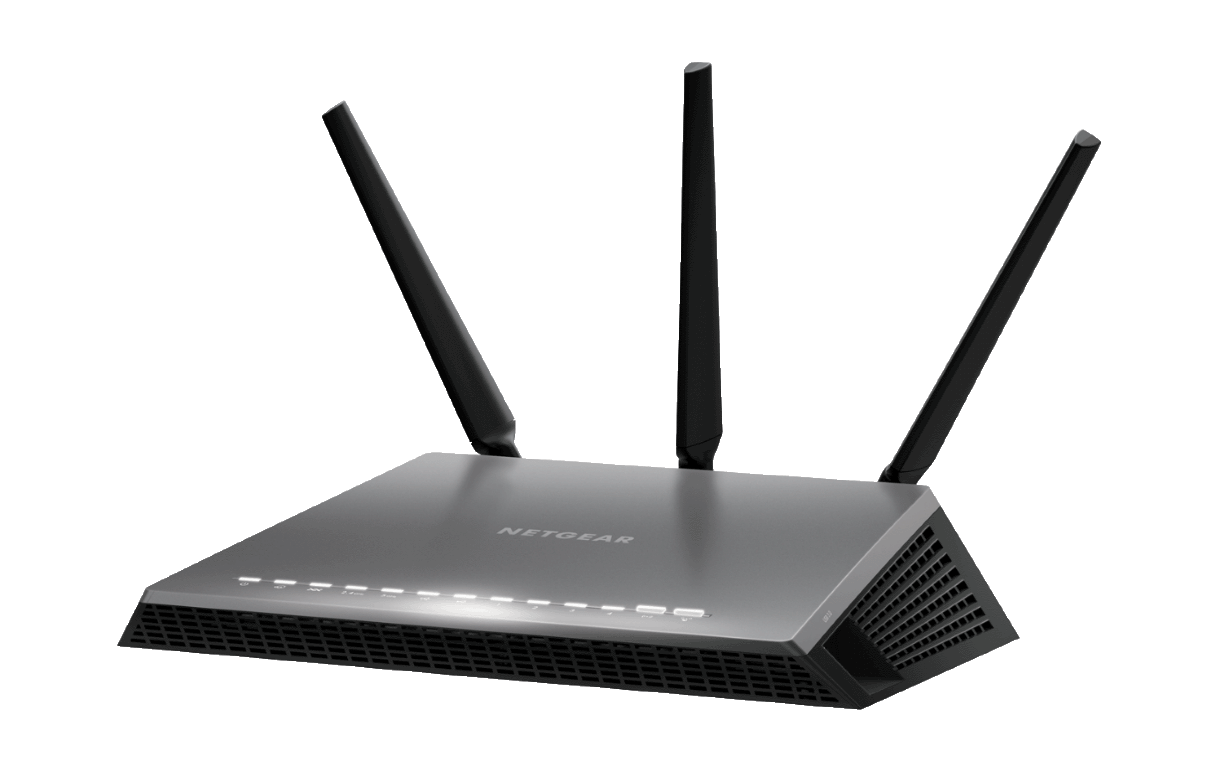
Cable Modem, Cable Gateway, and Router: What Is the Difference?
These terms describe different jobs.
Cable modem
A cable modem connects to the provider’s coaxial cable network. It normally provides one Ethernet connection for a router or computer.
A basic cable modem may not provide Wi-Fi.
Cable modem-router gateway
A gateway combines several functions:
- Cable modem
- Router
- Wi-Fi access point
- Ethernet switch
If you already have a gateway, adding a DSL router can create double NAT unless you change the gateway to bridge mode or use the DSL router as an access point.
DSL router
A DSL router may combine:
- DSL modem
- Router
- Wi-Fi access point
- Ethernet switch
Some models also support an external Ethernet WAN connection. Others do not.
The key question is not what the device is called. The key question is whether it can accept internet service through Ethernet WAN.
Should You Use the DSL Router or Buy a New Router?
Reuse the DSL router if:
- It has a confirmed Ethernet WAN port.
- The manufacturer still provides usable firmware or documentation.
- It supports your needed Wi-Fi standard and speed.
- Its security features are still adequate.
- You do not need newer features such as Wi-Fi 6 or Wi-Fi 7.
Consider a newer router if:
- The device has only an RJ11 DSL port.
- It no longer receives security updates.
- It has slow Wi-Fi or weak coverage.
- It cannot handle your internet speed.
- Its settings are locked to DSL service.
- It creates problems with modern mesh systems or IPv6.
A router can still provide basic internet access while being a poor fit for a fast cable plan. The Ethernet WAN port may support a higher speed than the router can process, but the router’s specifications and firmware determine the real limit.
Common Mistakes to Avoid
Plugging the cable modem into the DSL port
The DSL port is for a telephone-line broadband signal. A cable modem sends Ethernet data, so it needs the router’s Ethernet WAN port.
Using the wrong type of Ethernet port
A WAN port and a LAN port have different roles. A LAN port connects local devices. A WAN port connects the router to the modem.
Some advanced routers let you assign a LAN port as a WAN port. Use that option only when the manual confirms it.
Assuming every DSL router supports cable
The built-in DSL modem does not prove that the router can use Ethernet WAN. Always check the port list and WAN settings.
Restarting only the router
Cable modems may remember the last device connected to them. If the modem was connected directly to a computer, restart the modem after connecting the router.
Ignoring provider activation
A compatible modem may still need registration. The router cannot complete activation if the cable provider has not authorized the modem.
Using two routers without a plan
Two routers can create double NAT. It is not always harmful, but it can complicate port forwarding, gaming, cameras, and remote access.

Frequently Asked Questions
Can I connect a cable modem to the DSL port on my router?
No. A cable modem must connect to an Ethernet WAN or Internet port. The DSL port is designed for a signal that comes through a telephone line.
Can I use a DSL modem with cable internet?
Usually no. A DSL modem is designed for DSL signals over telephone wiring. It cannot replace a DOCSIS cable modem on a U.S. cable network.
Do I need a special router for cable internet?
You need a router with an Ethernet WAN port and settings that support your provider’s connection type. Most standard home routers meet this requirement.
Can I use a DSL router with Xfinity, Spectrum, or Cox?
You can use one with these providers if the DSL router supports Ethernet WAN and the cable modem is approved and activated by the provider. The router itself is usually not the device that needs cable-network approval.
Can I use the DSL router as a Wi-Fi access point?
Often, yes. If it cannot work as a normal router with the cable modem, you may be able to disable its DHCP server and connect it by LAN to an existing router. Follow the manufacturer’s access point instructions because the setup differs by model.
Will my DSL router support my full cable internet speed?
Not always. Check the router’s Ethernet port speed, processor limits, Wi-Fi standard, and firmware. A router with older 100 Mbps Ethernet ports can limit a faster cable plan, even if the modem supports much higher speeds.
Do I need PPPoE for cable internet?
Usually not. Most residential cable services in the United States use DHCP or Automatic IP. Use PPPoE only if your provider specifically requires it.
Final Recommendation
You can use a DSL router with a cable modem when the router has a working Ethernet WAN port and supports Automatic IP or DHCP. Connect the modem to that WAN port, activate the modem with your cable provider, and avoid using the DSL phone-line port.
If the router has only an RJ11 DSL port, it cannot connect directly to a cable modem. In that case, use a standard Ethernet router or repurpose the DSL device as an access point if its firmware supports that mode.

Tech Writer & Electronics Enthusiast
Mason Blake is a technology writer and electronics enthusiast at My Electro Hubs. He creates easy-to-follow product reviews, buying guides, troubleshooting tips, and practical tech solutions to help readers make smarter electronics choices