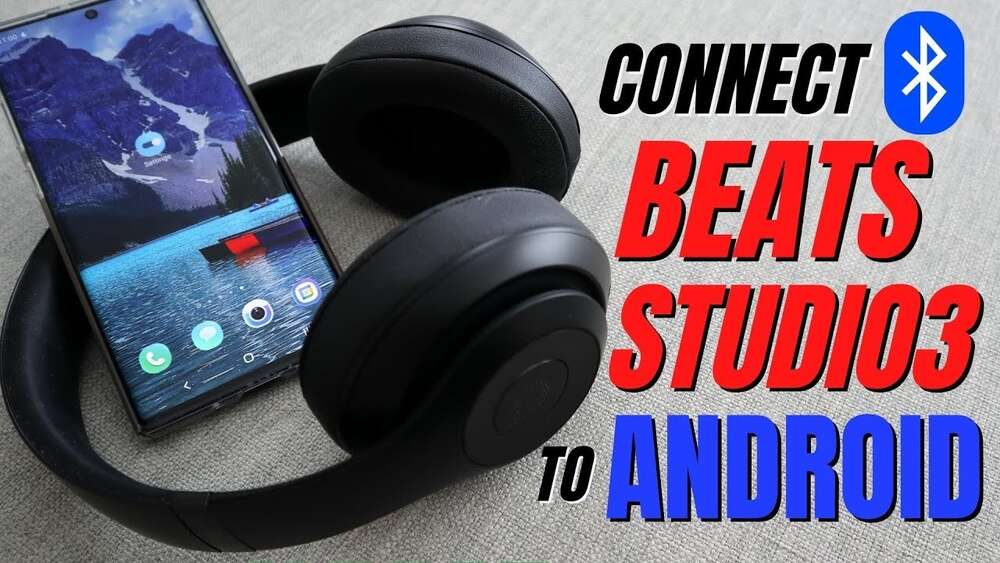
How to Connect Beats Headphones to Android: Easy Step-by-Step Guide
Connecting Beats headphones to an Android phone can seem easy, but many people face problems. Maybe you hear no sound, or your headphones won’t show up. I’ve helped family and friends with this many times. I also use Beats myself, and I know the steps and mistakes you might make. This guide is for you if you want clear, simple instructions and real advice. You don’t need tech skills. Just follow each step, and you’ll enjoy your music, podcasts, or calls with your Beats headphones and Android device.
Types Of Beats Headphones And Android Compatibility
There are several Beats headphones models. Some are wireless, some are wired. The most common are:
- Beats Studio (wireless and wired)
- Beats Solo (wireless and wired)
- Beats Powerbeats (wireless, designed for sports)
- Beats Flex (wireless, neckband style)
- Beats EP (wired, simple plug-and-play)
Android phones work with all these models. Wired Beats headphones connect with a 3. 5 mm jack. Wireless Beats use Bluetooth. If your phone has no headphone jack, you need wireless Beats or a USB-C adapter for wired ones.
Wireless Beats headphones work best with Android 8.0 or newer, but you can connect to older phones, too. The only feature you might miss is automatic pairing. That’s for Apple devices. On Android, you just pair manually, and almost all features work: sound, controls, microphone.
Preparing Your Beats Headphones
Before pairing, check these things:
- Charge your Beats headphones. Low battery can cause connection problems.
- Turn off other Bluetooth devices nearby. Sometimes, Beats try to connect to old devices first.
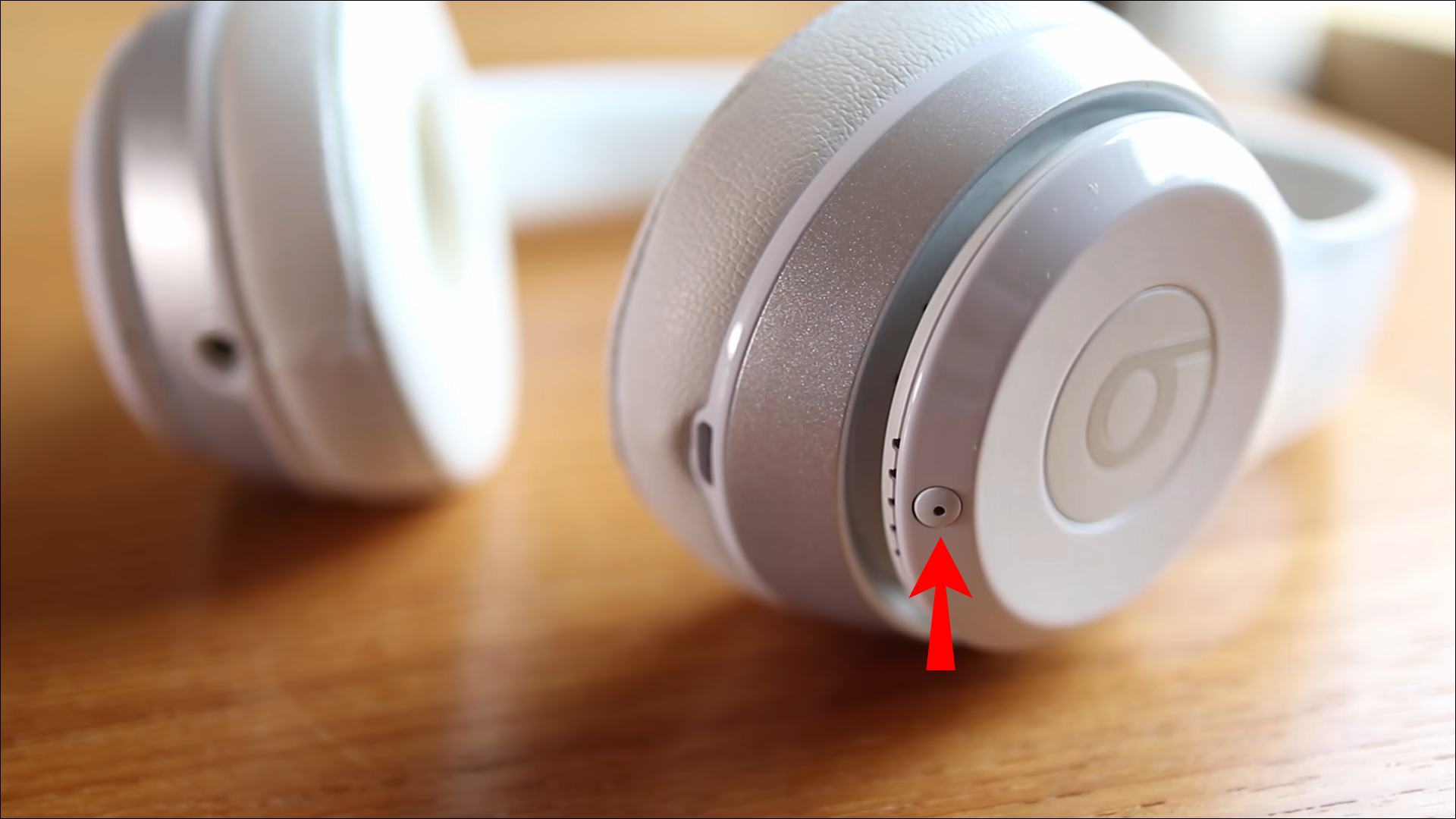
- Reset your Beats headphones if you had trouble before. To do this, hold the power button and volume down button together for 10 seconds, then release. The LED flashes, showing a reset.
Personal tip: Once, my Beats wouldn’t connect to my Samsung phone. I spent 20 minutes trying. It turned out my headphones were already paired to my laptop nearby! Turning off Bluetooth on my laptop fixed it right away. Always check for other devices.
How To Connect Wireless Beats Headphones To Android
Connecting wireless Beats headphones takes a few steps. Here’s the best way:
Step 1: Enable Bluetooth On Your Android Device
- Open Settings on your phone.
- Tap Connections or Bluetooth.
- Switch Bluetooth ON.
You should see a list of available devices.
Step 2: Put Beats Headphones In Pairing Mode
- Make sure Beats are off.
- Press and hold the power button for 5 seconds.
- Look for a flashing LED (white or blue, depending on model). This means pairing mode.
Step 3: Find Beats Headphones On Your Android
- In Bluetooth settings, wait a few seconds.
- Tap Scan or wait for your phone to update the list.
- Look for the name: “Beats Solo3”, “Powerbeats Pro”, or something similar.
Step 4: Connect And Test
- Tap your Beats name.
- Wait for “Connected” to appear.
- Play music or a video to test sound.
If you hear music, you’re ready. If not, try these quick fixes:
- Turn off Beats and repeat pairing steps.
- Restart your Android phone.
- Move Beats closer to your phone (less than 3 feet).
Step 5: Use Controls And Microphone
Beats wireless headphones have buttons for:
- Volume up/down
- Play/pause
- Answer/end calls
On Android, these buttons work for most apps. The microphone is also active during calls or voice messages.
How To Connect Wired Beats Headphones To Android
Wired Beats headphones are easy to connect. Here’s what to do:
- Plug the 3.5 mm jack into your phone’s headphone port.
- If your phone has no port, use a USB-C adapter (buy a quality one; cheap adapters can cause sound issues).
- Play music or a video.
- Adjust volume with your phone or headphone controls.
One time, I used a cheap adapter with my Beats EP. The sound was weak, and sometimes the left side didn’t work. When I switched to a genuine Samsung adapter, everything sounded clear. Don’t ignore adapter quality.
Connecting Beats Headphones With Fast Pair (if Supported)
Some newer Beats models (like Beats Studio Buds) support Google Fast Pair. This makes pairing quicker on Android.
How it works:
- Turn on your Beats near your Android phone.
- A pop-up appears: “Connect Beats?”
- Tap “Connect”.
You’re done! Fast Pair also shows battery life and lets you find lost headphones later.
Note: Fast Pair only works if your Android phone supports it (usually Android 10 or newer).
Troubleshooting Common Problems
Sometimes, Beats won’t connect. Here’s how to fix the most common issues:
Beats Headphones Not Showing Up
- Make sure Bluetooth is on.
- Make sure Beats are in pairing mode.
- Move headphones closer to phone.
- Restart both devices.
- If paired before, “forget” Beats in Bluetooth settings, then try again.
No Sound After Connection
- Increase volume on headphones and phone.
- Check if music is playing.
- Try another app (sometimes, apps freeze).
- If using wired Beats, check adapter or cable.
Beats Keep Disconnecting
- Check battery level.
- Move away from Wi-Fi routers (they can interfere).
- Update your Android phone software.
- Reset Beats headphones.
Microphone Not Working
- Test in a voice message app.
- Try headphones in another phone.
- Check if the app has microphone permissions.
Bluetooth Interference
Bluetooth can be blocked by:
- Walls or metal objects
- Other Bluetooth devices (smartwatches, speakers)
- Wireless routers
Try connecting in a different room. Sometimes, moving just a few feet makes a big difference.
Comparing Beats Headphones Models For Android Users
Different Beats models offer different features. Here’s a quick comparison:
| Model | Wireless? | Controls | Battery Life | Android Features |
|---|---|---|---|---|
| Beats Solo3 | Yes | Play/Pause, Volume | Up to 40 hrs | Works fully |
| Powerbeats Pro | Yes | Play/Pause, Volume | Up to 9 hrs (24 with case) | Works fully |
| Beats Flex | Yes | Play/Pause, Volume | Up to 12 hrs | Works fully |
| Beats EP | No | Play/Pause, Volume | N/A | Works fully (with adapter) |
If you use your headphones for workouts, Powerbeats Pro are best. For long listening, Beats Solo3 has the longest battery life.
Comparing Beats Headphones To Other Brands
You might wonder if Beats headphones work better than other brands with Android. Here’s a comparison:
| Brand | Android Compatibility | Bluetooth Range | Battery Life |
|---|---|---|---|
| Beats | Excellent | Up to 33 feet | 9-40 hours |
| Sony | Excellent | Up to 30 feet | 10-30 hours |
| Bose | Excellent | Up to 30 feet | 20 hours |
| JBL | Good | Up to 25 feet | 10-20 hours |
Beats headphones are easy to connect and have good battery life. Sony and Bose are also strong choices, but Beats has a simple pairing process and stylish design.
Using Beats Headphones With Android Apps
Most Android apps support Beats headphones. Here’s what you can do:
- Music streaming (Spotify, YouTube Music): All controls work.
- Video streaming (Netflix, YouTube): No lag, good sound.
- Calls (Phone, WhatsApp): Microphone and buttons work.
- Voice assistants (Google Assistant): Press button to start assistant.
Tip: For best sound, update your apps. Sometimes, app updates fix bugs with headphones.
Battery And Charging Tips
Beats headphones last long, but battery care matters. Here’s what helps:
- Charge headphones fully before first use.
- Don’t let battery drop below 10% often.
- Use the original charging cable.
- If battery drains fast, reset headphones.
From experience, I noticed my Beats Solo3 lasted over 35 hours with normal use. But after using a cheap cable, battery life dropped. Switching back to the original cable fixed it. The right charger makes a difference.

Credit: jumpusapark.com
Updating Beats Headphones Firmware
Sometimes, your Beats need a firmware update. This can fix bugs or improve sound.
How to update:
- Download the Beats app from Google Play.
- Open the app, connect your headphones.
- Follow instructions to update.
Not all Beats models support updates on Android, but newer ones do. Updating is smart if you notice problems.
What To Do If Beats Headphones Won’t Connect At All
If nothing works, try these advanced steps:
- Reset Beats headphones (power + volume down for 10 seconds).
- Forget Beats in Bluetooth settings, restart your phone.
- Try pairing on another Android device. If it works, your phone may have a problem.
- Check for Android software updates.
- Visit a Beats service center if headphones won’t pair anywhere.
Sometimes, Bluetooth hardware fails in phones or headphones. If you tried all steps, and Beats won’t connect, it’s time for a repair or replacement.
Safety And Care Tips For Beats Headphones
To keep your Beats working well:
- Don’t use headphones in rain or near water.
- Store in a case when not in use.
- Clean headphones with a soft, dry cloth.
- Avoid pulling on the cable (for wired models).
- Charge with official cable and charger.
If you drop your Beats or spill water, dry them fast and check for damage. Taking care helps Beats last longer.
Real-life Example: Helping A Friend Connect Beats To Android
Last year, my friend bought Beats Studio Buds. She had a Samsung Galaxy phone. She tried pairing, but nothing happened. I asked her to:
- Turn Bluetooth off and on again.
- Put the Beats in pairing mode (press and hold button until LED flashes).
- Forget old devices in Bluetooth settings.
After these steps, her phone found the Beats. She tapped the name, and they connected. She was happy, and now uses them daily.
This shows that small details matter. Don’t panic if headphones don’t connect at first. Follow steps, and you’ll get it working.
Tips For Better Sound And Experience
To get the most from Beats headphones on Android:
- Use high-quality music apps.
- Try different ear tips (for in-ear models).
- Update Android software.
- Adjust equalizer settings for best sound.
Some Android phones have a sound quality setting. In Settings > Sound > Advanced, you can boost bass or treble. Try it for better music.
Environmental And Health Considerations
Using headphones safely is important. Keep volume below 80% to protect your hearing. Take breaks every hour. Clean ear tips often.
Beats headphones use lithium batteries. Don’t throw them in trash. If you upgrade, recycle your old headphones at an electronics center.
Credit: www.alphr.com
Buying Beats Headphones For Android: What To Look For
If you’re shopping for Beats headphones for Android, here are key points:
- Choose wireless if your phone has no headphone port.
- Pick a model with long battery life if you listen a lot.
- For workouts, pick sweat-resistant models like Powerbeats Pro.
- Check for Fast Pair support for quick setup.
- Buy from official dealers for warranty.
Don’t buy used headphones without checking battery and condition. Warranty matters, especially if you have pairing issues.
Quick Reference: Connecting Beats Headphones To Android
Here’s a summary for fast help:
- Charge your headphones.
- Enable Bluetooth on Android.
- Put Beats in pairing mode.
- Find Beats in Bluetooth list, tap to connect.
- Test sound and microphone.
- If wired, plug in jack or adapter.

Credit: www.youtube.com
Comparing Fast Pair Vs Manual Pairing
Some Beats models support Fast Pair, others don’t. Here’s a comparison:
| Feature | Fast Pair | Manual Pairing |
|---|---|---|
| Setup Speed | Instant | 1-2 min |
| Battery Info | Shown | Not shown |
| Find My Device | Works | Not supported |
| Supported Models | Some Beats | All Beats |
If your Beats headphones support Fast Pair, use it. But manual pairing works for every model.
Frequently Asked Questions
Can I Connect Beats Headphones To Any Android Phone?
Yes, you can connect Beats headphones to almost any Android phone. Wireless models use Bluetooth, and wired models use a headphone jack or USB-C adapter. Some features, like Fast Pair, may require Android 10 or newer.
Why Won’t My Beats Headphones Show Up In Bluetooth Settings?
If your Beats don’t appear, make sure they’re in pairing mode (LED flashing). Restart Bluetooth on your phone. Move headphones closer. If paired to another device, turn that device’s Bluetooth off.
Do Beats Headphones Work With All Android Apps?
Yes, Beats headphones work with almost every Android app, including music, video, and call apps. Button controls and microphone are supported. Some advanced features (like battery pop-ups) may need newer phones.
How Can I Improve Beats Sound Quality On Android?
Update your Android software and music apps. Try equalizer settings in your phone’s sound menu. Use high-quality ear tips. Charge headphones fully for best performance.
Where Can I Find Official Help For Beats Headphones?
For official support, visit the Apple Beats Support page. You’ll find troubleshooting guides, warranty info, and contact options.
Connecting Beats headphones to Android is simple when you know the steps. Most problems are easy to fix. With the right tips, your music and calls will sound great. Enjoy your Beats headphones and make the most of your Android device!