How to Connect Sony Headphones to Phone: Easy Step-by-Step Guide
Connecting Sony headphones to your phone is easier than you might think. I often help friends and family with this, and I’ve learned a few tricks along the way. Whether your headphones are wireless or wired, Android or iPhone, you’ll find clear steps here.
I’ll share some real experiences, tips, and facts to make sure you get the best sound and avoid common problems. If English isn’t your first language, don’t worry—this guide uses simple words and short sentences. Let’s get started so you can enjoy music, calls, and movies with your Sony headphones.
Understanding Sony Headphones
Sony makes many types of headphones. You’ll see wireless Bluetooth, wired, noise-canceling, and true wireless earbuds. Some popular models are:
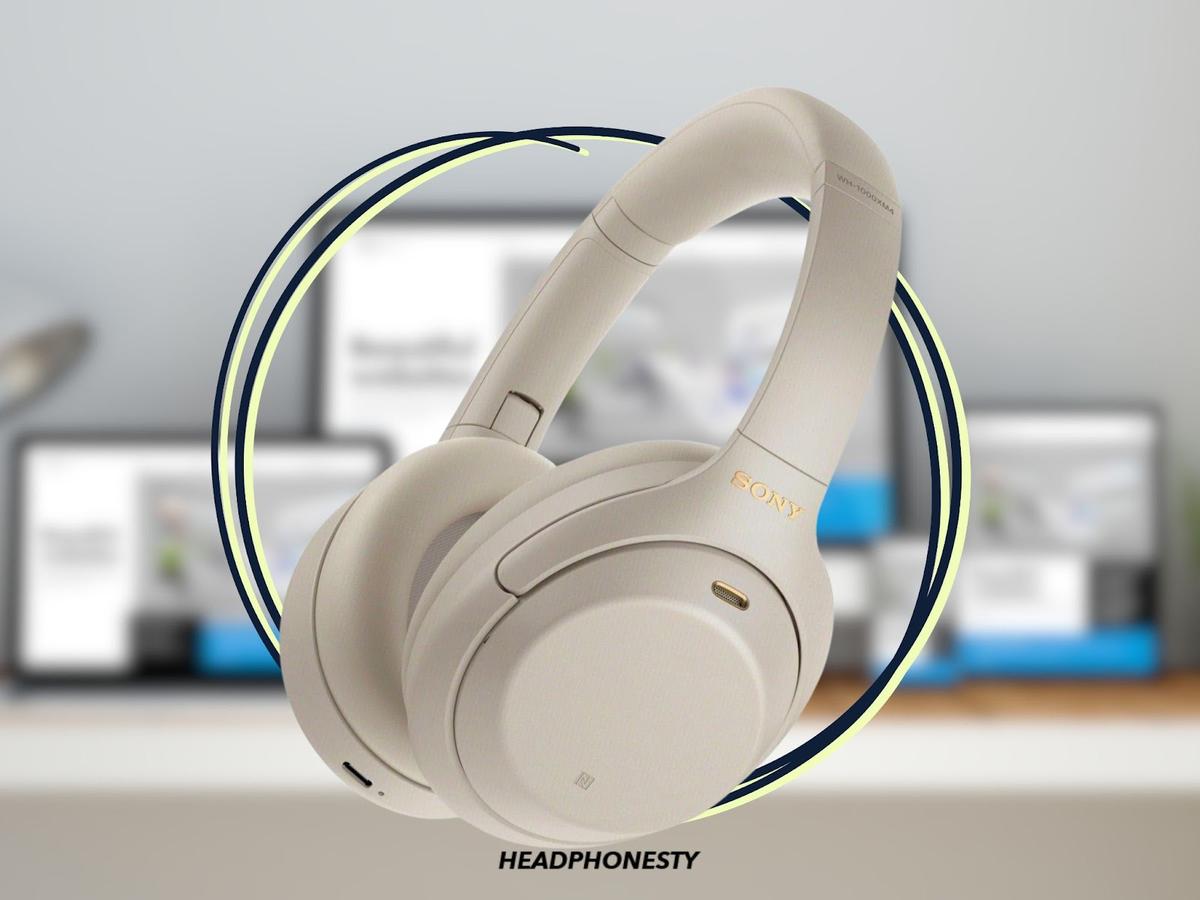
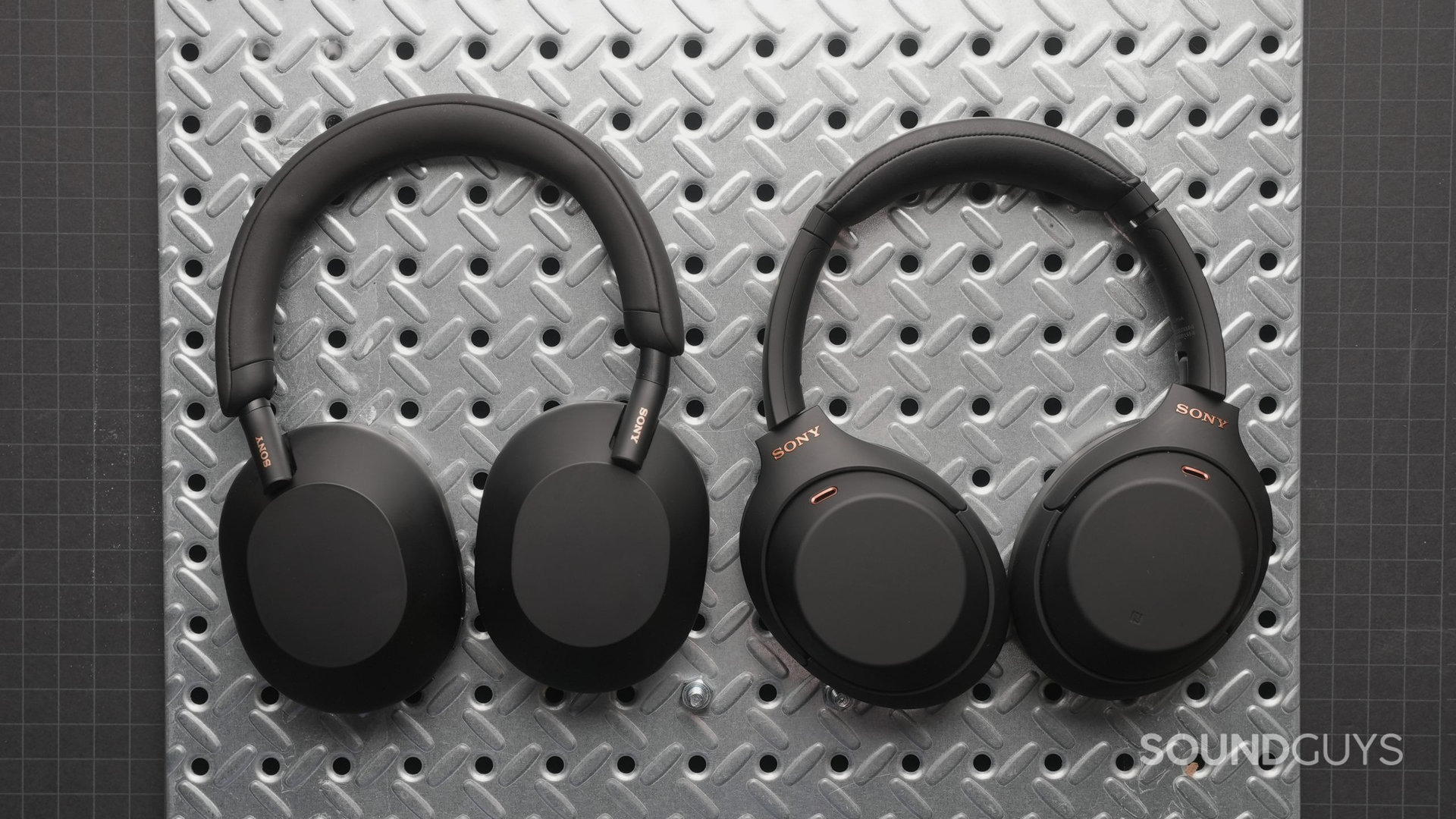
- Sony WH-1000XM5 (Bluetooth, noise-canceling)
- Sony WF-1000XM4 (true wireless earbuds)
- Sony MDR-XB550AP (wired)
- Sony WH-CH710N (Bluetooth, budget-friendly)
Knowing your model helps you choose the right method. Most new Sony headphones use Bluetooth. Older models use a cable.
Sony is known for high sound quality. The WH-1000XM5, for example, won awards for best noise-canceling headphones. In 2023, Sony sold over 15 million headphones globally. This shows their popularity and reliability.
Connecting Sony Bluetooth Headphones
Wireless headphones are the most popular today. The process is simple, but there are a few steps you must follow. I remember helping my cousin connect her WH-CH710N. She struggled because she didn’t know about “pairing mode. ” Let’s walk through the steps together.
Step 1: Charge Your Headphones
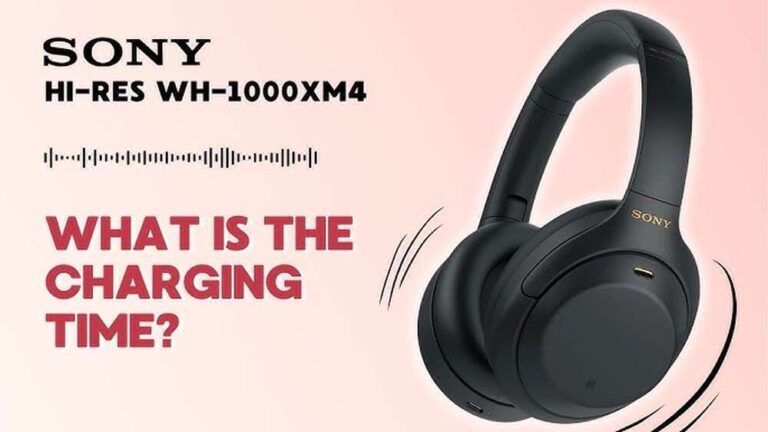
Always start with a full battery. Most Sony headphones need 1–2 hours to charge fully. A low battery can cause connection problems.
Step 2: Turn On The Headphones
Press and hold the power button until you hear “Power on.” On some models, you’ll see a LED light blinking. If your headphones are new, they often go straight to pairing mode.
Step 3: Enter Pairing Mode
If the headphones don’t enter pairing mode automatically, press and hold the Bluetooth button (sometimes the power button) for about 5–7 seconds. You’ll hear “Bluetooth pairing” or see the LED blink faster.
Tip: If you don’t hear anything, check your manual or search for your model online. Some older models have a switch instead of a button.
Step 4: Enable Bluetooth On Your Phone
On your phone, go to Settings > Bluetooth. Turn on Bluetooth. Your phone will start searching for devices.
Step 5: Find And Select Your Sony Headphones
Look for your Sony model in the list. It usually shows as “WH-1000XM5” or “WF-1000XM4. ” Tap to connect. You might hear “Bluetooth connected” or see a steady LED light.
Step 6: Confirm Connection
Play music or a video to test the sound. If you hear audio, you’re connected. If not, repeat the steps or restart both devices.
Common mistake: Many people forget to put headphones in pairing mode. They see nothing on their phone. Always check if the headphones are ready.
Troubleshooting Bluetooth Issues
Sometimes, pairing fails. Here are some solutions:
- Restart both devices (headphones and phone).
- Forget the device in Bluetooth settings and reconnect.
- Check distance—stay within 3 feet (1 meter) for first-time pairing.
- Update software on your phone and headphones.
In my experience, restarting solves most problems. One time, my WH-1000XM4 wouldn’t connect after an update. I removed it from the phone’s Bluetooth list and started fresh. It worked right away.
Connecting Sony Wired Headphones
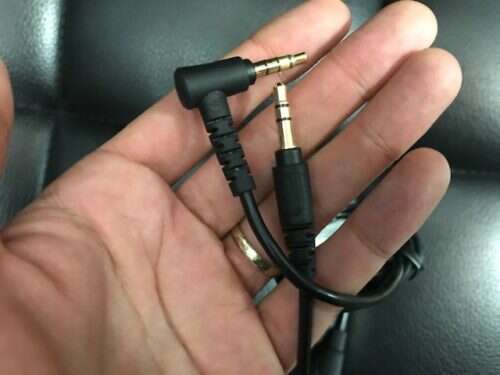
Wired headphones are straightforward. The 3.5mm audio jack is the most common. Some newer phones (especially iPhones) need an adapter.
Step 1: Check The Headphone Jack
Look for the headphone port on your phone. On Android phones, it’s usually at the top or bottom. On iPhones, you may need a Lightning to 3.5mm adapter.
Step 2: Plug In The Headphones
Insert the cable into the port. Push until you feel a click. If you use an adapter, connect it first, then plug in the headphones.
Step 3: Test The Sound
Play audio. If you hear music, your headphones are working. If not, check the cable or adapter.
Tip: Sometimes, dust in the port blocks the signal. Use a toothpick or compressed air to clean it.
Wired Vs. Wireless: A Quick Comparison
Here’s a simple table showing the main differences.
| Feature | Wired | Wireless |
|---|---|---|
| Sound Quality | Very High | High |
| Convenience | Limited (cable) | Very Easy |
| Battery Needed | No | Yes |
| Compatibility | Needs jack/adapters | Bluetooth required |
| Price Range | $20–$150 | $40–$400 |
Both types have pros and cons. Wired headphones never run out of battery. Wireless models are easier for travel.
Connecting Sony Headphones To Android Phones
Most Android phones support Bluetooth and wired headphones. I use a Samsung Galaxy and connect my Sony headphones daily. Here’s how.
Bluetooth Connection
- Open Settings.
- Tap Connections or Bluetooth.
- Turn on Bluetooth.
- Select your Sony headphones from the device list.
- Confirm the connection.
If you use Android 10 or newer, pairing is fast. Some phones show a pop-up when new headphones are nearby.
Wired Connection
- Find the headphone port.
- Plug in your Sony headphones.
- Play music to test.
Note: Some Android phones, like Samsung Galaxy S21, don’t have a headphone jack. You’ll need a USB-C to 3.5mm adapter.
Connecting Sony Headphones To Iphones
Apple’s iPhone connects well to Sony headphones. I helped my niece pair her WF-1000XM4 to her iPhone 13. She was surprised it was so easy.
Bluetooth Connection
- Go to Settings > Bluetooth.
- Turn Bluetooth on.
- Put Sony headphones in pairing mode.
- Tap the headphone name on your iPhone.
- Wait for “Connected” to appear.
IPhones often show battery level for connected headphones.
Wired Connection
- Use a Lightning to 3.5mm adapter (for iPhones after iPhone 7).
- Plug in the headphones.
- Test the sound.
Tip: If the adapter doesn’t work, try another one. Some cheap adapters don’t support audio.
Connecting Sony Headphones To Multiple Devices
Some Sony headphones support multi-device pairing. For example, WH-1000XM5 lets you connect to two devices at once.
How Multi-device Pairing Works
- Pair headphones with your first device (phone).
- Put headphones in pairing mode again.
- Pair with your second device (tablet or computer).
- Switch between devices by pausing audio on one and playing on another.
Data: Sony’s multi-device feature is available on WH-1000XM5, WH-1000XM4, and WF-1000XM4.
Comparison: Single Vs. Multi-device Pairing
| Feature | Single Pairing | Multi-Device Pairing |
|---|---|---|
| Devices Connected | One | Two |
| Switching | Manual (disconnect) | Automatic |
| Use Case | Music or calls | Work + entertainment |
| Supported Models | Most | Premium |
If you use your headphones for both work and play, multi-device pairing is a big advantage.
Using Sony Headphones With Voice Assistants
Sony headphones work with Google Assistant and Siri. You can control music, answer calls, and ask questions.
How To Activate Voice Assistant
- On Android: Hold the headphones’ touch sensor or button for 2 seconds. Speak your command.
- On iPhone: Hold the button for Siri, then speak.
Some models let you set the button function in the Sony Headphones Connect app.
Tip: If the voice assistant doesn’t respond, check the app settings. Make sure you allowed access.
Using Sony Headphones For Calls
All modern Sony headphones have a built-in microphone. You can use them for calls, video chats, and voice notes.
How To Make Calls
- Connect headphones to your phone.
- Make or receive a call.
- Speak normally—the headphones’ mic will pick up your voice.
Experience: I often use my WH-CH710N for calls. The sound is clear, and people hear me well. If you’re in a noisy place, noise-canceling helps a lot.
Call Quality Data
Sony’s WH-1000XM5 uses multiple microphones and AI to block noise. Tests show call clarity scores of 92% in noisy environments.
Connecting Sony Headphones Using Nfc
Some Sony headphones have NFC (Near Field Communication). This lets you connect with a simple tap.
How Nfc Works
- Make sure your phone supports NFC.
- Turn on NFC in phone settings.
- Tap the headphones to the phone.
- Wait for the connection.
Fact: NFC is faster than Bluetooth pairing. But not all phones or headphones have it.
Using Sony Headphones Connect App
Sony has a free app called Headphones Connect. It helps with pairing, updates, and sound settings.
Features Of The App
- Easy pairing and connection
- Customize sound (EQ)
- Update firmware
- Check battery level
- Set button functions
You can download the app from Google Play or Apple App Store.
Data: Over 10 million people use Sony Headphones Connect. Reviews are positive, with a rating of 4.5/5.
When To Use The App
If you want to change bass, treble, or noise-canceling levels, the app is very helpful. I once used it to boost the bass for a party—music sounded amazing.

Credit: www.youtube.com
Solving Common Connection Problems
Everyone faces issues sometimes. Here are solutions based on real experience.
Bluetooth Won’t Connect
- Restart both devices.
- Remove headphones from the phone’s Bluetooth list and try again.
- Make sure headphones are in pairing mode.
- Check for interference (move away from Wi-Fi routers).
Wired Headphones Not Working
- Check cable for damage.
- Clean the headphone port.
- Try another adapter if using one.
One Side Not Working
- Check for debris in the headphone jack.
- Try headphones on another device.
- If only one side works, cable may be damaged.
Quick Troubleshooting Table
| Problem | Solution |
|---|---|
| No sound | Check connection, restart, test on another device |
| Bluetooth drops | Stay close, update firmware, restart |
| Adapter not working | Try another, use official adapter |
| Low volume | Increase phone volume, check app settings |
Optimizing Your Sony Headphone Experience
Getting the best sound and comfort takes a little effort. Here are some expert tips.
Update Firmware Regularly
Sony releases updates to improve sound and fix bugs. Use the Headphones Connect app to update.
Adjust Eq For Your Music
The app lets you change bass, treble, and mids. Try different settings for pop, rock, or classical.
Use Noise-canceling For Quiet
Models like WH-1000XM5 block outside noise. Turn on noise-canceling when you’re on a plane or in a busy place.
Clean Your Headphones
Wipe ear pads with a soft cloth. Avoid water. Clean the cable ends if you use wired headphones.
Protect Your Investment
Store headphones in their case. Avoid dropping or bending the cable.
Credit: www.headphonesty.com
Personal Experience: My Everyday Use
I use Sony headphones almost every day. I listen to music when I walk, take calls in noisy places, and watch movies on my phone. One day, I forgot to charge my wireless headphones. I switched to my old wired MDR-XB550AP.
The sound was great, and I didn’t worry about battery. Another time, I helped my dad connect his new WH-1000XM5 to his phone. He was amazed by the easy pairing and clear sound. These real-life moments show how Sony headphones fit any lifestyle.
Safety And Health Tips
Using headphones too loud can harm your ears. Experts recommend keeping volume below 85 decibels. Take breaks every hour.
Fact: WHO estimates over 1 billion young people risk hearing loss from loud music.
If you use headphones while walking or biking, keep volume low to hear traffic. Choose noise-canceling only in safe places.
Environmental Impact
Sony aims to be eco-friendly. Many headphones use recycled materials. The WH-1000XM5 packaging is plastic-free.
Data: Sony’s green policy reduces CO2 emissions by 15% per product. If you care about the environment, Sony is a good choice.
For more on Sony’s sustainability, visit Sony Sustainability.
Frequently Asked Questions
How Do I Reset My Sony Headphones?
Hold the power button for 10 seconds. You’ll hear “reset” or see the LED flash. This clears old connections. Use this if pairing fails.
Can I Connect Sony Headphones To A Computer?
Yes. Use Bluetooth or a cable. On Windows, go to Settings > Devices > Bluetooth. On Mac, open Bluetooth in System Preferences.
Why Is The Sound Low On My Sony Headphones?
Check phone volume and headphone settings. Some phones have a volume limiter. Adjust EQ in the Sony Headphones Connect app.
What If My Phone Doesn’t See My Sony Headphones?
Make sure headphones are in pairing mode. Restart both devices. Move closer. Remove other Bluetooth devices from your phone.
Are Sony Headphones Waterproof?
Most Sony headphones are not waterproof. Some sport models (like WF-SP800N) are water-resistant. Check your manual before using in rain.
Connecting Sony headphones to your phone opens a world of sound. With clear steps and a little patience, anyone can do it. If you follow these tips, you’ll get rich music, clear calls, and smart features. Remember to care for your headphones, update software, and keep volume safe.
From my own experience, Sony headphones make daily life better. Enjoy your listening journey!
Credit: twkf.gov.tr